Help · Getting started
Adding staff
Give colleagues access under Tenant → Access, choose their role and customers, and set how they sign in, with a password and authenticator or with Microsoft single sign-on.
Last updated
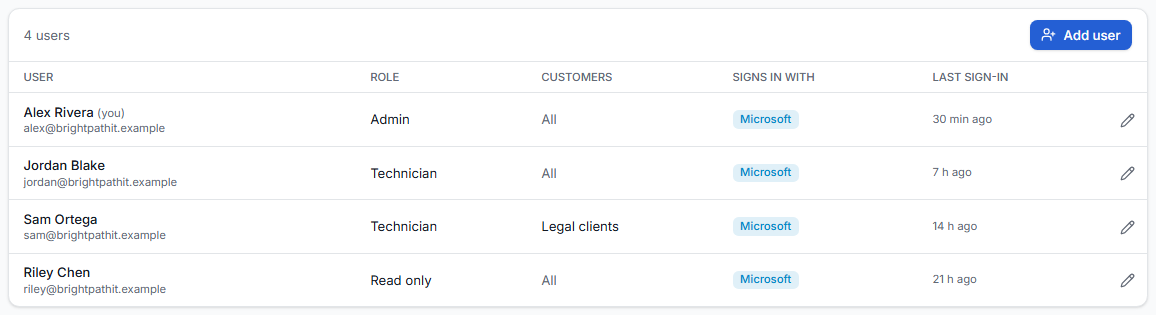
Everyone who uses Mygration has their own user, with a role and the customers they see. Admins manage them under Tenant → Access.
Roles #
| Role | Can |
|---|---|
| Admin | Everything, including access, settings, customers, connections, backups and deleting batches. Admins see every customer. |
| Technician | Runs migrations: create migrations and batches, add mailboxes, run and schedule passes, prepare destinations, manage Mail DNS domains. No settings. |
| Read only | Sees everything they have access to, changes nothing. |
Only admins see Tenant, Workers and System in the sidebar, and only admins add connections.
Add a user #
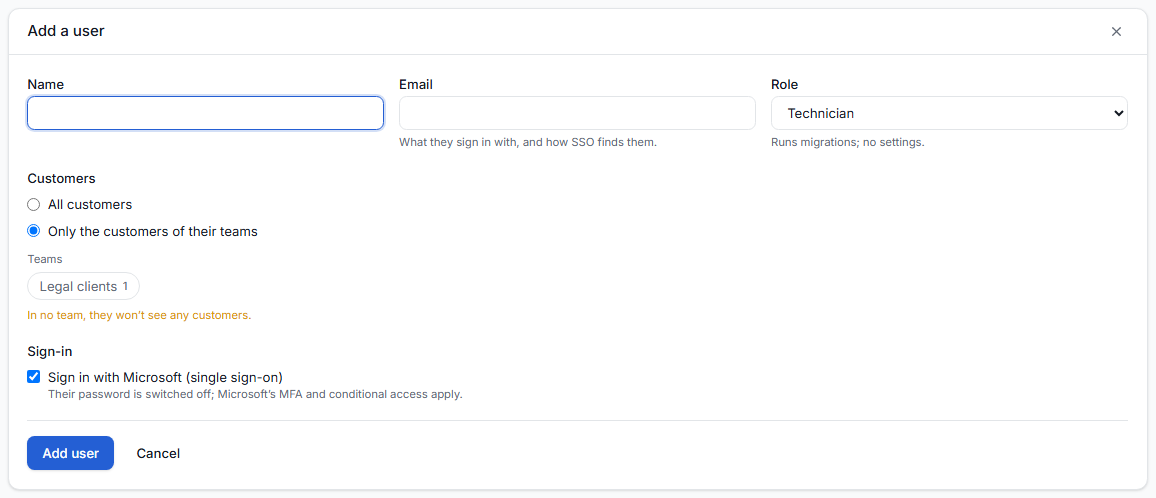
- Go to Tenant → Access, on the Users tab.
- Click Add user.
- Fill in their Name and Email. The email is what they sign in with, and how single sign-on finds them.
- Pick a Role.
- Under Customers, choose All customers or Only the customers of their teams, and click the teams they're in (see Teams).
- Under Sign-in, tick Sign in with Microsoft (single sign-on), or leave it unticked for a password.
- Click Add user.
A password user gets a Temporary password, shown once. Copy it and give it to them: they choose their own the first time they sign in. A single sign-on user just signs in with Microsoft.
Limit who sees which customers #
Teams decide which customers people see. Admins, and anyone set to All customers, see every customer.
- Go to Tenant → Access → Teams and click New team.
- Give it a Name, such as "Legal clients".
- Tick its Members and its Customers.
- Click Create team.
Someone set to Only the customers of their teams who is in no team sees no customers.
Passwords and authenticator codes #
Password users can add an authenticator app, and should: their account can reach customers' mailboxes.
- Click your name at the bottom of the sidebar, then My settings.
- Under Sign-in and security, click Set up an authenticator.
- Scan the QR code with Microsoft Authenticator, Google Authenticator or similar (or enter the key under it).
- Enter the 6-digit code it shows and click Turn on.
From then on Mygration asks for a code after the password. Change password is on the same page.
Tip
Keep at least one admin who signs in with a password and an authenticator. If single sign-on ever breaks, that admin can still get in.
Single sign-on with Microsoft #
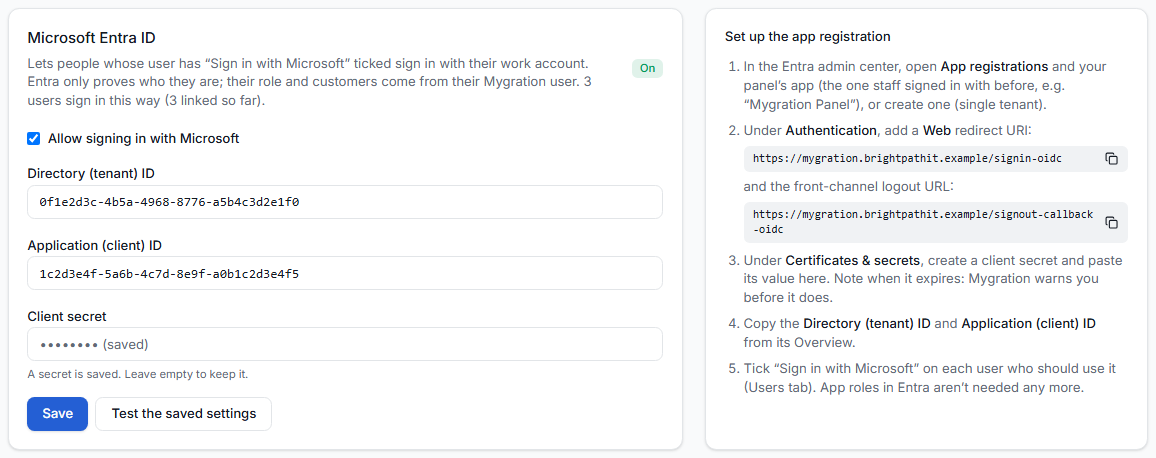
Staff can sign in with their Microsoft work account instead of a password. Microsoft's MFA and Conditional Access then apply, and their password in Mygration is switched off. Microsoft only proves who they are: their role and customers still come from their Mygration user.
Tenant → Microsoft 365 apps → Set up automatically makes the sign-in app and saves its details. Then:
- Go to Tenant → Access → Single sign-on.
- Tick Allow signing in with Microsoft and click Save.
- Click Test the saved settings.
- On the Users tab, tick Sign in with Microsoft (single sign-on) on each person who should use it.
The sign-in page then has Sign in with Microsoft.
To use an app registration you made by hand instead, follow Set up the app registration on the same tab: add the Web redirect URI and the front-channel logout URL it shows, make a client secret, then paste the Directory (tenant) ID, Application (client) ID and Client secret and Save.
Changing or removing someone #
Click a user to open them. Besides changing their name, role, customers and sign-in, you can:
- Reset password: a new temporary password. Their current one stops working and they're signed out.
- Reset authenticator: removes their authenticator; they can set a new one up in My settings.
- Unlock: after too many wrong passwords.
- Unlink Microsoft account: their next Microsoft sign-in with the same email links again.
- Disabled (can't sign in; signed out at once): tick it and Save. Disabling can be undone.
- Delete: they can't sign in any more; their history in the audit log stays. Deleting can't be undone.
Note
Remove leavers. Only people who need Mygration should have a user.