Help · Integrations
Webhooks: alerts in Teams, Slack or anywhere
Posting Mygration's alerts into a Microsoft Teams or Slack channel, or as JSON to any address, for every alert or only some.
Last updated
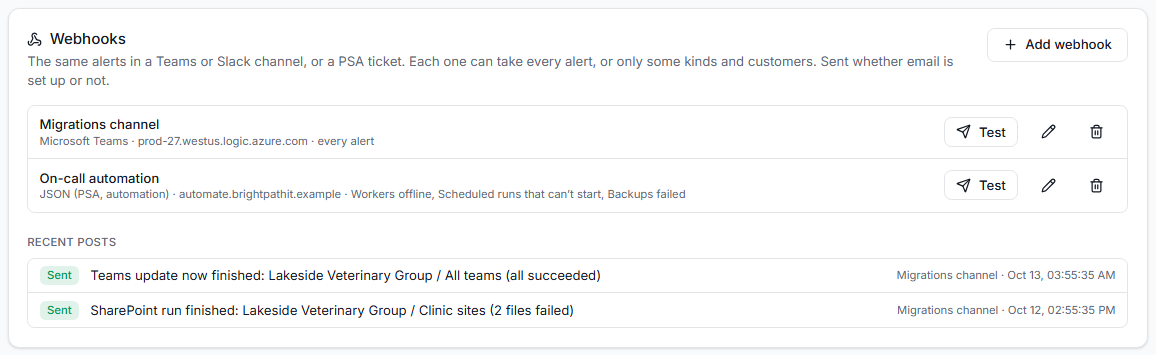
A webhook posts Mygration's alerts somewhere your team already looks: a Microsoft Teams channel, a Slack channel, or any address that takes JSON, such as a PSA's inbound webhook or an automation tool. They're the same alerts as the emails, and they're sent whether email is set up or not.
Webhooks are under Tenant → Alerts → Webhooks. Only admins can change them.
Get the webhook address #
First get an address to post to.
- Microsoft Teams: in the channel, click ⋯ → Workflows, pick Send webhook alerts to a channel, and follow its steps. Copy the address it gives you at the end.
- Slack: make a Slack app with an incoming webhook (api.slack.com/apps → Incoming Webhooks), for the channel you want. Copy its webhook URL.
- Anything else: the address your PSA, automation tool or script gives you for an inbound webhook.
Important
Anyone with a webhook address can post to it. Treat it like a password. Mygration keeps it encrypted and only shows its host afterwards.
Add a webhook #
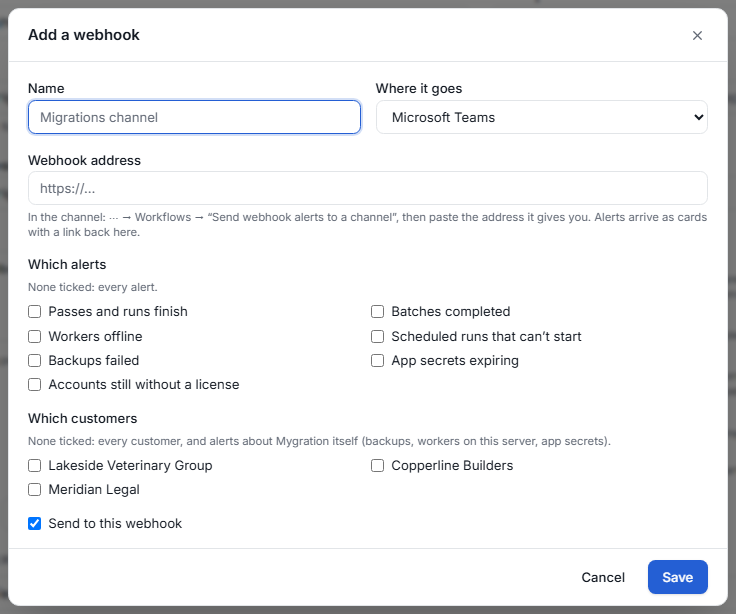
- Go to Tenant → Alerts, to Webhooks, and click Add webhook.
- Give it a Name, such as Migrations channel.
- Under Where it goes, pick Microsoft Teams, Slack or JSON (PSA, automation).
- Paste the Webhook address.
- Under Which alerts, tick the kinds to send, or tick none for every alert:
- Passes and runs finish
- Batches completed
- Workers offline
- Scheduled runs that can't start
- Backups failed
- App secrets expiring
- Accounts still without a license
- Under Which customers, tick the customers whose alerts it gets. Tick none for every customer, and alerts about Mygration itself (backups, workers on this server, app secrets).
- Leave Send to this webhook ticked.
- Click Save.
Test it #
Click Test next to the webhook. It posts a sample alert, then says Test sent: check the channel, or Test failed with the reason. Check the channel to see it arrived.
What arrives #
- Teams shows each alert as a card with a link back to the panel.
- Slack shows it as a message in the channel.
- JSON posts an object with
source,kind,title,text,link,customerandat, for your tool to open a ticket or page someone from.
Recent posts, under the list, shows the latest with Sent, Queued or Not sent. One that wasn't sent shows the reason, how many tries it's had and when it tries next.
Change or remove a webhook #
- Click the pencil to change it. Leave Webhook address empty to keep the saved one, or paste a new one to replace it. Untick Send to this webhook to pause it; it shows Off in the list.
- Click the bin to remove it.
Ideas #
- A Teams channel for everything, so the whole team sees passes finish.
- A second webhook to an on-call tool with only Workers offline, Scheduled runs that can't start and Backups failed.
- A customer-specific channel with just that customer ticked, for a big project.
For tickets in ConnectWise PSA, Autotask or HaloPSA, matched to each customer's company, use PSA tickets instead.