Help · Customers and connections
Connecting a customer's Microsoft 365 tenant
Get the customer's admin consent, give the migration app its Exchange role, and check what Mygration can do in the tenant.
Last updated
To move anything into or out of a customer's Microsoft 365 tenant, Mygration needs that tenant connected. It takes three things: an admin consent, an Exchange role for the migration app, and a check.
Connect both tenants for a tenant-to-tenant move: the old one as the source and the new one as the destination.
Before you start #
- The Microsoft 365 apps are set up: Tenant → Microsoft 365 apps (see Getting started). Until they are, Connect Microsoft 365 is greyed out.
- You'll need a Global Administrator of the customer's tenant, or you have admin rights there yourself (through GDAP, for example).
- Adding connections is for Mygration admins.
Add the connection #
- Open Customers and the customer.
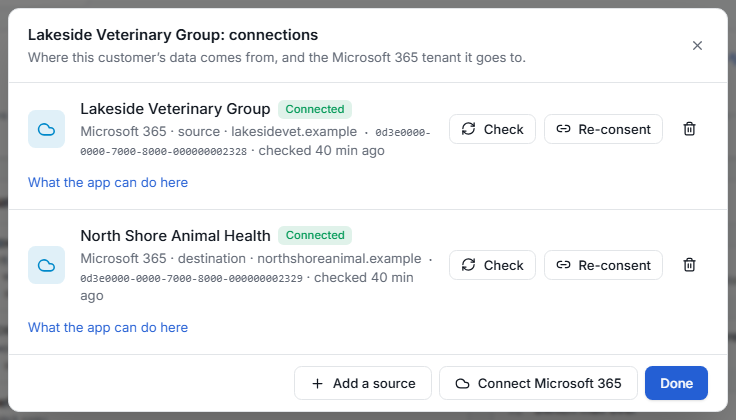
- Click Connections.
- For the tenant everything moves into, click Connect Microsoft 365.
- For a tenant everything moves out of, click Add a source, then Another Microsoft 365 tenant.
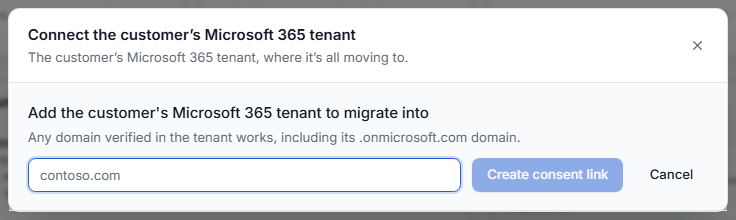
- Type any domain verified in the tenant. The
.onmicrosoft.comdomain works too. - Click Create consent link.
Get admin consent #
A Global Administrator of the tenant must open the consent link and accept.
- If you have admin rights in their tenant, click Open consent page and accept it yourself.
- Otherwise, click Copy link and send it to the customer's Global Administrator. The link works for 7 days.
While the window is open, Mygration checks every few seconds. When the consent is through, it says the domain is connected. You can close the window and come back: click Check on the connection later.
Note
Right after consent, Microsoft can take a few minutes to apply it. If Check says it's not allowed to read the organization, wait a few minutes and click Check again. See Troubleshooting connections.
Give the migration app the Exchange Administrator role #
Consent alone doesn't let Mygration work in Exchange Online. To create mailboxes, read which mailboxes are shared, copy mailbox permissions, inbox rules and automatic replies, and make distribution lists and mail-enabled security groups, the migration app needs an Exchange role in the tenant. Do this in every tenant you connect, source and destination.
- Sign in to the Microsoft Entra admin center (entra.microsoft.com) for the customer's tenant, as a Global Administrator or Privileged Role Administrator.
- Go to Roles & admins, and open Exchange Administrator.
- Click Add assignments.
- Search for Mygration Migration Engine and select it. (If your apps were made by hand under another name, pick that app.)
- Finish the assignment. If Privileged Identity Management asks, make it Active and Permanent.
Tip
Exchange Recipient Administrator is enough to create mailboxes and copy mail, permissions and rules, but not to make mail-enabled security groups. Exchange Administrator covers everything.
A new role can take from a few minutes to a few hours to work in Exchange.
Check the connection #
Click Check on the connection. It signs in to the tenant again and confirms the consent.
Then click What the app can do here. It lists what Mygration does in a tenant, grouped as Mail, Groups, Files and Teams:
- A green tick: the app may do it.
- A red cross: it can't yet. The line says what's missing and how to fix it, such as a role to give or a consent to repeat. Batches that need it would fail, so fix it first.
- A grey question mark: Mygration couldn't tell, usually because it couldn't sign in. Check the connection again.
If something's missing when you click Check, the list opens by itself.
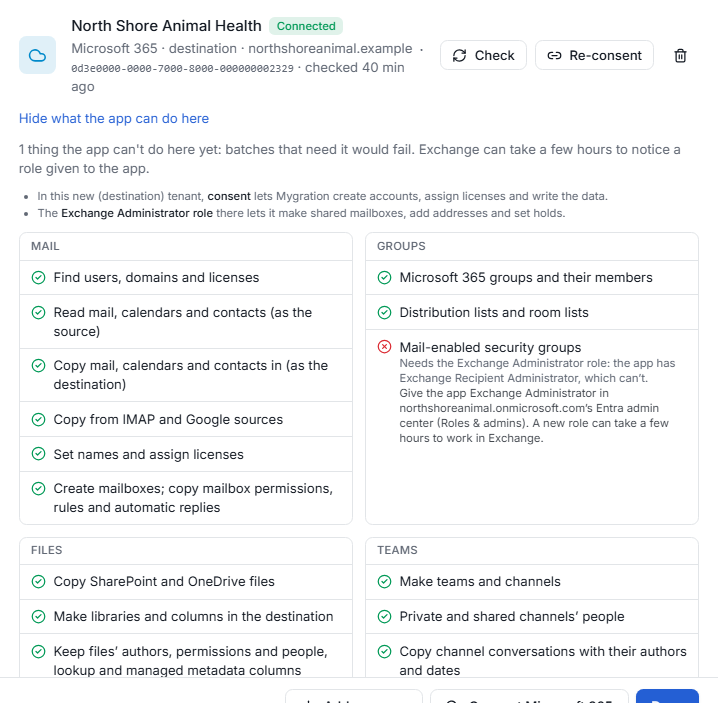
In this example the app has Exchange Recipient Administrator, so it can't make mail-enabled security groups. Giving it Exchange Administrator fixes that.
When a new version needs more permissions #
Some Mygration updates need a new permission, for example to copy Planner plans. After an admin clicks Update permissions under Tenant → Microsoft 365 apps, each customer's tenant must consent again:
- Open the customer's Connections.
- Click Re-consent on the Microsoft 365 connection.
- Have a Global Administrator open the link and accept, as the first time.
- Click Check.
Until a tenant has re-consented, What the app can do here shows what's missing on its connection, marked Not granted.
Removing a connection #
The bin icon on a connection removes it from Mygration. It doesn't revoke the consent in the customer's tenant. To do that, remove the app under Enterprise applications in their Entra admin center.