Help · Files: OneDrive, SharePoint and file servers
Migrating Box
Copy each person's own Box into their OneDrive, and Box folders into SharePoint libraries.
Last updated
A Box migration copies each person's own Box (what they own) into their OneDrive, and folders you pick into SharePoint libraries, with their folders and dates. Every file is checked as it arrives.
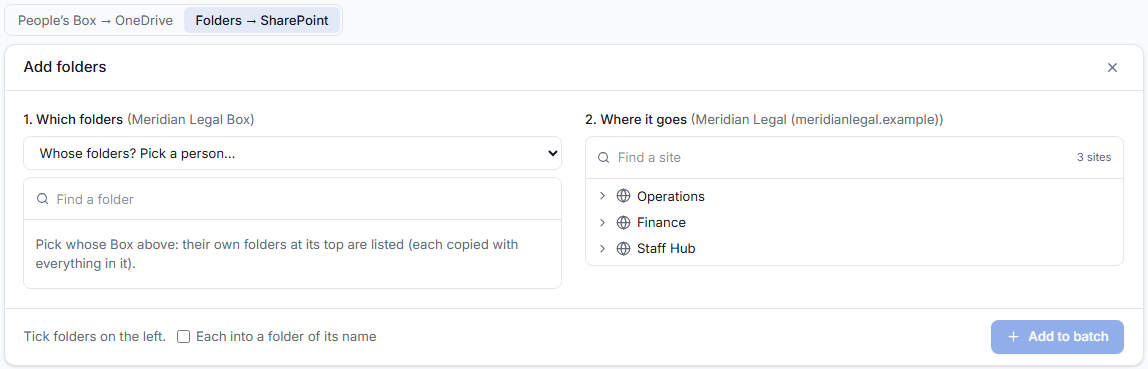
The screenshot shows the demo's Meridian Legal, moving from Box to Microsoft 365.
Before you start #
- The Box connection is set up on the customer: your Box app, authorized by the customer's Box admin, with their enterprise ID.
- The customer's Microsoft 365 tenant is connected. See Connecting a customer's Microsoft 365 tenant.
- People's OneDrives are set up in the new tenant. The batch lists anyone without one, with the command to set them all up (as for a OneDrive migration).
Tip
Try one person first: add them to a batch on their own, copy, and look at the result before adding everyone.
1. Create the migration and a batch #
- Open the customer and click New migration.
- Pick the Box connection as the source and the Microsoft 365 tenant as the destination.
- Tick Box, click through to Review and click Create migration.
- Type a Batch name and click Next: what it copies.
2. Add people's Box #
- Click People's Box → OneDrive. The enterprise's people are listed with how much each one has.
- Check who each person Goes to in the new tenant, and type an address where none was found.
- Tick the people moving, or Pick everyone matched, and click Add … people.
Only what each person owns is copied into their OneDrive. Folders others shared with them are copied with their owner's Box.
3. Add folders into SharePoint #
- Click Folders → SharePoint.
- Under Whose folders? Pick a person…, choose the person who owns the folders. The folders they own at the top of their Box are listed.
- Tick the folders. Each is copied with everything in it.
- On the right, pick the library, or a folder in it, where they go.
- Each into a folder of its name is ticked when you pick several. Tick or untick it as you like.
- Click Add … to batch.
4. Start #
Check the batch's Settings tab, then click Start. Run again later copies only what's new or changed, and follows renames and moves.
What isn't copied #
- Box Notes, Box Canvas and bookmarks (web links) can't be exported from Box. They're listed, not copied.
- Sharing. Share again in OneDrive or SharePoint what needs sharing.
- Deletions. Nothing is ever taken out of the destination.
Characters SharePoint refuses in names become _.
Next steps #
- Cutover for files: the last copy, switching the sync app and closing Box.
- When a destination is full.