Help · Customers and connections
Connecting Google Workspace
Make a Google Cloud project and service account, have the customer's super admin authorise it with domain-wide delegation, then add and test the connection.
Last updated
Mygration reads Gmail, calendars, contacts, groups and Google Drive with a service account that the customer's Google admin authorises once, read-only, for their whole domain. No user passwords are needed.
It takes about five minutes. Steps 1 to 3 can be done in any Google Cloud account, including your MSP's own: the service account doesn't have to belong to the customer. Step 4 needs the customer's Google super admin.
The connection form shows the same steps, with links straight to each Google page.
1. Create a Google Cloud project #
- Open the Google Cloud console's New project page.
- Give it any name, such as "Mygration", and create it. No billing account is needed.
2. Enable the APIs #
With the new project selected at the top of the console, open each of these in the API Library and click Enable:
| API | Needed for |
|---|---|
| Gmail API | Mail (this one alone is enough for mail) |
| Google Calendar API | Calendars |
| People API | Contacts |
| Admin SDK API | Groups, and the list of people |
| Google Drive API | Google Drive migrations |
3. Create a service account and its key #
- Open Create service account in the Google Cloud console.
- Give it a name and click Done. It needs no roles.
- Open the service account, go to Keys, then Add key → Create new key → JSON. Your browser downloads a JSON file: keep it for the connection.
- On the service account's Details tab, copy its Unique ID (a long number) for the next step.
Note
"Key creation is disabled"? The organisation blocks service account keys by default. Allow it for this project under
Organization policies (iam.disableServiceAccountKeyCreation). That needs the Organization Policy Administrator
role.
4. Authorise it in the customer's Google Admin #
The customer's super admin does this, in their own Google Admin console.
Open Domain-wide delegation (in the Admin console it's under Security → Access and data control → API controls).
Click Add new.
Client ID: the service account's Unique ID from step 3.
OAuth scopes: paste the whole line from the connection form (its copy button copies it). It's all of these, read-only, comma-separated on one line:
https://www.googleapis.com/auth/gmail.readonly,https://www.googleapis.com/auth/calendar.readonly,https://www.googleapis.com/auth/contacts.readonly,https://www.googleapis.com/auth/userinfo.profile,https://www.googleapis.com/auth/calendar.acls.readonly,https://www.googleapis.com/auth/admin.directory.group.readonly,https://www.googleapis.com/auth/drive.readonly,https://www.googleapis.com/auth/admin.directory.user.readonlyClick Authorise. It usually applies within a few minutes.
Tip
Authorised before with fewer scopes? Edit the entry and paste the full line again. The profile scope gives new Microsoft 365 accounts each person's name, and the directory scopes read groups and people.
5. Add the connection in Mygration #
- Open the customer and click Connections (or Add connections).
- Click Add a source, then Google Workspace.
- Fill in the form:
- Google Workspace domain: the customer's domain, such as
copperline.example. - Service account key (JSON): click Choose key file and pick the JSON file from step 3. It's stored encrypted.
- An admin's address (for groups migrations): one of the customer's Google admins. Google only lets admins list groups, so they're read as this admin. It isn't needed to move mailboxes.
- Name (optional).
- Test with mailbox (recommended): one of the customer's mailboxes.
- Google Workspace domain: the customer's domain, such as
- Click Add connection.
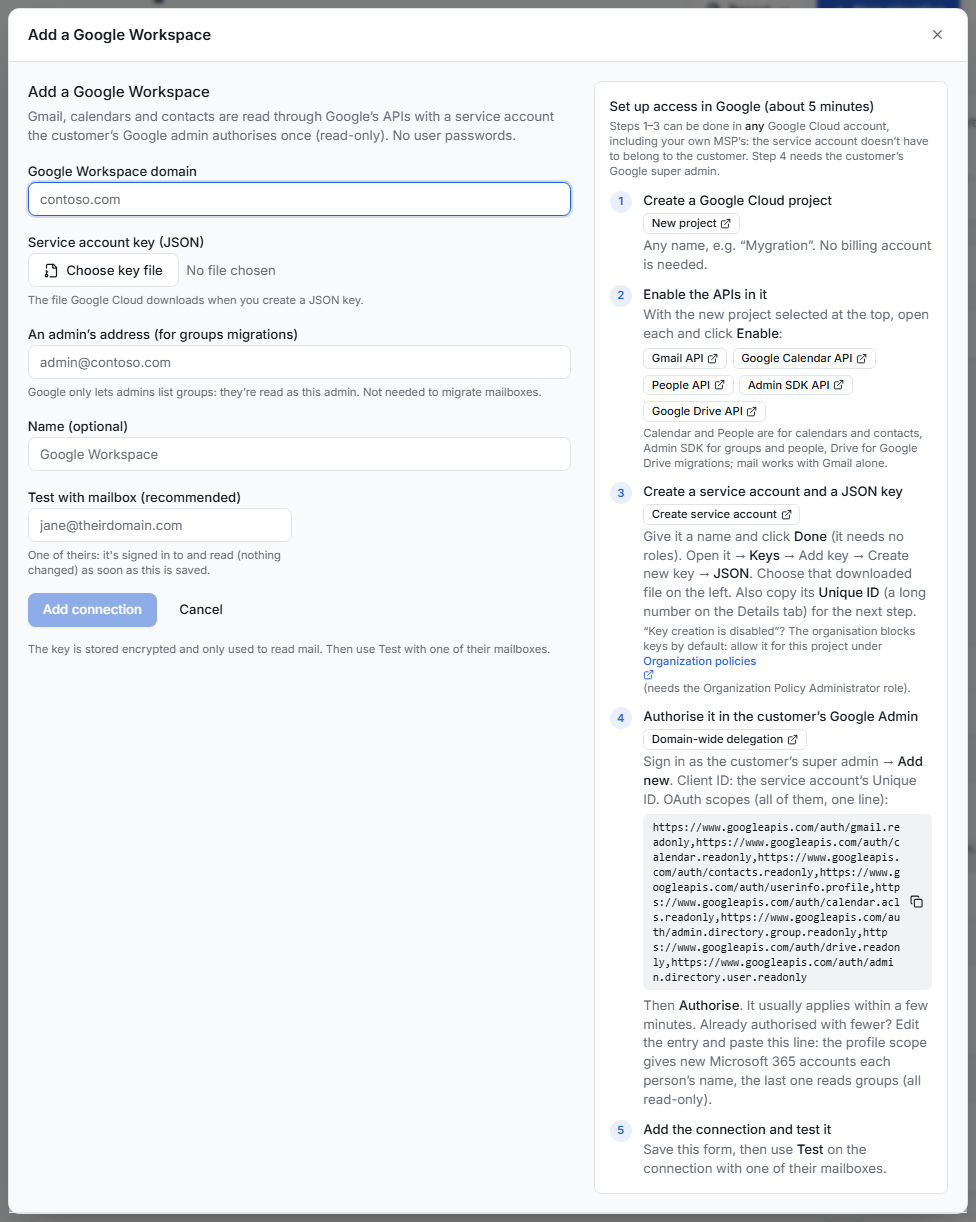
The connection is saved and tested straight away: it signs in as that mailbox and reads it, changing nothing. Each step shows a tick, or a cross with the reason. Click Continue.
To test it again later, click Test on the connection, enter a mailbox, and click Run test. To replace the key, use the pencil and choose a new key file.
If the test fails #
- Right after authorising, wait a few minutes and test again: Google can take a little while to apply it.
- Check the Client ID in Google Admin is the service account's Unique ID, not its email address.
- Check the scopes were pasted as one line, all of them.
- Check the APIs are enabled in the same project as the service account.