Help · Getting started
First settings
The settings to make on a new server: the time zone, email alerts and the test email, backups, and your upload speed.
Last updated
A few settings are worth making before your first customer. The dashboard's System health and its Get set up list show what's still missing, each linked to where it's done. All of these are for admins.
Time zone #
The time zone is used for times in emailed reports, the dashboard's days and the backup time. Pages in the panel show each person's own time.
- Go to Tenant → General.
- Pick the Time zone, or click Use mine to take your browser's.
- Click Save.

Email alerts #
Alerts tell you when passes and runs finish, batches complete, workers go offline and backups fail. The emails to people being moved go out through the same SMTP server, so set it up even if you don't want alerts.
Go to Tenant → Alerts.
Fill in your SMTP server:
- SMTP server, Security (STARTTLS, SSL/TLS or None (trusted relay)) and Port.
- Username and Password, or leave them empty for a relay that doesn't sign in.
- From address, and a From name if you want one.
Under Recipients, put one address per line: your team's shared mailbox, say.
Under Send an email when, untick anything you don't want:
- A pass or run finishes
- A batch is marked complete
- Workers go offline
- A scheduled run can't start
Failed backups, app secrets about to expire and accounts still without a license are always sent.
Tick Send alerts at the top.
Click Save, then Send test email.
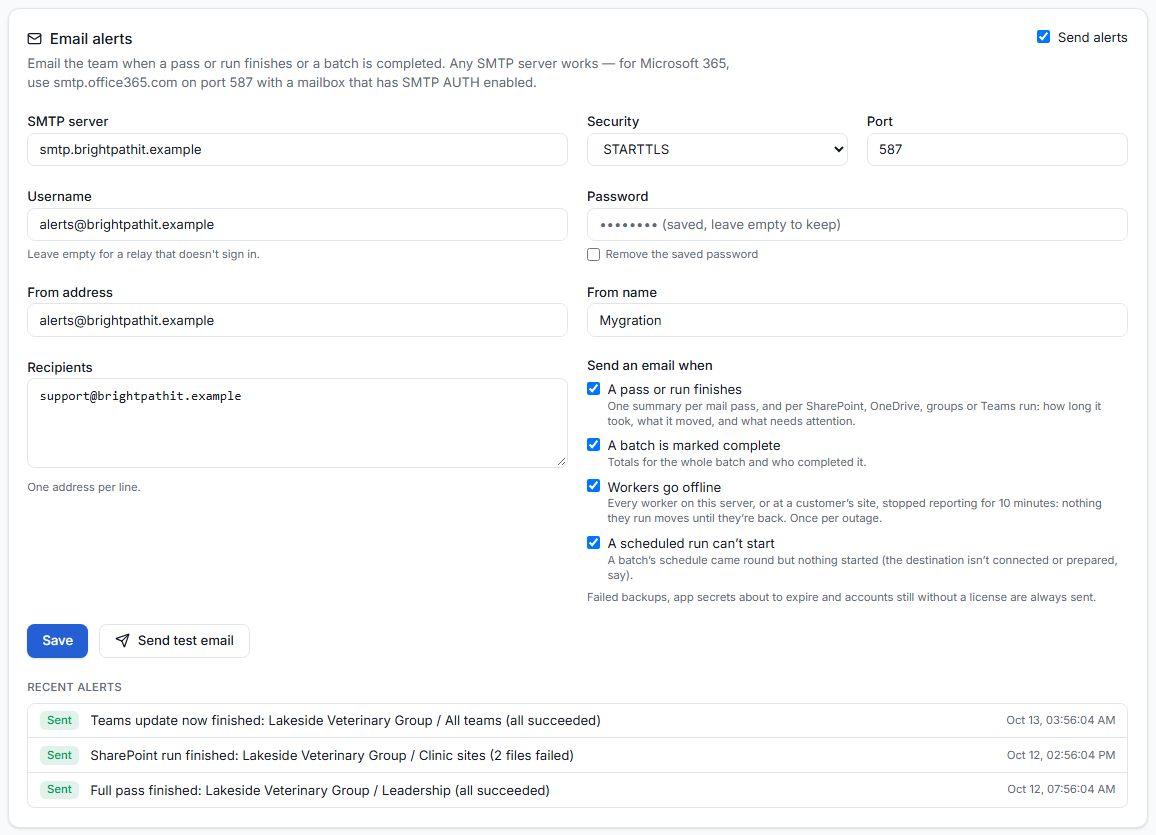
The test says who it was sent to, or why it failed. It uses the form as it stands, so it can work before you save: nothing else is sent until Send alerts is ticked and saved. Recent alerts at the bottom lists what was sent, and anything that couldn't be, with the reason.
Tip
For Microsoft 365, use smtp.office365.com, port 587, STARTTLS, with a mailbox that has SMTP AUTH enabled.
A customer can have its own recipients too, such as the technicians on it or the customer's IT contact: see Adding a customer. The same page has webhooks (Teams, Slack) and PSA tickets.
Backups #
Mygration backs up its database every night, encrypted: your customers, connections, settings and history.
- Go to Tenant → Backups.
- Click Back up now. When it finishes, check it says Last backup OK and encrypted.
- Click Check it restores. It restores the newest backup into a scratch copy, counts what's in it, and says Restores OK. Your live data isn't touched.
- Under Schedule, set Daily at (in the time zone above) and Keep for (days), and click Save. The newest three backups are always kept.
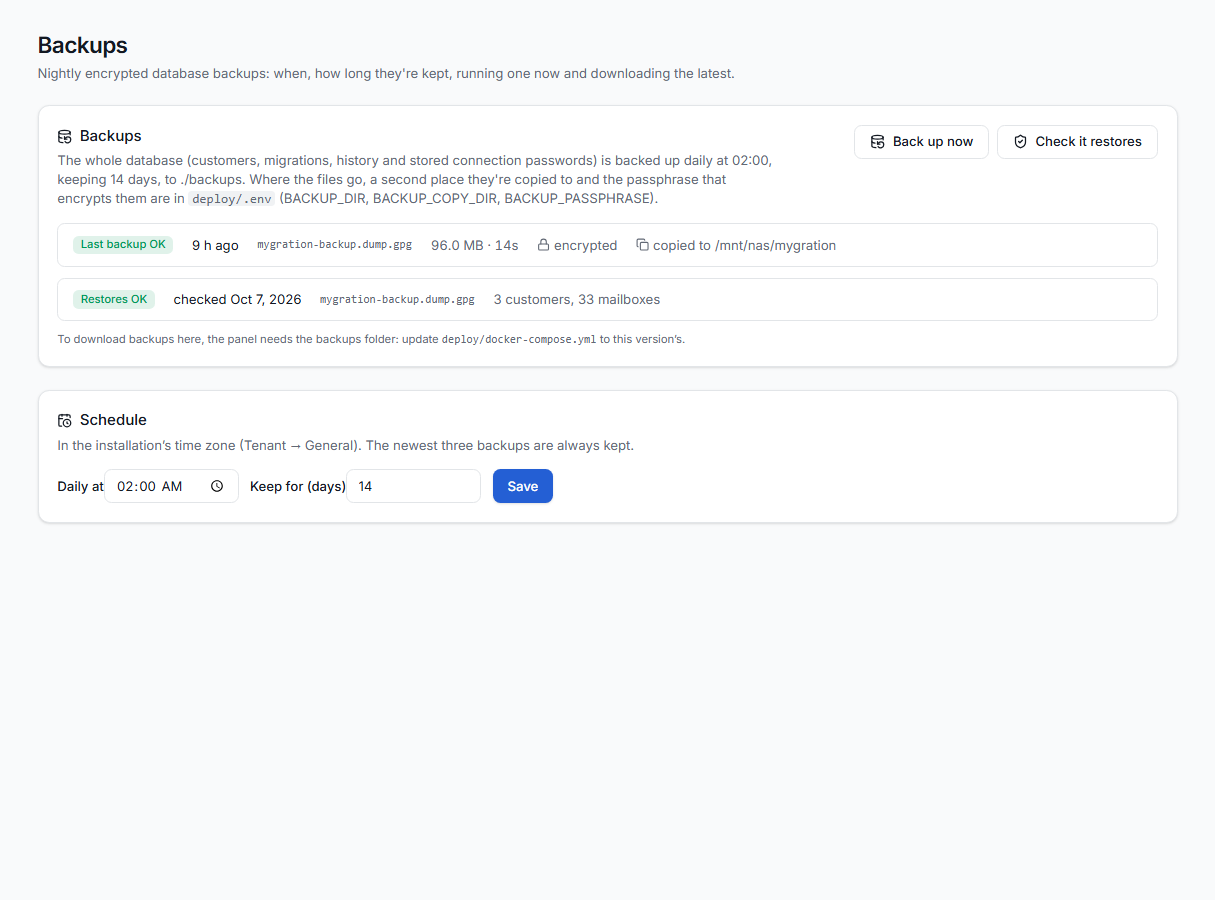
Download latest backup saves the newest backup to your PC. It holds every customer's stored passwords: keep it somewhere safe.
Important
A backup can only be restored with the backup passphrase the installer showed you. Make sure it's in your password manager. If the line says only on this server, the backups are on the same server as Mygration: copy them somewhere else too.
Upload speed #
Your upload speed decides how many mailboxes can copy at once. Tell Mygration what it is, and it suggests a number for each batch.
- Run a speed test from the server's network.
- Go to Workers → Performance.
- Enter Upload speed of this connection (Mbit/s), and click Save.
To keep migrations from filling the line, set an Upload bandwidth cap too. See Workers → Performance.
Then #
- Adding staff: your colleagues, and single sign-on.
- Adding a customer, then connecting its Microsoft 365 tenant.