Help · Your Mygration server
Backups
When backups run and how long they're kept, Back up now, checking a backup restores, downloading one, and a copy off the server.
Last updated
Mygration backs up all its data every night: customers, connections and their stored passwords, migrations, history and settings. Backups are encrypted with the backup passphrase the installer showed you once. Keep that passphrase in your password manager: no backup can be restored without it.
The data-protection certificate #
The stored passwords in a backup are encrypted again, with keys that a certificate on the server protects: the
installer makes it (/opt/mygration/certs/data-protection.pfx, its password DATA_PROTECTION_CERT_PASSWORD in
/opt/mygration/.env). Backups don't include the certificate, on purpose: a backup on its own, or a copy of the
database, can't read anyone's passwords. So a restore needs the backup, the backup passphrase, and the certificate
with its password.
Keep them off the server, once (the certificate doesn't change):
- Copy
/opt/mygration/certs/data-protection.pfxsomewhere safe that isn't this server: beside the copy off this server, say, or as an attachment in your password manager. - Put the
DATA_PROTECTION_CERT_PASSWORDline from/opt/mygration/.envin your password manager, with the backup passphrase.
sudo mygration doctor warns while a server has no certificate (an older install: sudo bash install.sh --repair
makes it). On a server that already had stored passwords, see
Moving stored passwords onto the certificate.
Moving stored passwords onto the certificate #
Passwords saved before the server had a certificate stay readable as they were, with the older keys that it doesn't protect. Once the certificate is kept safe (above), move them onto it:
sudo mygration reencrypt-secrets --dry-run     # how many would move; nothing changes
sudo mygration reencrypt-secrets               # re-encrypts them all, checked, in one go (or nothing changes)
sudo mygration reencrypt-secrets --remove-old-keys
The last one deletes the older keys, once nothing uses them, so they're gone from the database and from backups taken afterwards. Everyone signs in to the panel again after it.
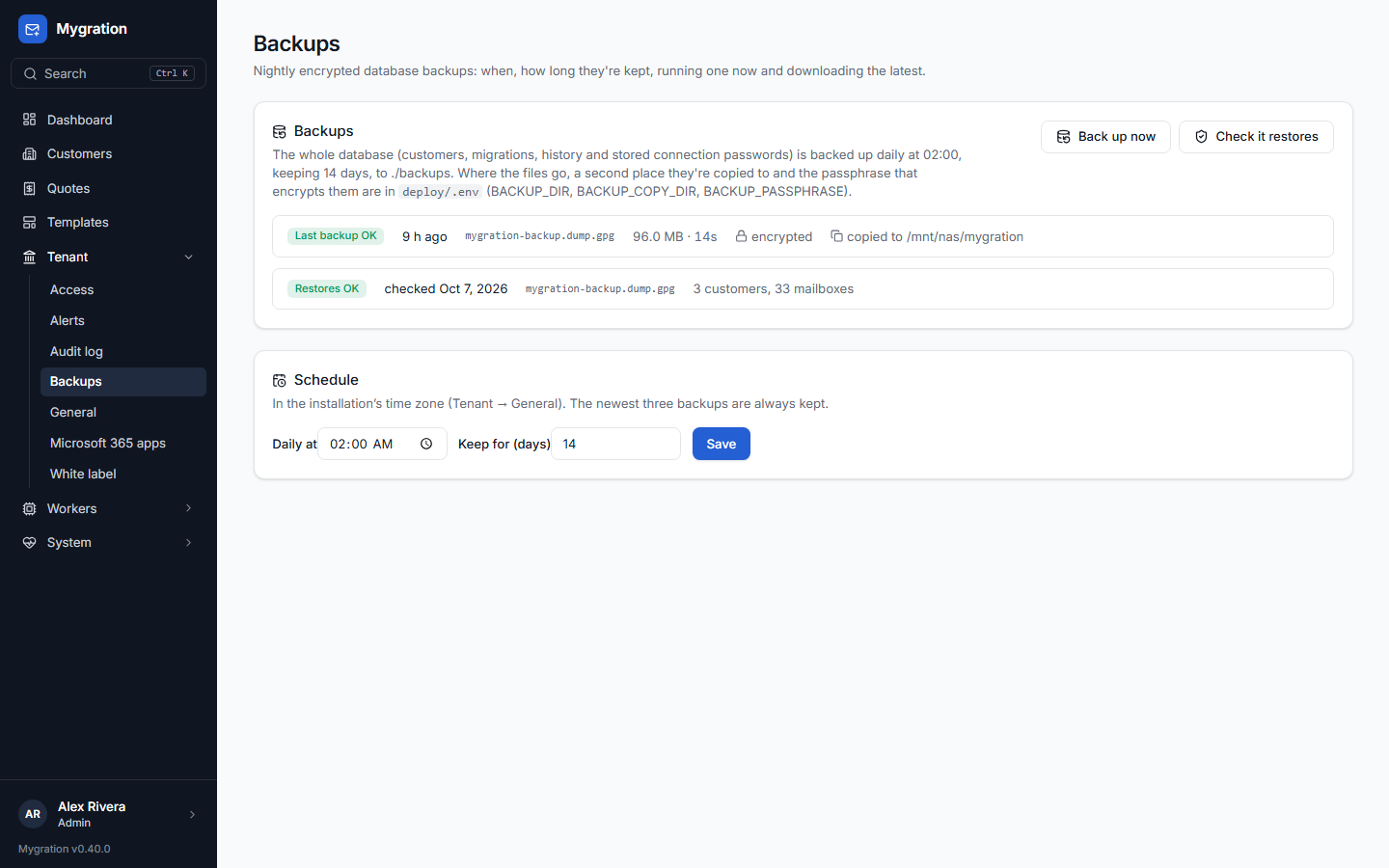
Backups are under Tenant → Backups. Only admins can run, check or download them.
Check the last backup #
The Backups card shows the latest result:
- Last backup OK or Last backup failed, how long ago, the file, its size and how long it took.
- encrypted, or not encrypted: set BACKUP_PASSPHRASE.
- copied to a second place, or only on this server: set BACKUP_COPY_DIR (see A copy off this server).
If a backup fails, or none has run for 36 hours, an alert goes to everyone under Tenant → Alerts. See Backups failing or late.
Set the schedule #
- Under Schedule, set Daily at: the time, in the time zone under Tenant → General.
- Set Keep for (days): from 1 to 365. The newest three backups are always kept.
- Click Save. It's used within a minute.
Pick a quiet time. Backups run while migrations do, so any time works, but night is usual.
Back up now #
Click Back up now before a big change: before a cutover weekend, or before moving the server. The button says Backing up… until it's done, then the card shows the new backup.
On the server, sudo mygration backup does the same.
Check a backup restores #
Click Check it restores. Mygration restores the newest backup into a scratch copy, counts what's in it, then throws the copy away. Your live data isn't touched. When it's done, the card shows Restores OK with what it found (for example 3 customers, 33 mailboxes), or Didn't restore with why.
Do it once after you install, and now and then after that.
Download a backup #
Click Download latest backup to save the newest backup file. It's encrypted with the backup passphrase.
Important
A backup holds every customer's stored passwords. Keep downloaded copies somewhere safe, and delete ones you don't need. If a backup isn't encrypted, the panel asks before downloading it.
A copy off this server #
Backups are kept on the server, in /opt/mygration/backups unless you chose another folder. A lost disk takes them
with it, so keep a second copy somewhere else: a NAS share, another disk, or cloud storage mounted on the server.
Mount the place on the server, so it stays mounted after a restart (an NFS or SMB share in
/etc/fstab, for example). Say it's mounted at/mnt/nas/mygration.Edit the settings file:
sudo nano /opt/mygration/.envAdd, or change, this line:
BACKUP_COPY_DIR=/mnt/nas/mygrationSave, then start the backups again with the new setting:
sudo mygration start backupIn the panel, click Back up now. The card should say copied to /mnt/nas/mygration. If it says not copied to …, the reason follows: usually the folder isn't mounted, or the server can't write to it.
Each backup is then copied there too, and kept for as many days.
Tip
A copy in the cloud leaves your network: it's encrypted with the backup passphrase, so keep the passphrase set.
Restoring #
To put a backup back, or to rebuild a server that's gone, see Restoring a backup and rebuilding a server.