Help · Your Mygration server
Licensing and activation
What the license does, activating Mygration, what still works without a license, the grace period, working offline, and changing the key.
Last updated
Mygration needs an active license to start new work. You enter the key when you install it, and you can see or change it any time under System → License. Only admins can see that page or change the key.
See your license #
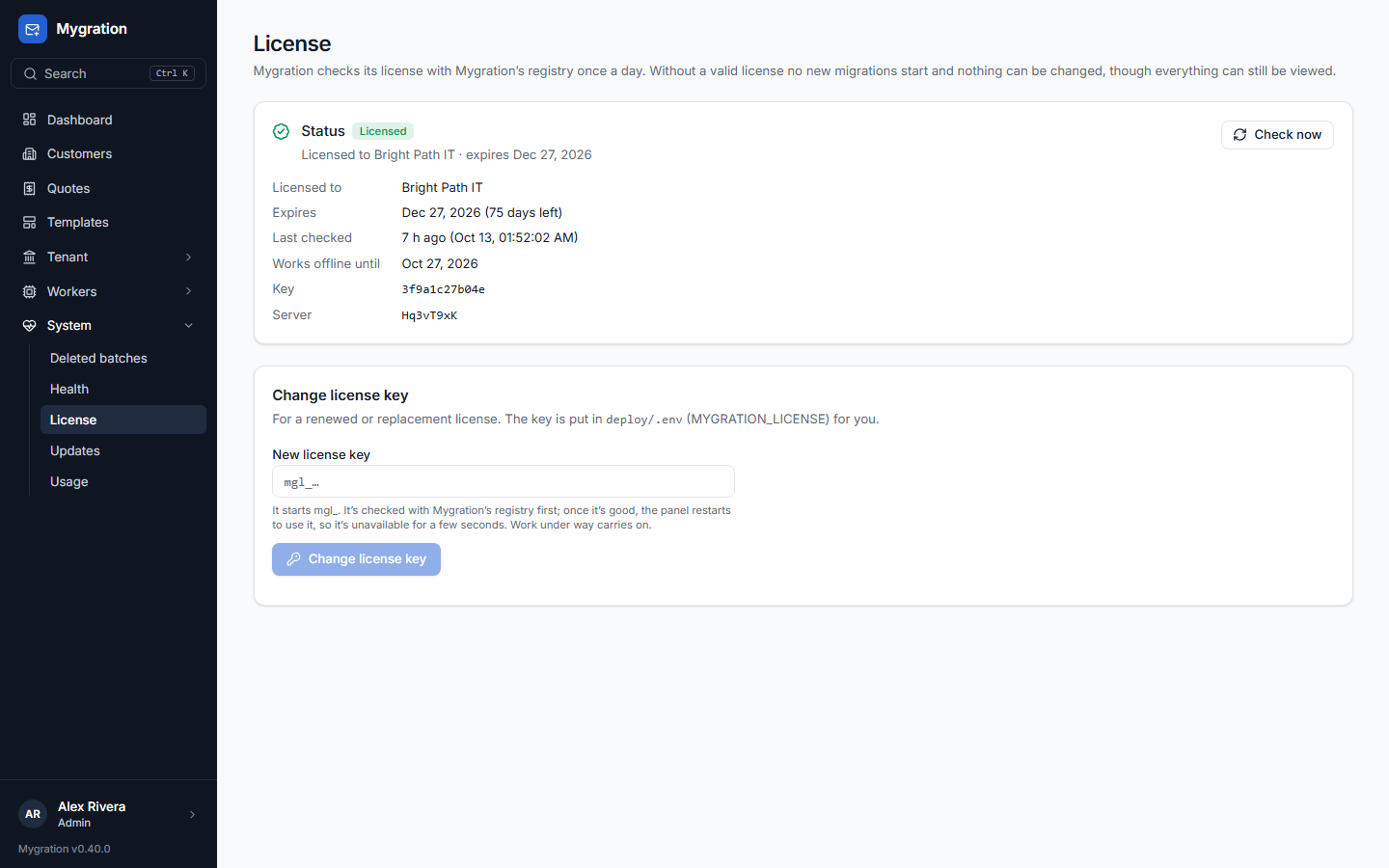
Open System → License. It shows:
- Status: Licensed, Expired: in grace or Not licensed.
- Licensed to and Expires, with the days left.
- Last checked: Mygration checks the license once a day. Click Check now to check it straight away, after a renewal for example.
- Works offline until: how long the server keeps working if it can't reach Mygration to check (see Working offline).
- Key: a short fingerprint, to tell keys apart. The key itself is never shown.
- Server: a short ID for this installation, in case support asks which server it is.
Activate Mygration #
If the server has no valid license, everyone sees a screen instead of the panel after they sign in.
- Admins see Activate Mygration. Paste the license key (it starts with
mgl_) and click Activate. - Everyone else sees This server isn't licensed, and is asked to get a Mygration admin to enter a key.
The key is checked first. Once it's good, the panel restarts to use it, so it's unavailable for a few seconds. Work already under way carries on.
What works without a license #
While the server isn't licensed:
- No new work starts. No new batches, passes or copies; scheduled passes wait; and nothing can be changed. Connecting a tenant and downloading the PowerShell scripts (creating mailboxes, adding permissions, switching PCs) don't work either.
- Work already running finishes.
- Admins can still open System → License, System → Health, System → Updates, Tenant → Backups and Tenant → Access, with a banner saying the server isn't licensed. The Activate Mygration screen links to them.
- Everyone can still open their own settings.
As soon as a valid key is in, everything works again, with nothing lost.
When the license expires: grace #
When a license runs out, Mygration keeps working for 7 more days. A banner on every page says how many days are left, and admins get a link to Renew or change the key. After those 7 days, the server is not licensed until a new key is entered.
A license that has been revoked gets no grace.
Working offline #
Mygration checks the license once a day. If it can't reach Mygration (the server's internet is down, or a firewall blocks it), it keeps working for 14 days from the last good check. Works offline until on System → License shows the date. After that, the server is not licensed until a check gets through: fix the connection, then click Check now.
If your firewall limits outbound traffic, see the list in Getting started.
Change the license key #
For a renewed or replacement license:
- Open System → License.
- Under Change license key, paste the new key into New license key.
- Click Change license key.
The new key is checked first. If it's refused, nothing changes and the page says why. Once it's good, the page says Verified, the panel restarts with the new key within a few seconds, and then shows Applied: the panel restarted with the new key. Running migrations carry on.
Note
You don't need to run the installer again for a new key. If System → License says the new key couldn't be applied,
the message says why. To put a key in from the server instead, put it in a file only root can read and run the
installer again with sudo bash install.sh --repair --license-file <file>.