Help · Cutover and reporting
Planning cutover day across a customer
Set the customer's cutover date, see on its Cutover tab what's ready, and give each batch's checklist steps an owner and a due date.
Last updated
A customer's cutover usually spans several migrations: mail, OneDrive, SharePoint, groups and Teams. Mygration keeps the plan in three places:
- The customer's cutover date, shown on the dashboard, the customer list and under Coming up.
- The customer's Cutover tab: whether each kind of move is ready, and how far each batch's checklist is.
- Each batch's Cutover tab: the steps for that batch, each with who's on it and by when.
The screenshots show the demo's Lakeside Veterinary Group.
1. Set the cutover date #
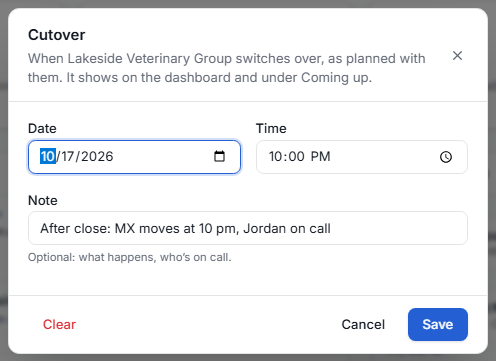
- Open the customer. Under its name, click Set cutover date (or the Cutover date, to change it).
- Pick the Date and Time, as planned with the customer.
- Optionally, add a Note: what happens, who's on call.
- Click Save. Clear takes the date off.
The strip under the customer's name then shows the cutover with a countdown, how many checklist steps are done, and whether a status link is shared.

The cutover also shows:
- on the Customers list, in the Cutover column and the Cutover soon view, and
- under Coming up on the dashboard and the customer's page, with checklist steps that are due.
2. Fill in each batch's checklist #
Every batch has a Cutover tab with the steps for its kind of move, in order. Open each batch that's switching and, for each step:
- type Who is on it, and
- pick the date it's due By.
Add steps of your own under Your own steps, such as "Call the practice manager before switching MX". On the day, click a step's number to tick it when it's done, or Not needed to skip it.
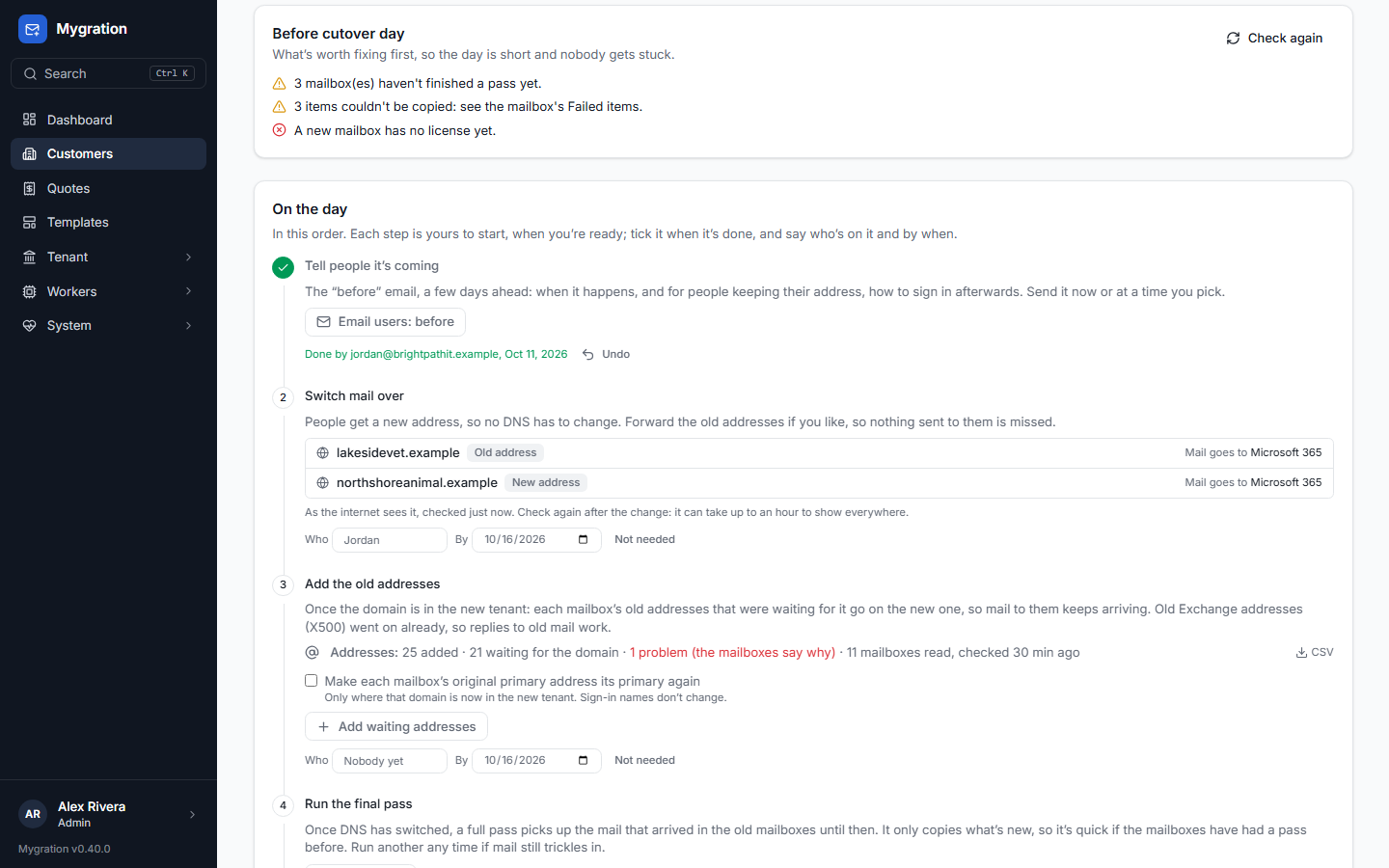
The steps for each kind of batch:
- Mail: Migrating mailboxes from Microsoft 365 to Microsoft 365.
- Files: Cutover for files.
- Groups and Teams: Cutover for groups and Teams.
A step past its date shows Overdue, and the customer's strip counts overdue steps in red.
3. Watch the customer's Cutover tab #
On the customer's page, under Migrations, click Cutover. It lists everything that has to be across before the switch, every workload at once, and says how many are ready:
- Email: mailboxes synced, failed and running, and when the last pass was.
- OneDrive, SharePoint, File server and the other file sources: copies done and failing, and the last run.
- Groups and Teams: how many are made, and members still waiting for their accounts.
- Everyone: how many people have everything across (mailbox, OneDrive, groups and teams). People opens the list.
- Mail for …: where each domain's mail is delivered today. See Mail DNS on the customer page.
Below that, Cutover checklists lists each batch's checklist with how many steps are done and the next ones, with who's on them and when they're due. Checklist opens it.
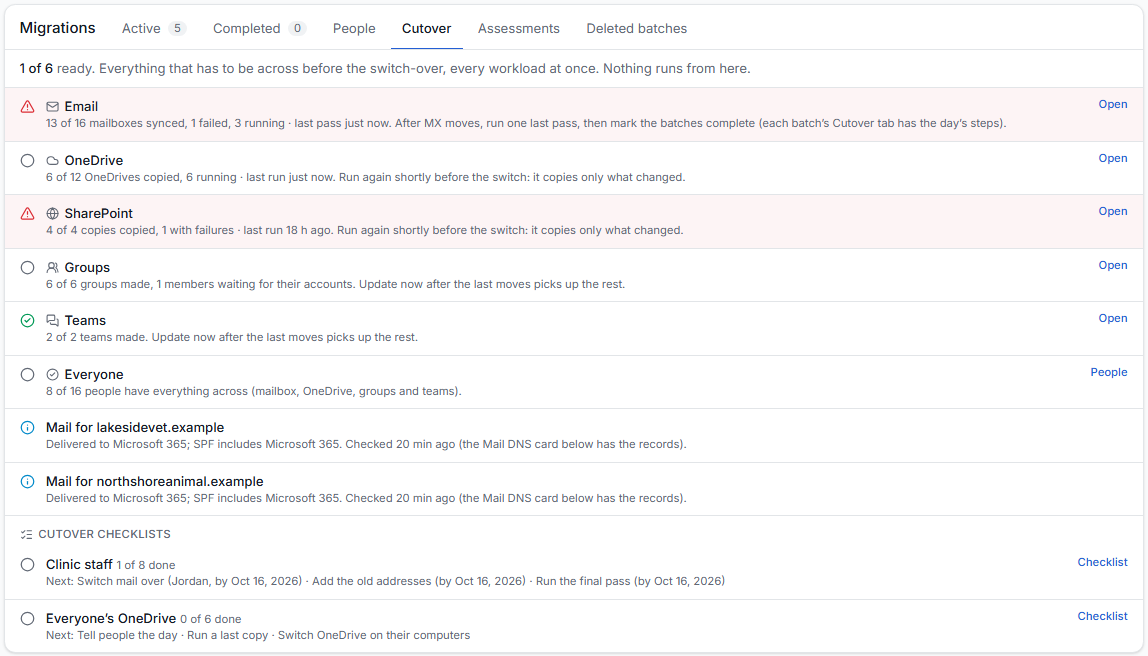
Nothing runs from this tab. Each line's link goes where the work is done.