Help · Files: OneDrive, SharePoint and file servers
Cutover for files
The files batch's cutover checklist, the last copy, switching people's sync and links over, and closing the old side.
Last updated
Once a files batch has copied everything, the switch-over is a short list of steps: tell people, stop changes on the old side, run a last copy, check it, and point people at the new places. Each files batch has a Cutover tab with those steps as a checklist.
Keep it up to date until the day #
Before the day, run the batch again now and then (Run again): each run copies only what's new or changed, so the last one is short. Or let it run by itself: Settings → Run automatically, with a First run, how often Then, and Stop after set to the cutover.
The Cutover tab #
Open the batch and click Cutover. The steps depend on where the files come from. Nothing in the list runs by itself: each step is yours to do.
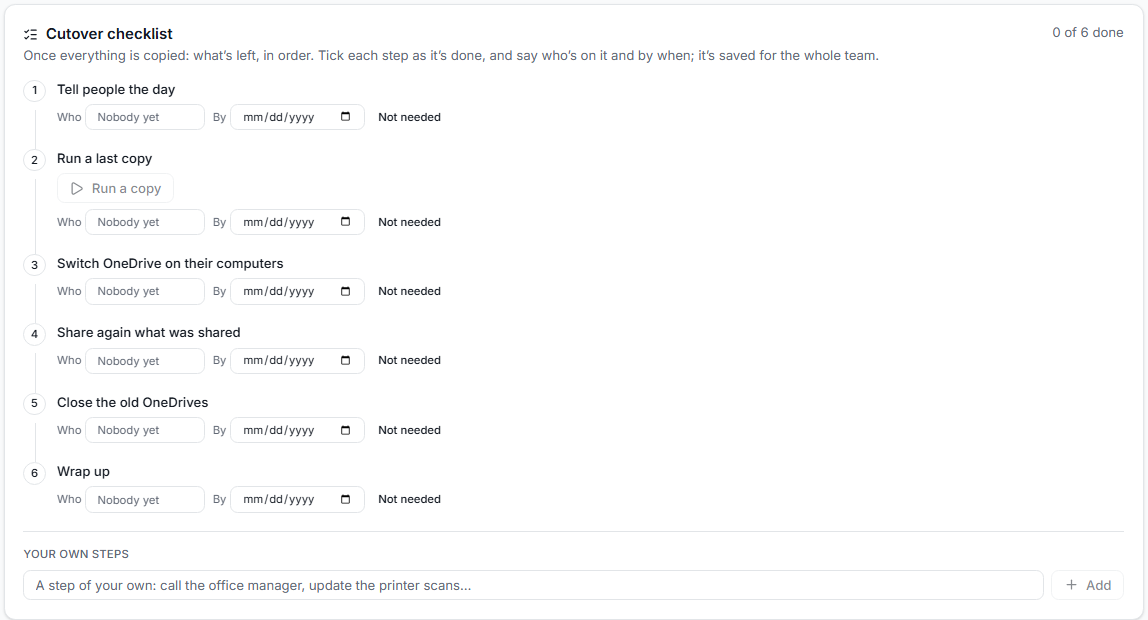
For each step:
- Click its number to tick it when it's done, or click Not needed. Undo puts it back.
- Type Who is on it, and pick the date it's due By. A step past its date shows Overdue.
- Add steps of your own under Your own steps ("Call the office manager", say).
The checklist is saved for the whole team. The customer's Cutover tab shows how far each batch's checklist is. See Planning cutover day.
The steps, by source #
OneDrive:
- Tell people the day: when to stop saving to the old OneDrive, and where their files will be.
- Run a last copy: click Run a copy. It copies only what's new or changed since the last run.
- Switch OneDrive on their computers: unlink the old account and sign in to the new one. The mail batch's computer script does it (see Switching people's computers over).
- Share again what was shared: links to files in the old OneDrive stop working when it goes.
- Close the old OneDrives: make them read-only, or remove the old accounts' licenses once nothing is missing.
- Wrap up: send the customer the batch's report, and turn off its schedule if it has one.
SharePoint:
- Tell people the day: when to stop changing the old sites, and the new sites' addresses.
- Make the old sites read-only: site permissions to read, or a read-only lock, so nothing changes after the last copy.
- Run a last copy.
- Check the copies: Check copies on the batch compares every file with the source.
- Update links and syncing: bookmarks, Teams tabs, navigation and links in documents to the old sites. Unsync synced libraries and sync them again from the new ones.
- Wrap up.
Windows file server:
- Tell people the day: when to stop saving to the shares, and where their files will be.
- Make the shares read-only: click Switch-over guide (below).
- Run a last copy. With Take out what's deleted on, what was deleted goes too.
- Check the copies: the batch's check compares every file with the share.
- Replace mapped drives: remove the drive mappings (Group Policy, logon scripts or Intune) and sync or link the new libraries instead.
- Wrap up.
Google Drive, Box and Dropbox:
- Tell people the day. For Google Drive, tell them Docs, Sheets and Slides arrive as Word, Excel and PowerPoint.
- Run a last copy.
- Switch the sync app: sign out of and remove Google Drive for desktop, the Box app or the Dropbox app; sign OneDrive in to the new account.
- Share again what was shared: links don't follow the files.
- Close Google Drive, Close Box or Close Dropbox: once nothing is missing, turn Drive off for the moved people in the Google Admin console, or take away their Box or Dropbox licenses or accounts.
- Wrap up.
The file server switch-over guide #
A file server batch has a fourth step at the top, Switch over, and a Switch-over guide button on the Cutover tab's Make the shares read-only step. It walks through the day in order:
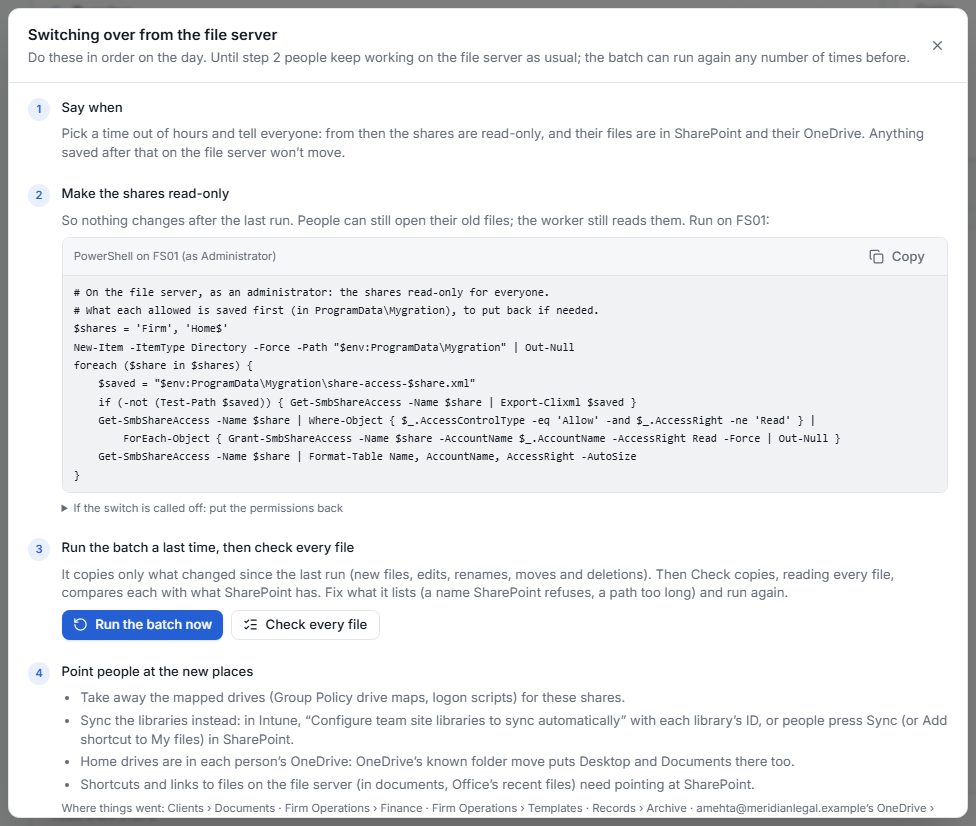
- Say when: pick a time out of hours and tell everyone.
- Make the shares read-only: copy the PowerShell it gives and run it on each file server as an administrator. It
saves each share's permissions first, in
ProgramData\Mygration. If the switch is called off, open If the switch is called off: put the permissions back for the script that restores them. - Run the batch a last time, then check every file: Run the batch now, then Check every file. Fix what it lists and run again.
- Point people at the new places: take away the mapped drives and sync the libraries instead, in Intune ("Configure team site libraries to sync automatically") or with Sync in SharePoint. Home drives are in each person's OneDrive. Shortcuts and links to files on the file server need pointing at SharePoint.
- Keep the file server read-only for a while: a month is usual, so anything missed is still there to find. Then retire it. Customer report opens the assessment, with every batch's check, as the record for the customer.
After the switch #
Take the batch report for the customer: Report → Open batch report. See Reports for the customer.