Help · Files: OneDrive, SharePoint and file servers
Migrating Google Drive
Copy people's My Drives into their OneDrives and shared drives into SharePoint libraries, and what Google can't export.
Last updated
A Google Drive migration copies each person's My Drive (what they own) into their OneDrive, and the Workspace's shared drives into SharePoint libraries. Google Docs, Sheets, Slides and Drawings arrive as Word, Excel, PowerPoint and PNG files.
The screenshots show the demo's Copperline Builders, moving from Google Workspace to Microsoft 365.
Before you start #
- The Google Workspace connection can read Drive. Its domain-wide delegation needs the
drive.readonlyandadmin.directory.user.readonlyscopes (the connection's setup lists every scope to paste), and the Google Drive API must be enabled in the service account's Google Cloud project. Test on the connection checks Drive. - The customer's Microsoft 365 tenant is connected. See Connecting a customer's Microsoft 365 tenant.
- People's OneDrives are set up in the new tenant. The batch lists anyone without one, with the command to set them all up (as for a OneDrive migration).
1. Create the migration and a batch #
- Open the customer and click New migration.
- Pick the Google Workspace connection as the source and the Microsoft 365 tenant as the destination.
- Tick Google Drive, click through to Review and click Create migration.
- Type a Batch name and click Next: what it copies.
2. Add people's Drives #
- Click People's Drives → OneDrive. Workspace's people are listed with the size of each one's Drive.
- Each person Goes to their new account: through Their mailbox move, or the Same username. Type an address where it says Not found: type it.
- Tick the people moving, or Pick everyone matched, and click Add … people.
Only what each person owns comes across. Files others shared with them are copied with their owner's Drive.
3. Add shared drives #
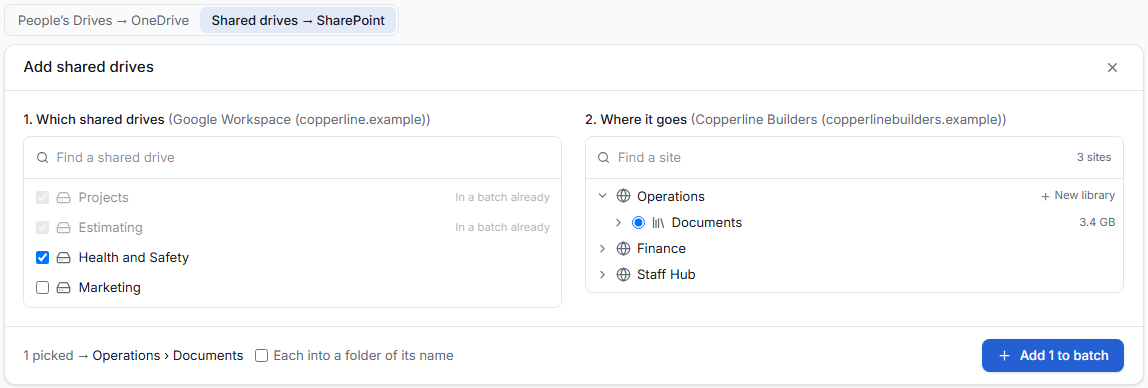
- Click Shared drives → SharePoint.
- On the left, tick the shared drives.
- On the right, pick the library, or a folder in it, where they go.
- When you pick several, Each into a folder of its name is ticked, so their folders don't mix. Tick or untick it as you like.
- Click Add … to batch.
A shared drive is read as one of its members. One with no members isn't added: add someone to it in Google Drive first, then add it again.
4. Start #
Check the batch's Settings tab, then click Start. Every file is checked as it arrives. Run again later copies only what's new or changed, and follows renames and moves.
What changes on the way #
- Google Docs, Sheets, Slides and Drawings become Word, Excel, PowerPoint and PNG files.
- Characters SharePoint refuses in names (
/,:,?and the like, all allowed in Drive) become_. - Two items with the same name in one folder (Drive allows it) become, for example,
Report.docxandReport (2).docx.
What isn't copied #
- Google Forms, Sites, My Maps and Apps Script projects can't be exported. They're listed, not copied.
- Shortcuts are passed over. What they point to is copied where it is.
- Sharing. People's files are in their own OneDrive; a shared drive's library gets its members on the site. Share again what needs sharing.
- Deletions. Nothing is ever taken out of the destination, even if it's deleted in Drive.
Next steps #
- Cutover for files: the last copy and switching the sync app.
- When a destination is full.