Help · Customers and connections
Connecting Exchange Server
Add an on-premises Exchange server as a source, with its EWS address, an admin account with impersonation or Full Access, and the optional domain controller.
Last updated
Mygration reads mail, calendars, contacts, tasks and notes from Exchange 2013, 2016 or 2019 on-premises (2010 SP1 or later), over Exchange Web Services (EWS), signed in with one admin account. The Exchange server is only read.
Before you start #
- Mygration can reach the Exchange server's EWS over HTTPS (443). If it's only reachable inside the customer's network, run a worker there for that customer, with All its work ticked: see Running a worker at a customer's site.
- An admin account in the customer's domain, such as
CONTOSO\migadmin, that can open every mailbox moving. Impersonation (below) is the easiest way. - The customer's Microsoft 365 tenant is connected too, or will be: see Connecting a customer's Microsoft 365 tenant.
Give the admin account access to the mailboxes #
Choose one way, and run its command once in the Exchange Management Shell. The connection form shows the same command with your admin account filled in.
Impersonation (recommended). One role assignment covers every mailbox:
New-ManagementRoleAssignment -Name MygrationImpersonation -Role ApplicationImpersonation -User "CONTOSO\migadmin"Full Access. For when impersonation isn't allowed. The admin needs Full Access on each mailbox:
Get-Mailbox -ResultSize Unlimited | Add-MailboxPermission -User "CONTOSO\migadmin" -AccessRights FullAccess -AutoMapping $falseMailboxes made after you run it need it too.
Add the connection #
- Open the customer and click Connections (or Add connections).
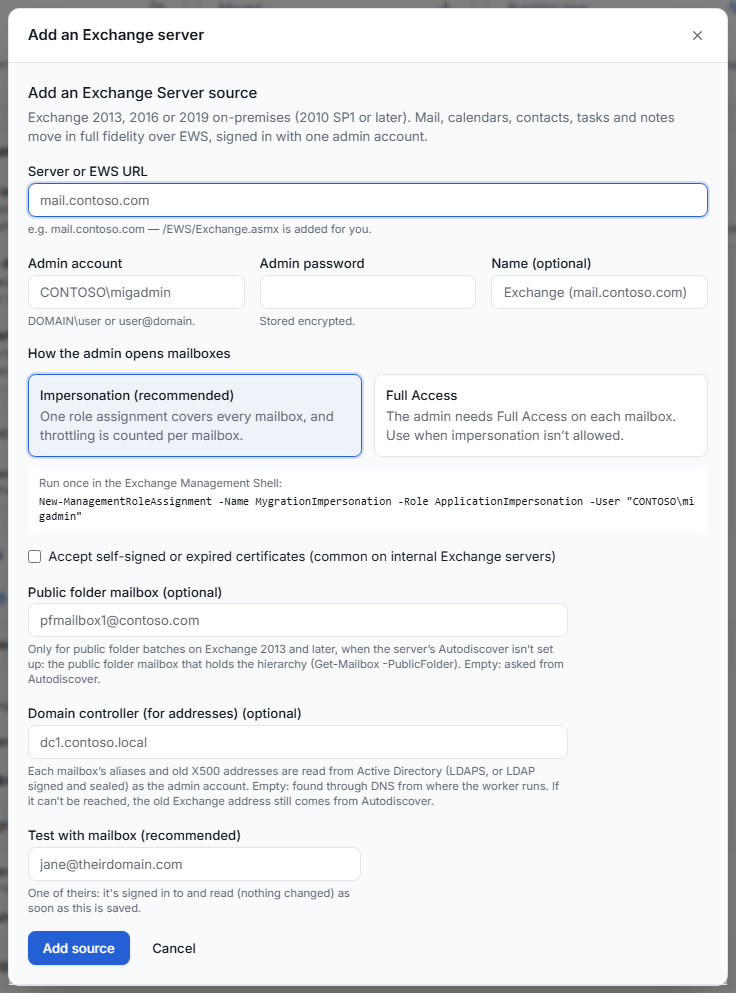
- Click Add a source, then Exchange Server (on-premises).
- Fill in the form:
- Server or EWS URL: the Exchange server's name, such as
mail.meridianlegal.example./EWS/Exchange.asmxis added for you. - Admin account (
DOMAIN\useroruser@domain) and Admin password. The password is stored encrypted. - Name (optional), to tell connections apart.
- How the admin opens mailboxes: Impersonation (recommended) or Full Access, as set up above.
- Tick Accept self-signed or expired certificates if the server's certificate isn't trusted. That's common on internal Exchange servers.
- Server or EWS URL: the Exchange server's name, such as
- Optionally, fill in:
- Public folder mailbox (optional): only for moving public folders from Exchange 2013 or later, when the
server's Autodiscover isn't set up. It's the public folder mailbox that holds the hierarchy
(
Get-Mailbox -PublicFoldernames it). Leave it empty otherwise. - Domain controller (for addresses) (optional): where each mailbox's aliases and old X500 addresses are read
from, such as
dc1.meridianlegal.local. Leave it empty to find one through DNS. It needs LDAPS, or LDAP with signing and sealing, reachable from where the worker runs.
- Public folder mailbox (optional): only for moving public folders from Exchange 2013 or later, when the
server's Autodiscover isn't set up. It's the public folder mailbox that holds the hierarchy
(
- Under Test with mailbox (recommended), enter one of the customer's mailboxes, by its primary SMTP address.
- Click Add source.
The connection is saved and tested straight away with that mailbox, in three steps: Sign in and open mailbox, List folders and Export an item (full fidelity). Nothing is changed. Each step shows a tick, or a cross with the reason, and often a hint on what to do.
Click Continue to go on. If the customer has no Microsoft 365 tenant connected yet, Mygration goes on to connecting it.
Test it again later #
On the customer's Connections, click Test on the Exchange connection, enter a mailbox, and click Run test. Use the pencil to change the connection; leave Admin password empty to keep the saved one.
If the test fails #
Most failures at Sign in and open mailbox come down to one of these:
- The server can't be reached: check the name, and that Mygration can reach it on port 443 through the customer's firewall. For a server only reachable inside their network, run a worker there.
- The certificate isn't trusted: tick Accept self-signed or expired certificates, or give the server a trusted certificate.
- The sign-in is refused: check the admin account (
DOMAIN\useroruser@domain) and its password. - The mailbox can't be opened: the admin account doesn't have impersonation or Full Access on it yet. Run the command above for the way you chose.
Fix the connection with the pencil, then Test again.
What happens to the addresses #
When the Domain controller can't be reached, each mailbox's old Exchange address still comes across from Autodiscover; only the other aliases need Active Directory.