Help · Email migrations
Scheduling passes and Run automatically
Start a pass at a set time, such as after hours, or have a batch catch up on a schedule every night until the cutover.
Last updated
There are two ways to run passes without clicking Start at the time:
- A scheduled pass runs once, at a time you pick: after hours, or just after the MX records switch.
- Run automatically repeats: a catch-up pass every night until the cutover, say.
Both start on their own, even with nobody signed in to the panel.
Schedule one pass #
- On the batch page, tick the mailboxes, or none for the whole batch.
- Click Run pass (or Pre-stage).
- Under When, choose Schedule for later.
- Under Start at (your local time), pick the time. It starts at the next 6:00 PM. Passes can be scheduled up to 90 days ahead.
- Click Schedule pass.
The batch page shows the scheduled pass above the tabs, with Start now and Cancel. Its mailboxes show Scheduled in the list, with when they start.
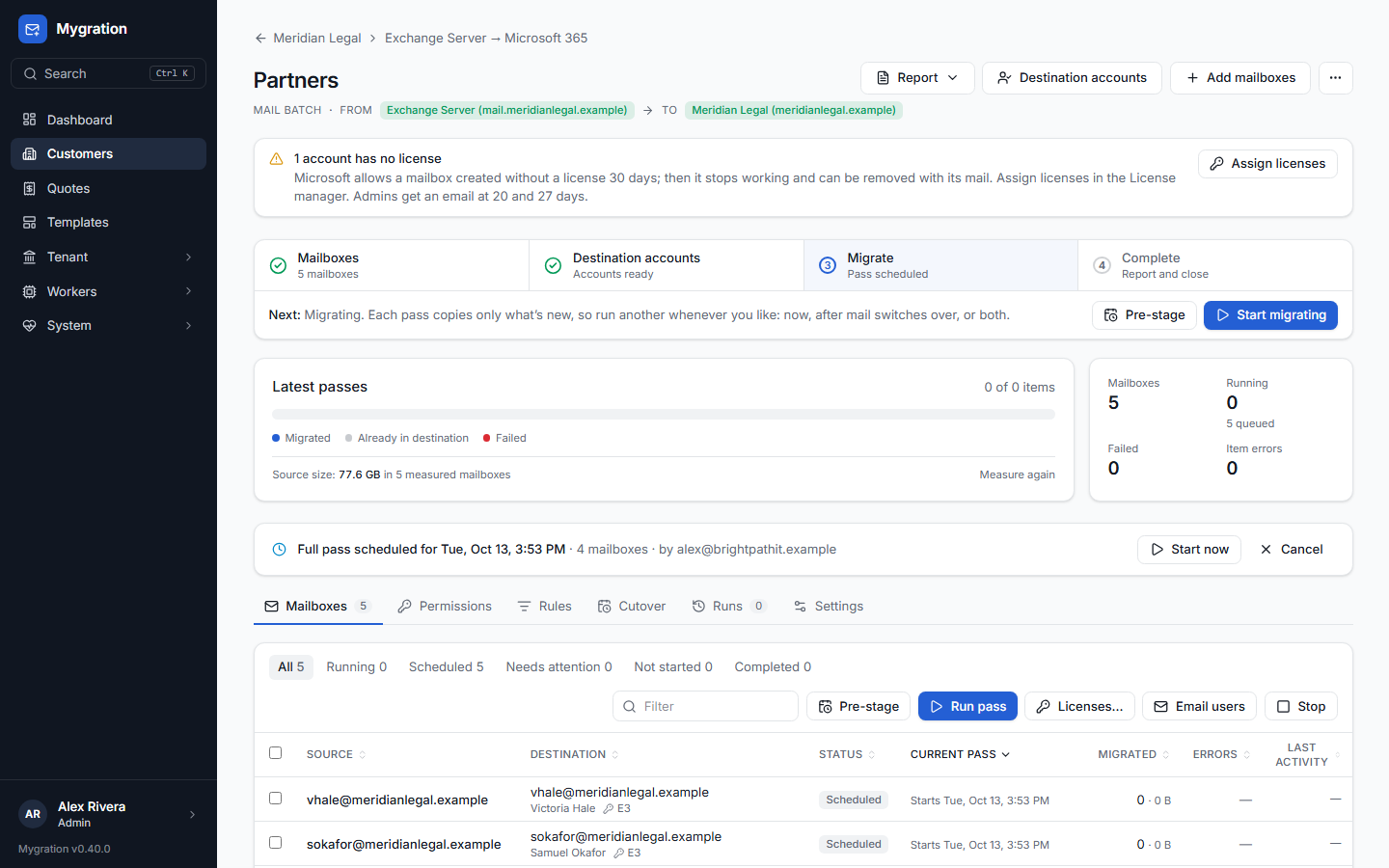
Cancelling puts the mailboxes back to how their last pass left them.
Run automatically #
Run automatically repeats a pass of everything not copied yet, for the batch's mailboxes that aren't running already. Use it for the catch-up runs between the pre-stage and the cutover.
- Open the batch's Settings tab.
- Under Run automatically, click Set up.
- First run: the date and time of the first one. It starts at 8:00 PM tonight.
- Then: Once, or how often to repeat, from Every hour to Every week. Runs keep to the first one's time of day.
- Stop after: usually the cutover. Leave it empty to keep going until you turn it off.
- Click Save schedule.

The card then shows the next run and, after one, how it went: how many mailboxes it started, and which it left out and why. Use Change, Pause (and Resume), or Turn off.
Note
Run automatically never runs the final pass for you: that's yours to start on cutover day, from the Cutover tab. Set Stop after to before the cutover.
What a scheduled run leaves out #
- Mailboxes still running from the last run: they're left to finish.
- Mailboxes whose destination account isn't ready, or that are Too large for their new mailbox.
- Mailboxes running in another batch of the same move.
The last run's line names them. A run missed while the panel was down isn't run twice.