Help · Groups, Teams and Planner
Migrating Teams
Move teams between tenants with their channels, members, files and conversations, what isn't copied, and why to run it after the email migration.
Last updated
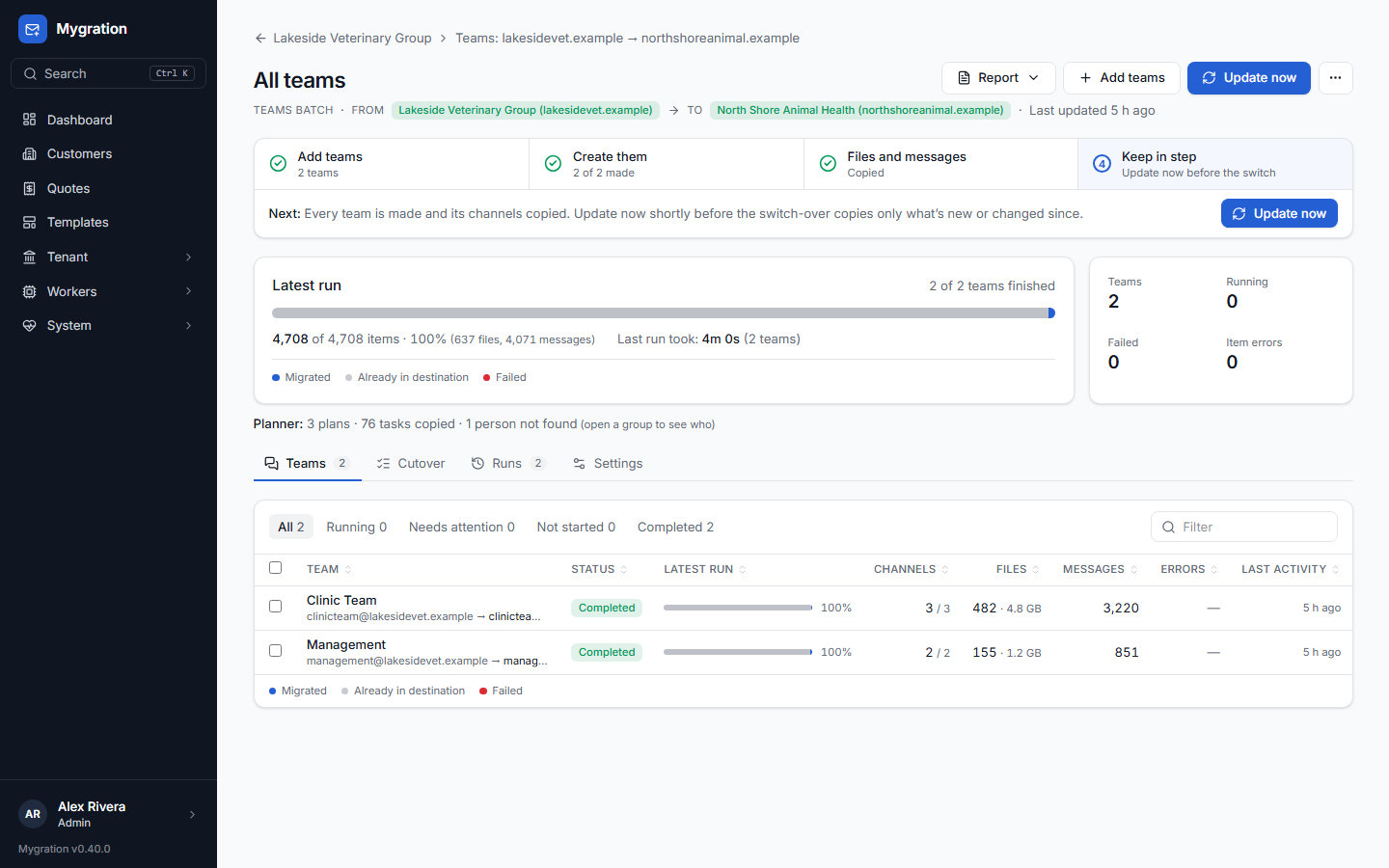
A Teams migration makes each team in the new tenant with its Microsoft 365 group, settings, and standard, private and shared channels with their people. Then it copies each channel's files and conversations, and the team's Planner plans.
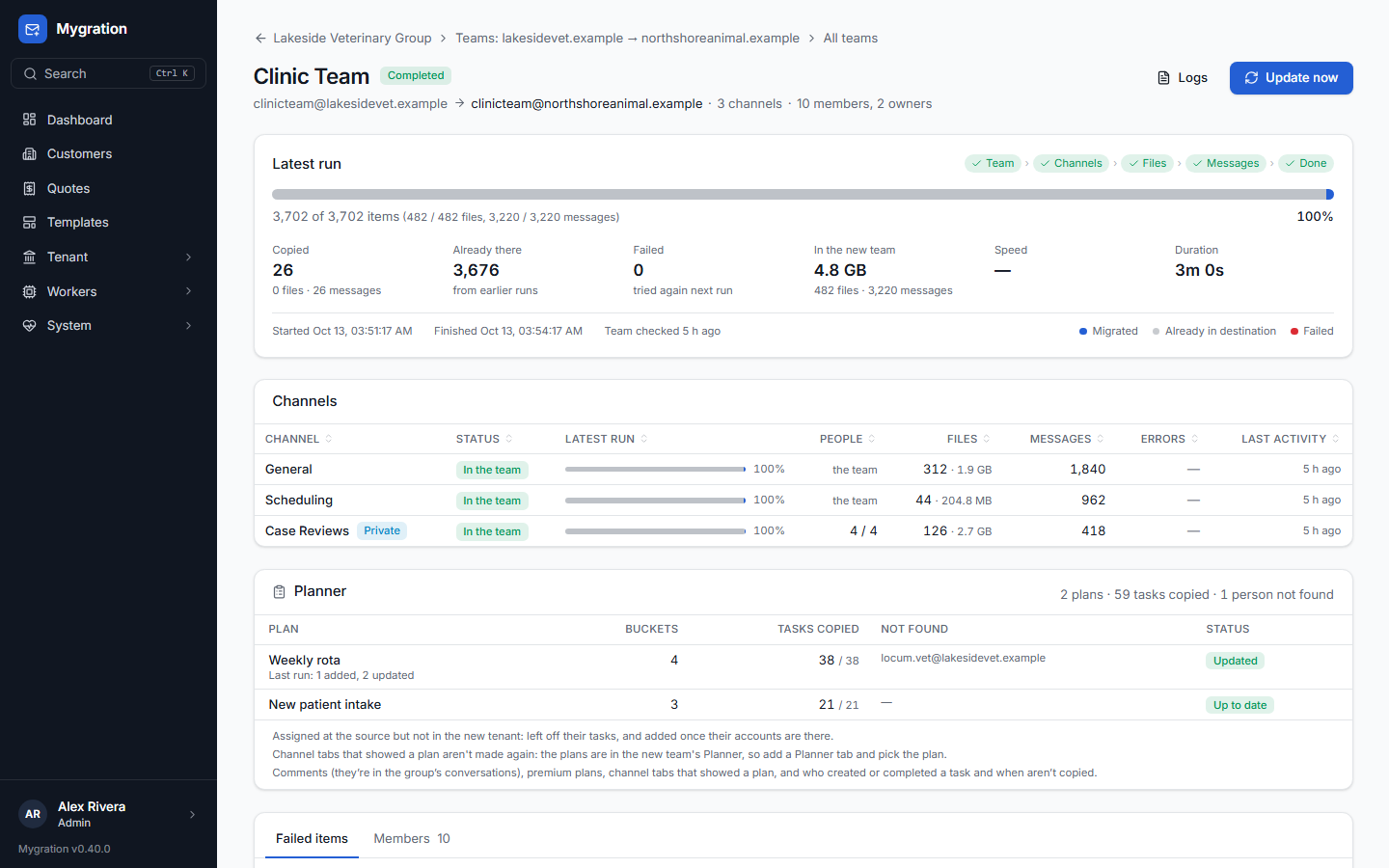
The screenshots show the demo's Lakeside Veterinary Group, moving into North Shore Animal Health's tenant.
Before you start #
- Both tenants are connected. Teams move between tenants, not within one. See Connecting a customer's Microsoft 365 tenant.
- The SharePoint certificate is added under Tenant → Microsoft 365 apps, for channel files.
- Run the people's email migration first. Members are the people moving in the customer's email migrations, added as their new accounts appear. Messages are matched to their authors when they're imported, so people who are already in the new tenant keep their messages under their own name.
Tip
Without an email migration, pick a New domain in the batch's settings: people are then found there by the same name.
Permissions for conversations #
Copying conversations needs two more permissions for the migration app. If the batch says one is missing:
- An admin opens Tenant → Microsoft 365 apps and clicks Update permissions.
- On each tenant's connection, click Re-consent and have the tenant's Global Administrator accept.
Microsoft may also ask you to approve the app for reading Teams messages, once. The batch says so if it does, with where to request it (aka.ms/teamsgraph/requestaccess). Teams, channels and files don't wait for it.
1. Create the migration and a batch #
- Open the customer and click New migration.
- Pick the old tenant and the new one, tick Teams, click through to Review and click Create migration.
- Type a Batch name ("All teams" if you leave it empty) and click Next: which teams.
2. Add teams #
- Click Read from source. The old tenant's teams are listed with their members and channels.
- Tick the teams for this batch and click Add ….
Check the Settings tab: New domain works as for groups (see Migrating groups), and Copy Planner plans is on by default.
3. Start #
Click Start. For each team, in order:
- The groupMade in the new tenant, with its privacy and description
- The teamWith the source's settings: what members can do, @mentions, GIFs, guests
- ChannelsStandard, private and shared, with their owners and members
- FilesEach channel's files, with their dates, authors and versions
- ConversationsEach channel's messages and replies, with their authors and dates
- Teams can take up to about 15 minutes to see a new group. Until then the team shows Setting up.
- A new private or shared channel's site takes a few minutes; its files follow by themselves.
- A channel is unavailable to people while its messages go in, usually for minutes. Run the first copy out of hours.
Click a team to see its channels, with files and messages copied, its Planner plans, members and anything that failed.
Keep it up to date #
Update now copies only what's new: changed files, and messages not imported yet. It also runs every hour while members are waiting for their accounts. Run it once more shortly before the switch.
What comes across in messages #
- Each message and reply with its original author and date. Someone who isn't moving keeps their name.
- Inline pictures, @mentions of people who moved, and links to files, pointed at the copies.
- Messages posted by apps and bots (Workflows, connectors) come across under someone in the team, starting with Posted by … (an app): Teams only imports messages from people in the tenant.
What isn't copied #
- Reactions, and cards from apps in messages.
- Tabs, apps and wikis. For a tab that showed a plan, add it again: the plan is in the new team's Planner.
- 1:1 and group chats.
- People from other organisations in shared channels: add them again by hand.
- Files put in the team's site outside the channels' folders. Move those with a SharePoint migration (Migrating SharePoint).
- Removing anyone: teams are only added to.