Help · Workers
Workers → Performance
Enter your upload speed, cap how much of the line migrations use, and set how many mailboxes and large uploads each worker takes on.
Last updated
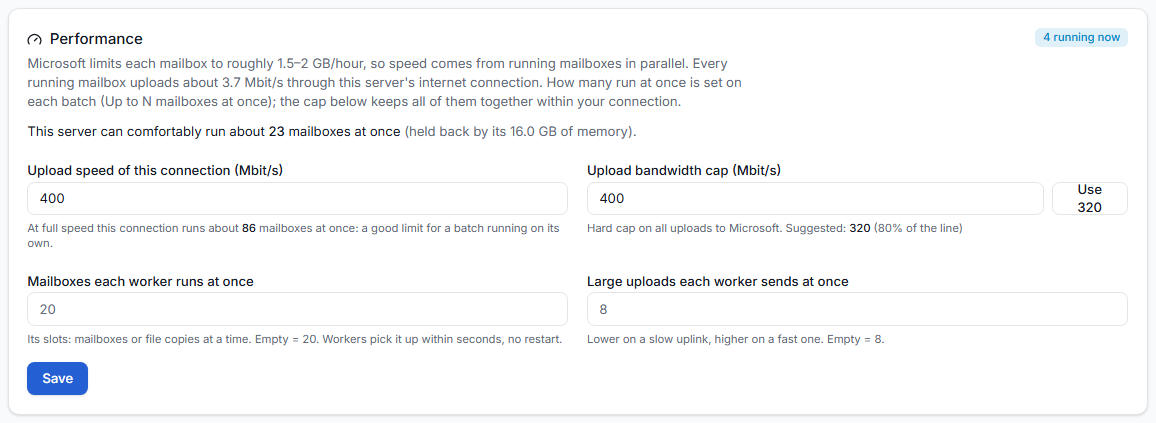
Each mailbox copies at about 1.5 to 2 GB an hour at most, so a migration gets fast by running many at once. Every running mailbox uploads about 3.7 Mbit/s through your server's internet connection. Workers → Performance is where you tell Mygration about that connection, and keep migrations within it.
How many mailboxes a batch runs at once is set on each batch (Mailboxes at once). The settings here apply to every batch together.
Upload speed #
- Run a speed test from the server's network.
- Go to Workers → Performance.
- Enter Upload speed of this connection (Mbit/s).
- Click Save.
Under the box, Mygration says how many mailboxes the connection runs at full speed: a good Mailboxes at once for a batch running on its own. New batches suggest it too.
At the top, This server can comfortably run about a number of mailboxes, and says what holds it back: the upload speed, the CPUs or the memory. Until you enter the upload speed, it counts only the CPUs and memory.
The upload cap #
Upload bandwidth cap (Mbit/s) is a hard limit on all uploads to Microsoft together. Use it so migrations don't fill the line the customer's or your office's other traffic needs, during the working day, say.
- Leave it empty for no cap.
- Once you've entered the upload speed, it suggests 80% of the line. Click Use to take the suggestion.
- Click Save. Workers pick it up within about 5 seconds, without a restart.
The cap is shared evenly between the workers on this server. It doesn't apply to workers at customers' sites: they use the customer's own connection.
Upload to Microsoft right now, under the form, shows what's being uploaded, against the cap, and each worker's share.
What each worker takes on #
- Mailboxes each worker runs at once: each worker's slots, for mailboxes or file copies at a time. Leave it empty for the default shown in the box.
- Large uploads each worker sends at once: lower on a slow uplink, higher on a fast one. Leave it empty for the default.
Click Save. Workers pick them up within seconds, with no restart.
Tip
For a batch to run its Mailboxes at once, there must be at least that many slots free: mailboxes each worker runs at once × workers. Raise one or the other, or add workers on Workers on this server.
When mailboxes stay Queued #
Mailboxes wait as Queued when there are no free slots. Check, in this order:
- The batch's Mailboxes at once.
- Mailboxes each worker runs at once here, times the number of workers.
- That the workers are online, on Workers → Overview.