Help · Selling and business tools
White label
Putting your logo, business name, colour and details on the reports, proposals, status page, assessments and emails your customers see.
Last updated
Everything your customers see can carry your brand instead of Mygration's: reports, quote proposals, the status page, the printed assessment, the emails to people moving and the alert emails. You set it once, under Tenant → White label. Only admins can change it.
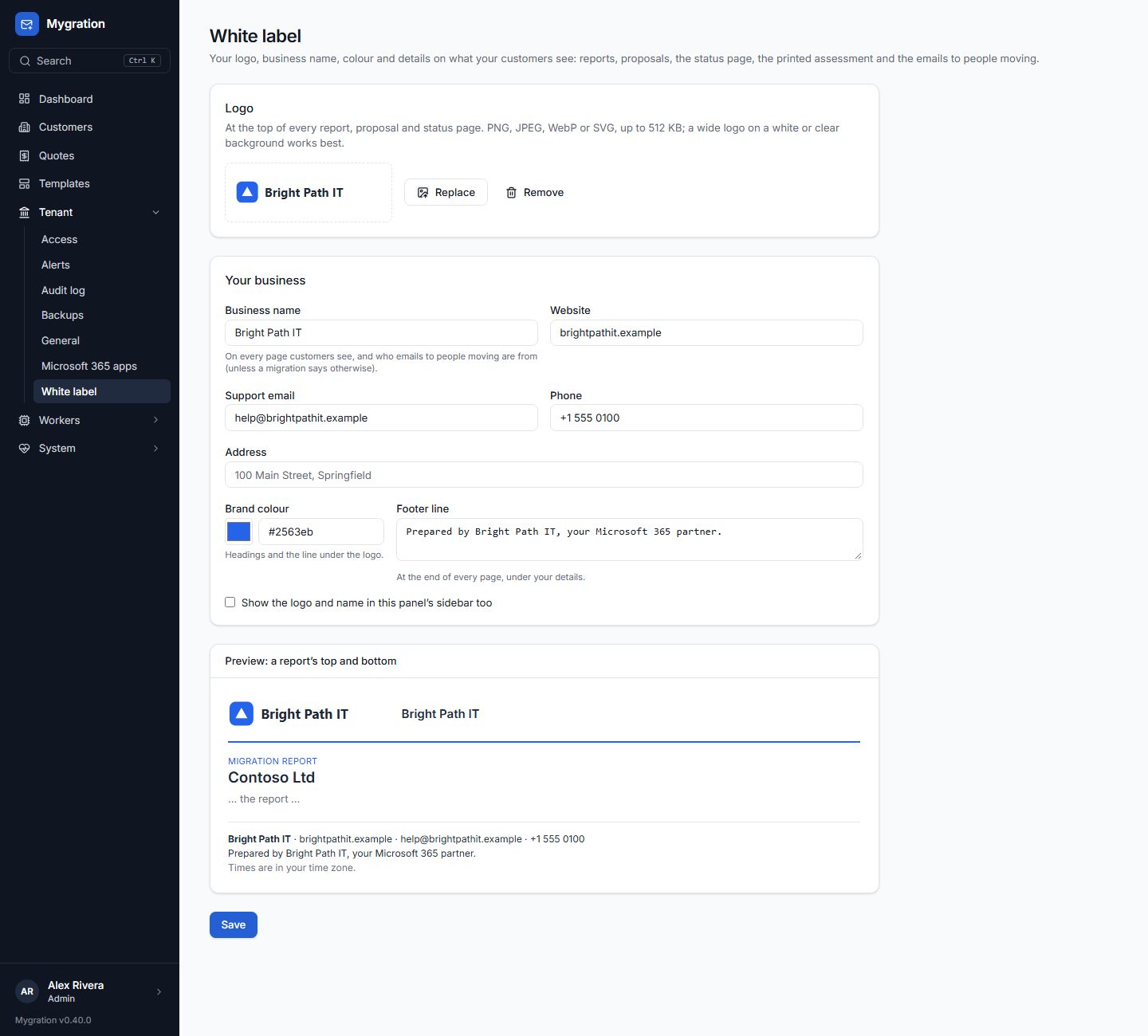
Add your logo #
- Go to Tenant → White label.
- Under Logo, click Upload a logo and pick the file: PNG, JPEG, WebP or SVG, up to 512 KB. A wide logo on a white or clear background works best.
It's saved straight away. Replace changes it; Remove takes it off.
Note
Email programs don't show SVG logos. If yours is an SVG, alert emails show your business name instead. Use a PNG if you want the logo in emails too.
Add your details #
Under Your business, fill in what you'd like customers to see:
- Business name: on every page customers see, and the name the emails to people moving come from (unless a migration sets its own).
- Website, Support email, Phone and Address: shown at the bottom of each page.
- Brand colour: headings and the line under the logo. Pick it, or type its code, like
#2563eb. - Footer line: a line at the end of every page, under your details. For example Prepared by Bright Path IT, your Microsoft 365 partner.
Tick Show the logo and name in this panel's sidebar too to brand the panel for your own staff as well.
Check the Preview of a report's top and bottom, then click Save. New reports, proposals and status pages show it straight away.
Where your brand shows #
- Every report: batch, migration and customer reports.
- Quote proposals. See Quotes from assessments.
- The status page you share with a customer.
- The printed assessment.
- Emails to people moving: they come from your business name, unless the migration sets another sender.
- Alert emails to your team: your logo, name and colour on the top line and buttons, and your details and footer line at the bottom.
Without a brand, they all read as Mygration.
Tip
A migration can send its user emails from another name, such as the customer's own IT department. Set it in the migration's user email settings, or in a template.