Help · Files: OneDrive, SharePoint and file servers
Migrating OneDrive between tenants
Copy each person's OneDrive into theirs in the new tenant: matching people, setting up OneDrives that don't exist yet, and the batch's settings.
Last updated
A OneDrive migration copies each person's whole OneDrive into their OneDrive in the new tenant, with its folders, dates, authors, version history (if the batch keeps it) and sharing with people and groups.
The screenshots show the demo's sample customer, Lakeside Veterinary Group, moving into North Shore Animal Health's tenant.
Tip
To copy just one folder out of someone's OneDrive into a site (a leaver's project folder into the team's library, say), use a SharePoint migration instead. See Migrating SharePoint.
Before you start #
- Both tenants are connected to the customer. See Connecting a customer's Microsoft 365 tenant.
- The SharePoint certificate is added under Tenant → Microsoft 365 apps. Without it, Created By and Modified By show the app, and version history and permissions can't be copied. The batch page warns you if it's missing.
- People have accounts in the new tenant, with a license that includes OneDrive. The usual order is the email migration first: it makes the accounts, and the OneDrive batch matches people through it.
1. Create the migration #
- Open the customer and click New migration.
- Pick the old tenant under Migrate from (source) and the new one under Migrate to (destination).
- Tick OneDrive (with anything else that's moving) and click through to Review.
- Click Create migration.
The migration opens with a new batch ready to name.
2. Make a batch and add people #
- Type a Batch name ("Wave 1", say) and click Next: whose OneDrives.
- The source tenant's people are listed. Each shows the size of their OneDrive, who it Goes to in the new tenant,
and how it was Matched by:
- Their mailbox move: the address they get in the customer's email migration.
- Same username: the same name before the
@in the new tenant. - Not found: type it: type their new address in the Goes to box.
- Tick the people moving, or click Pick everyone matched. Change any Goes to address that's wrong.
- Click Add … people.
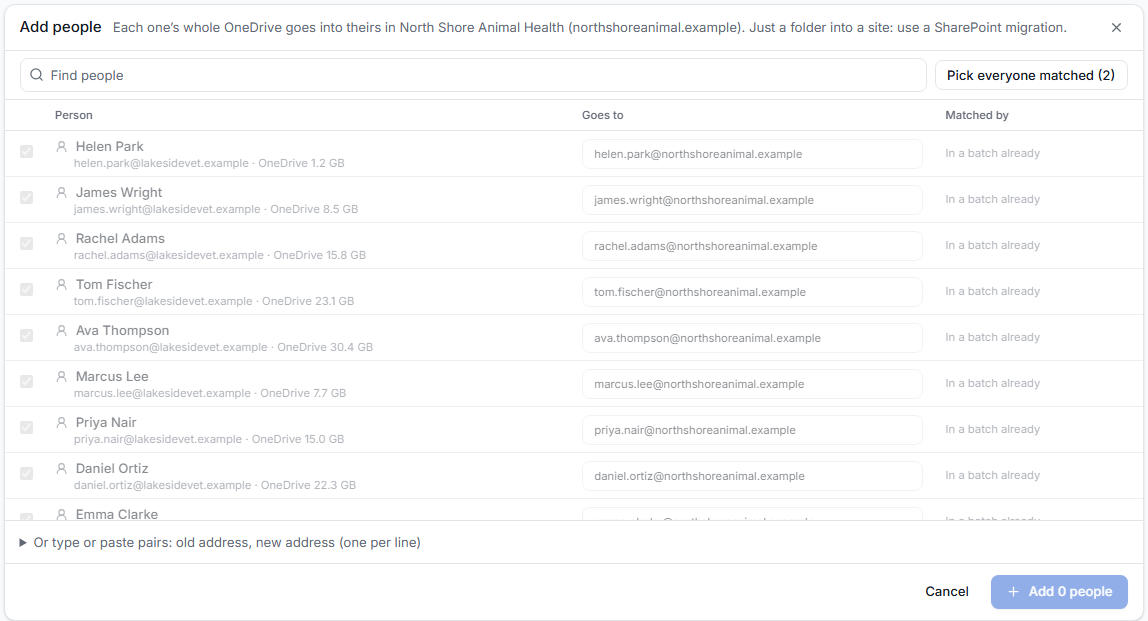
You can also open Or type or paste pairs and paste one old address, new address per line, from a spreadsheet.
Add more people later with Add people on the batch page. Someone who never opened their old OneDrive shows no OneDrive in the source: there's nothing to copy for them.
3. Set up OneDrives that don't exist yet #
Microsoft only makes a person's OneDrive when they first open it, or when a SharePoint admin asks for it. If anyone in the batch hasn't one yet, the batch page says so, with a PowerShell command for all of them.
- Click Copy the commands.
- Run them in the SharePoint Online Management Shell, signed in as a SharePoint admin of the new tenant.
- Wait a few minutes (sometimes longer), then click Check again.
Their copies wait until their OneDrive is there. Anyone listed under No license with OneDrive needs a license that includes SharePoint (OneDrive) first.
4. Check the settings #
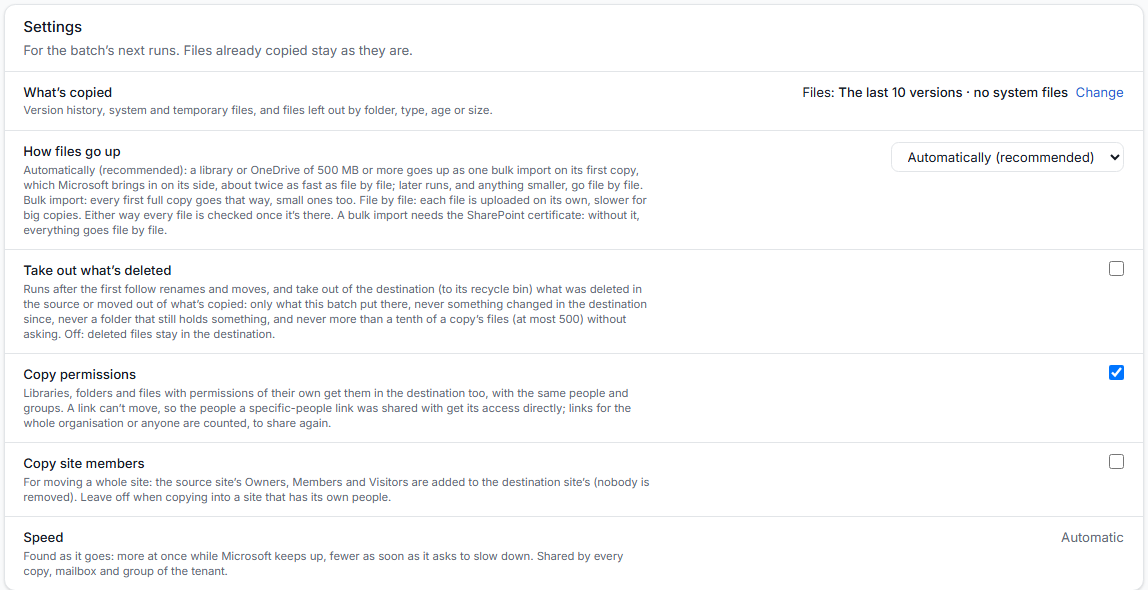
Open the batch's Settings tab before the first run:
- What's copied: version history, and files to leave out. See File filters.
- How files go up: leave it on Automatically (recommended). The other choices are Through the Migration API and File by file; only change it if support asks you to.
- Take out what's deleted: on by default. Later runs take out of the new OneDrive what was deleted in the old one, to its recycle bin. See Later runs.
- Copy permissions: on by default. Files and folders shared with people or groups are shared with the same people in the new tenant.
5. Start the copy #
Click Start. Tick people first and use Start above the list to copy only those.
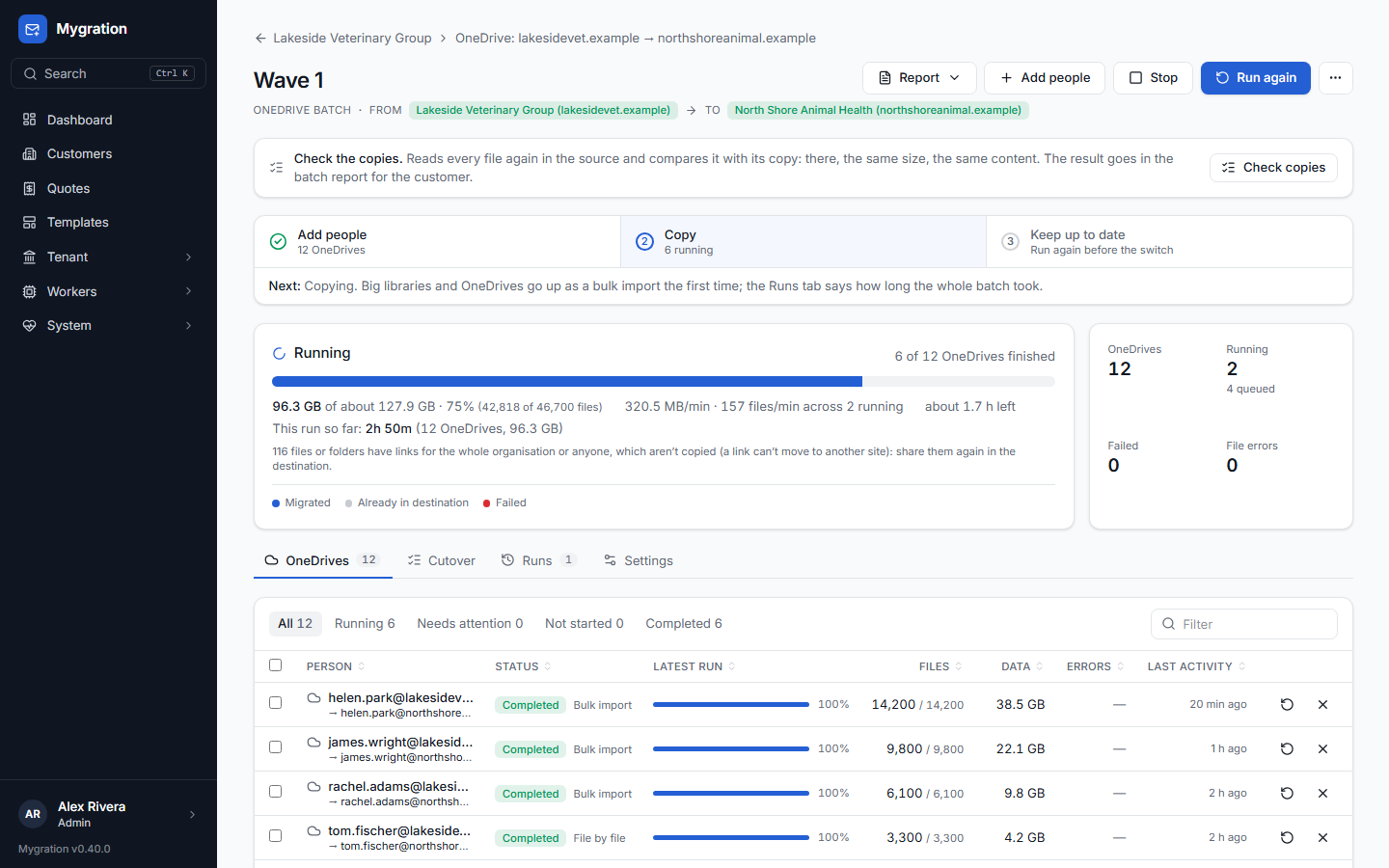
The batch page shows the data and files done, speed and time left. Each OneDrive's row shows its status and how it was copied. Click a row to see that OneDrive's folders, what was kept and any files that failed, with why.
- Stop stops the copies. What's copied stays, and running again carries on.
- Retry failed runs again only the OneDrives that failed or had files fail.
- The Runs tab lists each start of the batch: how long it took and what it copied.
Later runs #
Click Run again whenever you like before the switch. It copies only what's new or changed since the last run, and follows renames and moves. Run it once more shortly before the cutover.
With Take out what's deleted on, a run takes out only what the batch put there, never a file changed in the new OneDrive since, and never more than a tenth of a copy's files (at most 500) without asking. If it holds back, the batch page says so: click Yes, take them out if the deletions are right.
To run it on a schedule, use Settings → Run automatically: a First run, how often Then, and when to Stop after (usually the cutover).
Check the copies #
Once a run has finished, click Check copies at the top of the batch. It reads every file again in the old OneDrive and compares it with its copy: there, the same size, the same content. The result goes in the batch report.
What isn't copied #
- Sharing links for the whole organisation or anyone. They're counted on the batch page, to share again. People a link was shared with by name get its access directly.
- Personal Vault, and files shared with the person from someone else's OneDrive (they're copied with their owner's).
- The OneDrive's recycle bin.
Next steps #
- Cutover for files: the last copy and switching people's sync over.
- When a destination is full.
- Reports for the customer: the batch report for the customer.