Help · Your Mygration server
Email alerts
Setting up the SMTP server alerts go through, choosing who gets what, a customer's own recipients, and checking alerts were sent.
Last updated
Mygration emails your team when passes finish, batches complete, workers go offline, backups fail and app secrets are about to expire. The emails to people being moved go out through the same SMTP server, so set it up before your first migration.
Alerts are under Tenant → Alerts. Only admins can change them.
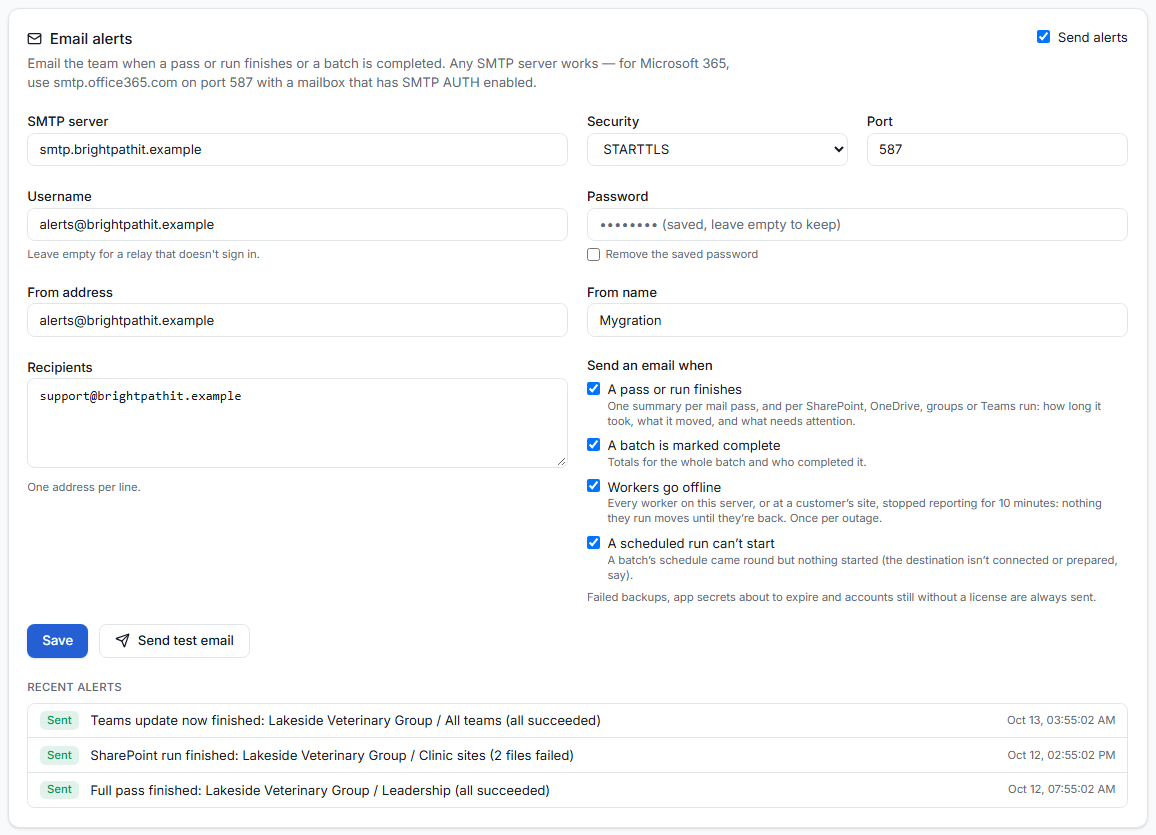
Set up the SMTP server #
- Go to Tenant → Alerts.
- Fill in SMTP server, Security and Port:
- STARTTLS on port 587 is the usual. SSL/TLS uses 465. None (trusted relay) uses 25, for a relay inside your network.
- For Microsoft 365, use
smtp.office365.com, STARTTLS, port 587, with a mailbox that has SMTP AUTH enabled.
- Fill in Username and Password. Leave them empty for a relay that doesn't sign in. The password is stored encrypted; once saved, leave the box empty to keep it.
- Fill in From address, and a From name if you like.
- In Recipients, put one address per line: your migrations mailbox or the technicians who should hear.
- Tick Send alerts.
- Click Save.
- Click Send test email. It says Test sent to …, or Test failed with the server's reason.
Note
The test uses the form as it is, saved or not. If it works but Send alerts isn't ticked and saved, nothing else is sent, and the panel says so.
Choose what's emailed #
Under Send an email when, tick what your team wants:
| Option | What it sends |
|---|---|
| A pass or run finishes | One summary per mail pass, and per SharePoint, OneDrive, groups or Teams run: how long it took, what it moved, and what needs attention. |
| A batch is marked complete | Totals for the whole batch and who completed it, with the report. |
| Workers go offline | Every worker on this server, or at a customer's site, stopped reporting for 10 minutes. Once per outage. |
| A scheduled run can't start | A batch's schedule came round but nothing started (the destination isn't connected or prepared, say). |
Failed backups, app secrets about to expire and accounts still without a license are always sent.
Each email says how it went, lists what needs a look with links to it, and has buttons to the batch and the customer. With a brand under Tenant → White label, alerts carry your logo, name and colour: see White label.
A customer's own recipients #
A customer's alerts can also go to the technicians who look after it, or to the customer's IT contact:
- Open the customer's page.
- In the details panel, next to Alerts also go to, click Change.
- Put one address per line, and click Save.
They hear when that customer's passes and runs finish, its batches complete or a schedule can't start, as well as everyone under Tenant → Alerts.
Just the passes you start #
Anyone can get an email when a pass they started finishes, even if they're not on the recipients list: My settings → Notifications → Email me when a pass I started finishes. It goes to their sign-in address, and needs email alerts switched on under Tenant → Alerts.
Check what was sent #
Recent alerts, at the bottom of the card, lists the latest alerts with Sent, Queued or Not sent. One that wasn't sent shows the mail server's reason, how many tries it's had and when it tries next.
Alerts in Teams, Slack or your PSA #
The same alerts can go to a Teams or Slack channel, or open tickets in your PSA, whether email is set up or not. See Webhooks and PSA tickets.