Help · Getting started
Getting started
What you need, installing Mygration with one command, signing in with the setup code, and the first settings to make.
Last updated
Mygration runs on a Linux server you control. You install it with one command, sign in with a setup code, then let it set up its Microsoft 365 apps for you. Allow about half an hour.
What you need #
- A Linux server that's always on: Ubuntu 22.04 or 24.04, or Debian 12 or 13. A virtual machine is fine.
- A hostname for the panel, such as
migrate.yourmsp.example, pointing at the server in DNS. It can be public or only used inside your network. - Your Mygration license key. It starts with
mgl_. - Admin rights in your MSP's own Microsoft Entra tenant, to create two app registrations: Application Administrator or Cloud Application Administrator. A Global Administrator can also grant the consent one of them needs.
- Root access on the server (
sudo).
Server sizes #
Pick a size by how many mailboxes you want to run at once. Your upload speed usually decides it: each running mailbox uses about 3.7 Mbit/s of upload.
| Small | Medium | Large | |
|---|---|---|---|
| Mailboxes at once | about 10 | about 25 | 50+ |
| CPU and memory | 4 vCPU, 8 GB | 8 vCPU, 16 GB | 16 vCPU, 32 GB |
| Workers | 2 | 3 | 4 to 6 |
| Upload | 50 Mbit/s | 100+ Mbit/s | 500+ Mbit/s |
| Disk | 64 GB system + 50 GB data | 64 GB system + 100 GB data | 64 GB system + 200 GB data |
| Azure VM | D4s_v5 | D8s_v5 | D16s_v5 |
| Hyper-V or VMware | 4 vCPU, 8 GB static memory | 8 vCPU, 16 GB static | 16 vCPU, 32 GB static |
- Put the data on a separate SSD disk if you can. With Hyper-V or VMware, give the VM fixed (not dynamic) memory.
- Migrations upload a lot. If the server is in a cloud, check what your provider charges for outbound data before a big move.
Network #
- Inbound: TCP 443 and 80 from the networks your staff use. For a free Let's Encrypt certificate, they must be open from the internet.
- Outbound HTTPS to
registry.mygration.cloud,*.sigstore.dev,login.microsoftonline.com,graph.microsoft.com,outlook.office365.comand*.sharepoint.com, and to Google's APIs if you move customers from Google Workspace. - Outbound to your customers' sources as needed: IMAP (993 or 143) or Exchange Server (443).
Install Mygration #
Sign in to the server and download the installer:
curl -fsSL --proto '=https' --proto-redir '=https' --tlsv1.2 https://mygration.cloud/install.sh -o install.shOptionally, read it first with
less install.sh. Everything it does is listed at the top.Run it:
sudo bash install.shAnswer its questions:
- The hostname staff will browse to.
- Your license key. Paste it when asked. It isn't shown as you paste.
- How to do HTTPS: a free Let's Encrypt certificate (the hostname must be reachable from the internet), a certificate from the server itself (for a name used only inside your network), or your own reverse proxy.
- How many workers to run on this server. The default is 2. You can change it later on the Workers page.
The installer checks the server, installs what's missing and starts Mygration. It warns, rather than stops, if the server is smaller than the sizes above.
Save the backup passphrase. The installer shows it once. Put it in your password manager: no backup can be restored without it.
At the end, the installer prints the panel's address and a setup code.
Tip
Lost the setup code? Run sudo mygration setup-code on the server to see it again. sudo mygration doctor checks
the server, its certificate and its connections if something doesn't work.
Running the installer again is safe: it finds the install and offers to repair or upgrade it.
Sign in for the first time #
- Open
https://<your hostname>in a browser. - On Set up Mygration, enter the Setup code, your name, your email and a password of at least 12 characters.
- Click Create admin and sign in.
You're the first admin. Add colleagues later under Tenant → Access.
Check the license #
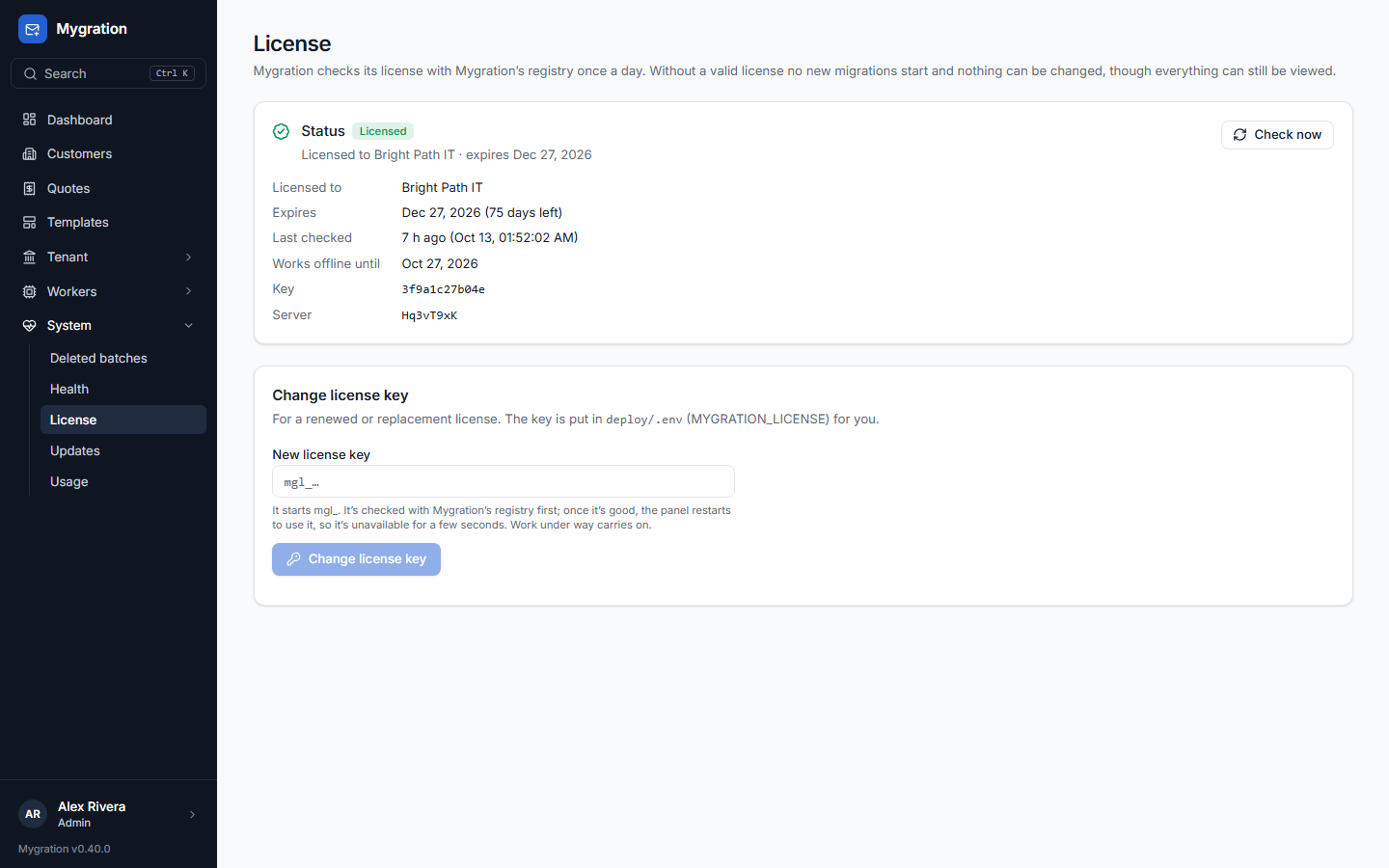
Open System → License. The status should say Licensed, with who it's licensed to and when it expires. If the license key needs changing, see Licensing and activation.
Set up the Microsoft 365 apps #
These are your own apps, made once in your Microsoft 365 tenant (your MSP's, or any tenant you control), not in a customer's:
- Migration Engine app (required): each customer's admin consents to it later, for their old and new tenants.
- Panel app (optional): only for staff signing in with their Microsoft accounts. Without it, staff sign in with a password and an authenticator app.
Go to Tenant → Microsoft 365 apps.
Click Set up automatically for both apps, or Migration app only if staff won't sign in with Microsoft.

The panel shows a code. Open microsoft.com/devicelogin in any browser, enter the code, and sign in with an account in your MSP tenant that's an Application Administrator or Cloud Application Administrator. Microsoft asks you to allow Microsoft Graph Command Line Tools: that's Microsoft's own sign-in app, so allow it.
Check the plan: it says which apps it will make or update. Tick Add the SharePoint certificate too if it's offered. SharePoint, OneDrive and Teams file moves need it.
Click Go ahead, and wait for each step to finish.
You can run it again any time. It updates the apps it finds and never makes duplicates.
Note
Open the panel at the hostname you gave the installer before you click Set up automatically. If you browse to it by another address, it won't start, and it says why.
To let staff sign in with their Microsoft accounts, turn on single sign-on under Tenant → Access → Single sign-on, then switch it on for each person.
Finish the setup #
The dashboard's System health lists anything still missing. The usual list:
- Tenant → General: your time zone.
- Tenant → Alerts: your SMTP server and who gets alerts, then Send test email. The emails to people being moved go out through it too.
- Tenant → Backups: click Back up now, and check it says the last backup is OK and encrypted.
- Workers → Performance: your upload speed, so Mygration can suggest how many mailboxes to run at once.