Help · Customers and connections
Connecting Box
Make your Box app once, then have each customer's Box admin authorize it and send you their enterprise ID.
Last updated
Mygration reads each person's Box into their OneDrive, and Box folders into SharePoint, through a Box app that the customer's Box admin authorizes. It only reads, and needs no passwords.
You make the Box app once, for every customer. Each customer's Box admin then authorizes it in their own Box.
Make your Box app (once) #
- Sign in to the Box Developer Console with your MSP's Box account.
- Click Create Platform App → Custom App, and choose Server Authentication (Client Credentials Grant).
- On the app's Configuration tab:
- App Access Level: App + Enterprise Access.
- Application Scopes: tick Read all files and folders stored in Box and Manage users.
- Advanced Features: tick Make API calls using the as-user header.
- Click Save.
- Note the Client ID and Client Secret on the same tab. Box asks for two-step verification to show the secret. Keep them in your password manager: every customer's connection uses them.
Have the customer's Box admin authorize it #
Send the customer's Box admin your app's Client ID and these steps:
- In the Box Admin Console, go to Integrations → Platform Apps Manager.
- Click Add Platform App, paste the Client ID, and click Authorize.
- Find the Enterprise ID under Account & Billing, and send it to you.
Add the connection #
- Open the customer and click Connections (or Add connections).
- Click Add a source, then Box.
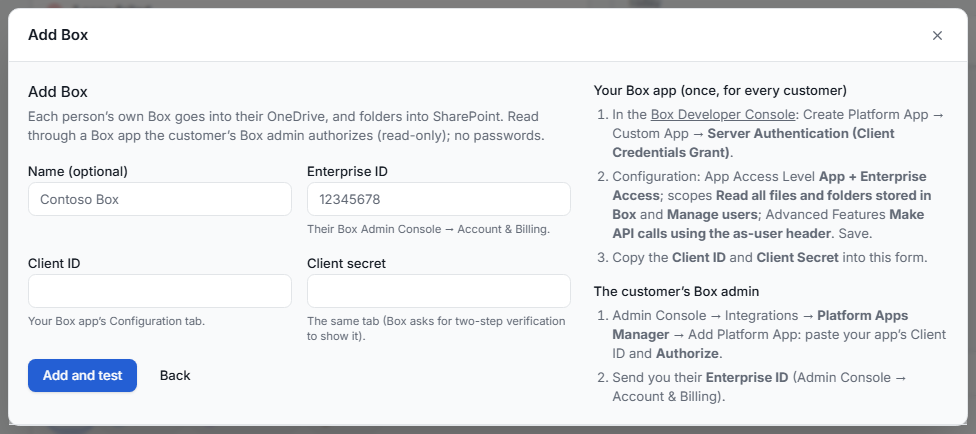
- Fill in:
- Name (optional), such as
Meridian Legal Box. - Enterprise ID: from the customer's Box admin.
- Client ID and Client secret: your Box app's.
- Name (optional), such as
- Click Add and test.
The test signs in, lists the enterprise's people, and reads one person's Box as them. Nothing is changed. Each step shows a tick, or a cross with the reason. Click Continue.
To test again later, click Test on the connection, then Run test. To change the secret or the enterprise ID, use the pencil and click Save and test.
If the test fails #
- Check the Enterprise ID belongs to this customer, and that their admin clicked Authorize for your app's Client ID.
- Check the app's settings: App + Enterprise Access, both scopes, and the as-user header. If you change them in the Developer Console after a customer authorized the app, their admin may need to authorize it again.
- A new client secret must be typed into every Box connection: use the pencil on each.