Help · Cutover and reporting
Reports for the customer
The batch, migration and customer reports, the sign-off page, and the CSVs behind them.
Last updated
Every batch, every migration and every customer has a report: a printable page for the customer saying what moved, and everything that didn't with why. Each also has CSVs for your own checks.
Batch reports #
Open the batch and click Report at the top.
Mail batches:
- Open migration report: totals, each mailbox, every pass, and each item that couldn't move with why.
- Download report (HTML): the same report as a file, to email to the customer.
- Mailboxes (CSV) and Failed items (CSV).
When you Mark complete a mail batch, the report is emailed to your alert recipients.
Files batches (OneDrive, SharePoint, file server, Google Drive, Box, Dropbox):
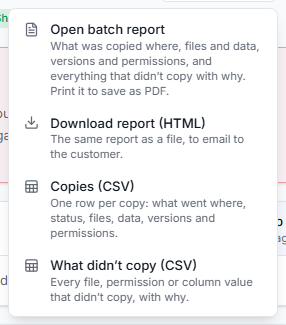
- Open batch report: what was copied where, files and data, versions and permissions, and everything that didn't copy with why.
- Download report (HTML).
- Copies (CSV): one row per copy, with what went where, its status, files, data, versions and permissions.
- What didn't copy (CSV): every file, permission or column value that didn't copy, with why.
Groups and Teams batches:
- Open batch report: each group or team with its new address and members, who wasn't added and why, and what wasn't copied.
- Download report (HTML).
- Groups (CSV): old and new address, status, members in, contacts created.
- Members (CSV): every member and owner of every group, with what happened and why.
Migration reports #
The migration's page (open the migration from the customer's page) has a Report too, covering every batch in it: Open migration report for mail and files, Open groups report for groups and Teams, with the same downloads and CSVs.
The customer report #
On the customer's page, click Report:
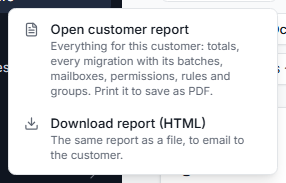
- Open customer report: everything for this customer, every migration with its batches: totals, mailboxes, permissions, rules, files, groups and teams.
- Download report (HTML).
It ends with a sign-off page: each kind of move with what its checks found (Complete, or Needs a look with where), and lines for the customer and your team to sign.
What the checks add #
Run the checks before you take the report, so it shows them:
- Mail: after each full pass, every folder of the new mailbox is counted against what was copied. The report says "All … items accounted for", or names the mailbox and folder that's short. Check copies on the batch adds its result too.
- Files: Check copies on a OneDrive, SharePoint or file server batch compares every file with its source. The result goes in the batch report.
- Old addresses: how many came across, the domains the new tenant hasn't got, and every address not added with why.
Saving and sending #
- Print it to save as PDF: open the report and use the browser's Print, then Save as PDF.
- Or Download report (HTML) and attach the file.
Reports, the status page and the customer's assessment carry your logo and business name from Tenant → White label.
Note
Reports name failed items and people, so taking one is recorded in the audit log.
For a file server #
The file server's assessment is a report of its own, for before the move: sizes, what SharePoint would refuse, who's in the permissions, and every batch's pre-flight. Open it with Customer report on a file server batch's Pre-flight tab.