Help · Email migrations
Mailbox permissions and inbox rules
What the Permissions and Rules tabs show, what isn't copied from each source, and the PowerShell script for when Exchange Online won't take them.
Last updated
Mailbox permissions, inbox rules and automatic replies are copied by themselves after each mailbox's full pass. Each mail batch has a Permissions tab and a Rules tab showing what came across and what needs a look.
Turn them on or off #
They're on for a new migration: Mailbox permissions and Inbox rules and automatic replies, ticked under Email in New migration. To change it later, open the email migration's Settings tab, tick or untick them under Also migrate, and click Save. Turning one off stops it; what was already added stays.
What comes across #
Permissions: Full Access, Send As, Send on Behalf, and folder and calendar sharing, delegates included.
- Only for people who are moving too, in any batch of the migration. Someone who moves later gets their access then.
- Access is only ever added or raised in the new tenant, never removed.
- A problem never fails a pass: it's noted on the mailbox and tried again.
Rules and automatic replies:
- Rules that mention people who moved use their new addresses.
- A rule the new mailbox already has isn't made twice.
- The automatic reply is copied when the old mailbox has one on and the new mailbox has none.
- Forwarding outside the organization is never copied. A hidden forward is a common sign of a compromised mailbox. The Rules tab lists it, for you to set up again by hand if the customer wants it.
| Source | Permissions | Rules and replies |
|---|---|---|
| Microsoft 365 | Everything above | Inbox rules and the automatic reply |
| Exchange Server | Folder and calendar sharing, delegates. Not Full Access or Send As | Rules kept on the server, and the automatic reply. Not rules that only run in Outlook |
| Google Workspace | Gmail delegates (as Full Access and Send on Behalf), calendar sharing | Gmail filters as rules, and the vacation responder |
| IMAP | Nothing to copy | Nothing to copy |
From a Microsoft 365 source, reading permissions and rules needs the migration app's Exchange role in the old tenant too. See Connecting a customer's Microsoft 365 tenant.
The Permissions tab #
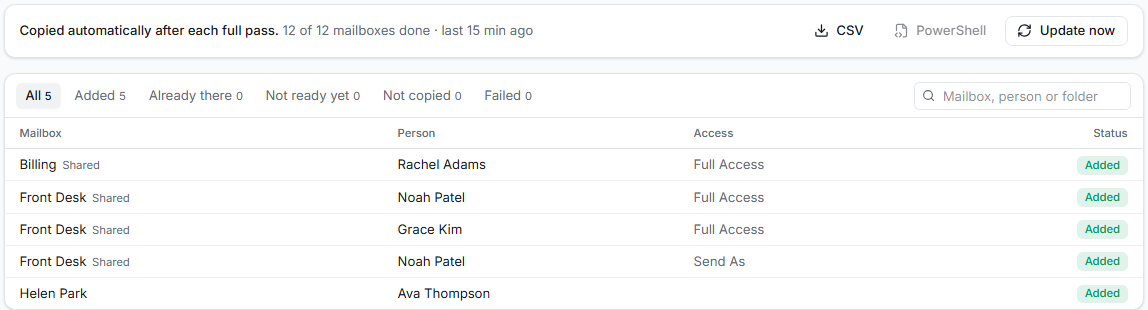
The top line says how many mailboxes are done. Below, every permission is one line: the mailbox, the person, the access and its status.
- Added or Already there: done.
- Not ready yet: the person's new mailbox isn't ready. It's added once it is.
- Not copied: the person isn't moving (or is a group). Needs a look lists them: add them to a batch, or set their access up by hand.
- Failed: hover over it for why.
Use the filters along the top and the search box to find one. CSV downloads every permission, for the customer's records. Update now copies them straight away instead of waiting for the next full pass: after another batch's accounts are ready, say.
The Rules tab #
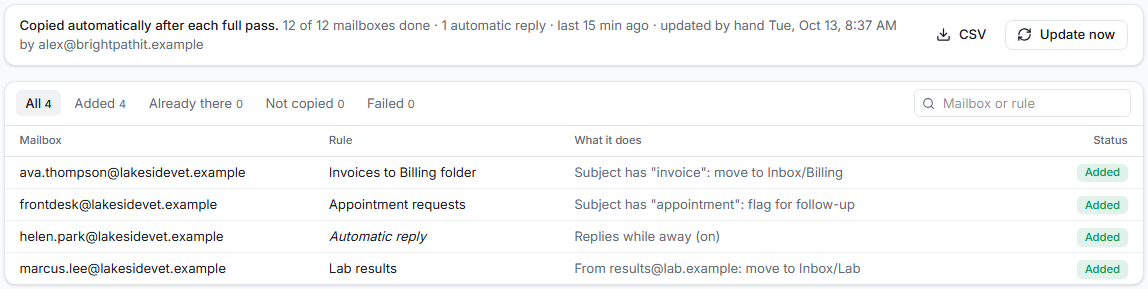
Every rule and automatic reply is one line, with what it does and its status: Added, Already there, Not copied or Failed. Needs a look lists what wasn't copied, and rules copied without part of what they did (Partly copied), with why.
CSV and Update now work as on the Permissions tab.
When Exchange Online won't take them #
Some tenants refuse: the app's Exchange role can't be given, or a policy blocks it. Then an Exchange admin can add the permissions with PowerShell instead.
- On the Permissions tab, click PowerShell. It downloads
Add-Permissions.ps1, with the Full Access, Send As, Send on Behalf and folder permissions still to add, or that failed. - Run it in PowerShell 7 with the ExchangeOnlineManagement module (
Install-Module ExchangeOnlineManagement -Scope CurrentUser, once). It asks you to sign in: use an Exchange admin of the new tenant. - Run it with
-WhatIffirst to see what it would do, then without. - Back on the Permissions tab, click Update now.
The script skips what's already there, so it's safe to run twice.
Creating the mailboxes themselves has the same fallback: Destination accounts → PowerShell script
(Create-Mailboxes.ps1), offered when creating fails.