Help · Email migrations
Batch filters: choosing what to copy
Choose what a mail batch copies from each mailbox, leave folders out, set age and size limits, and copy more later with a catch-up batch.
Last updated
Each mail batch has a filter: what it copies from every mailbox in it. You set it in the first step of a new batch, What to copy, and can change it until the batch's first pass starts.
What a filter leaves out isn't a failure. Progress, totals, the report and Check copies only count what's in the filter.
Set the filter #
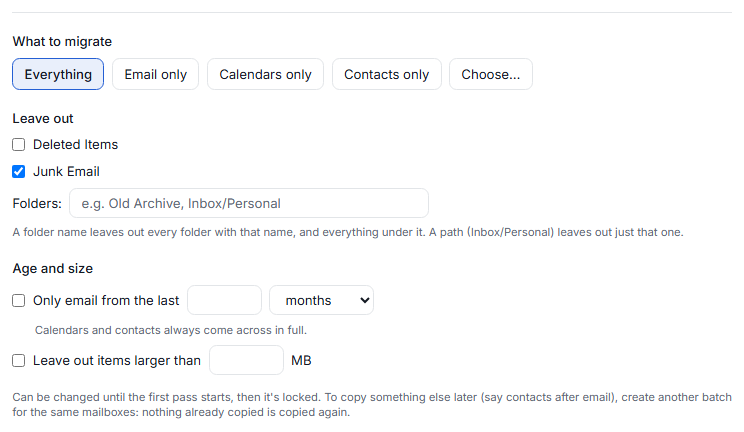
In a new batch's What to copy step, under What to migrate, choose:
- Everything: email, calendars, contacts, and tasks and notes (from Microsoft 365 and Exchange Server).
- Email only, Calendars only or Contacts only.
- Choose… for your own mix: tick Email, Calendars, Contacts and, where the source has them, Tasks and notes.
To leave something out, click Leave something out: Deleted Items, Junk, folders, older email or big items…
Leave folders out #
Under Leave out:
- Tick Deleted Items or Junk Email.
- Type folders under Folders, separated by commas:
- A name, such as
Personal, leaves out every folder with that name, and everything under it. - A path, such as
Inbox/Personal, leaves out just that one.
- A name, such as
Age and size #
Under Age and size:
- Only email from the last so many months or years. Calendars and contacts always come across in full.
- Leave out items larger than so many MB, up to 150.
Note
Microsoft 365 takes items up to 150 MB. Larger ones can't be copied, whatever the filter says.
Change it before the first pass #
Until the first pass starts, open the batch's Settings tab and click Change beside What's copied. Changes apply to the next passes.
Once a pass has started, the filter is locked (a lock shows beside it), so the report stays true to what was copied.
Copy more later: a catch-up batch #
To copy something the first batch left out (contacts after email, say, or older mail), make another batch for the same mailboxes:
- Open the email migration and click New batch.
- Set its filter to what's still to come, such as Contacts only, or Everything without an age limit.
- Add the same mailboxes with Paste a list or Upload CSV. (Pick from source shows them as already in a batch.) The first batch's Add mailboxes → Export current list gives you the file.
- Create the batch and run a pass.
Nothing already copied is copied again: what any batch copied for a mailbox counts for all of them. A mailbox can't run in two batches at once, so let one finish before starting the other.
Tip
For big mailboxes, a short first copy and a later catch-up works well: a batch with Only email from the last 2 years before cutover, then an Everything batch afterwards for the rest.