Help · Files: OneDrive, SharePoint and file servers
Migrating a Windows file server
Copy file shares into SharePoint and home drives into OneDrive, with their NTFS permissions, after a pre-flight check of each batch.
Last updated
A file server migration copies a customer's Windows file shares into SharePoint libraries, and their home drives into each person's OneDrive, with the shares' NTFS permissions. The Windows worker at the customer's site reads the file server. Nothing on the file server is changed.
The screenshots show the demo's Meridian Legal, moving its FS01 file server into its Microsoft 365 tenant.
Before you start #
- The file server is connected to the customer: its Windows worker is installed and online, its shares are added (with home drive shares marked as home drives), and a Scan has finished. Batches pick from the last scan.
- The customer's Microsoft 365 tenant is connected. See Connecting a customer's Microsoft 365 tenant.
- The SharePoint certificate is added under Tenant → Microsoft 365 apps, to copy permissions.
- The sites exist in SharePoint for the shares to go into. Libraries and folders can be made as you add them.
- People's OneDrives are set up, for home drives. The batch lists anyone without one.
1. Create the migration and a batch #
- Open the customer and click New migration.
- Pick the file server under Migrate from (source) and the customer's tenant under Migrate to (destination).
- Tick File server, click through to Review and click Create migration.
- Type a Batch name and click Next: what it copies.
One batch is fine. Use several for waves, a department at a time.
2. Add shares and folders #
Add from the file server has three ways in. Use whichever suits; a batch can mix them.
Pick folders #
- Click Pick folders. On the left, tick a share to copy all of it, or open it and tick folders. Sizes are from the last scan.
- On the right, pick the library, or a folder in it, where they go.
- Tick Only what's in the folders, straight into the folder picked if you don't want each folder to arrive under its own name. A whole share's contents always go straight in.
- Click Add … to batch. Then tick the next folders and pick their place: each can go to its own site.
Map shares to sites #
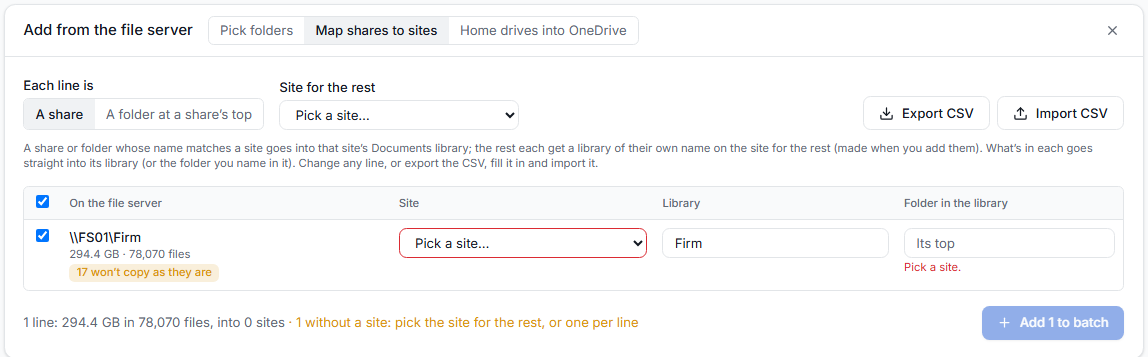
Good for many shares at once. Click Map shares to sites.
- Under Each line is, choose A share, or A folder at a share's top.
- Pick a Site for the rest. A share whose name matches a site goes into that site's Documents library; the rest each get a library of their own name on the site for the rest.
- Change any line's Site, Library or Folder in the library. A library that doesn't exist yet shows New library: made when added.
- Or click Export CSV, fill it in, and Import CSV.
- Click Add … to batch.
Home drives into OneDrive #
Click Home drives into OneDrive. Each folder at the top of a home drives share is listed with whose OneDrive it goes
into: the account its permissions are for, or else the account whose username matches the folder's name (jdoe,
jdoe$, jdoe.V6).
- Type the address for any home drive marked without a person, or change one that's wrong.
- Optionally, type a folder under Into a folder in each OneDrive ("Home drive", say). Otherwise the files go into the top of each OneDrive.
- Click Add … to batch.
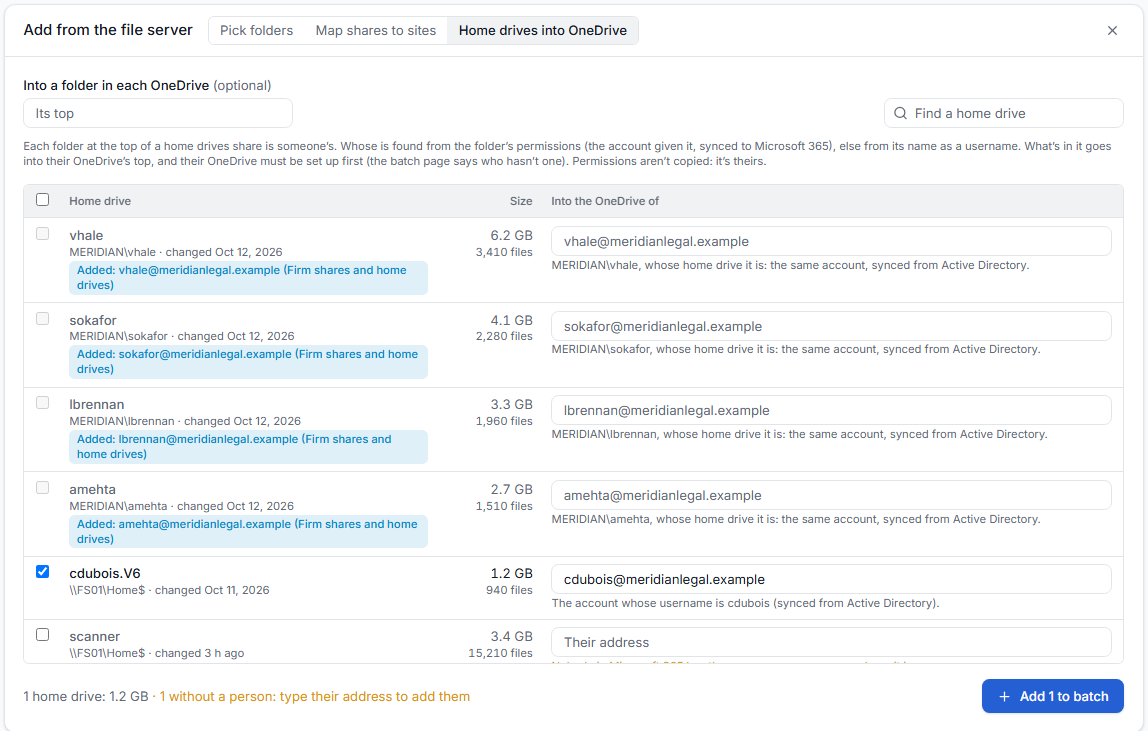
Home drives' permissions aren't copied: each OneDrive is its person's.
3. Check who's who #
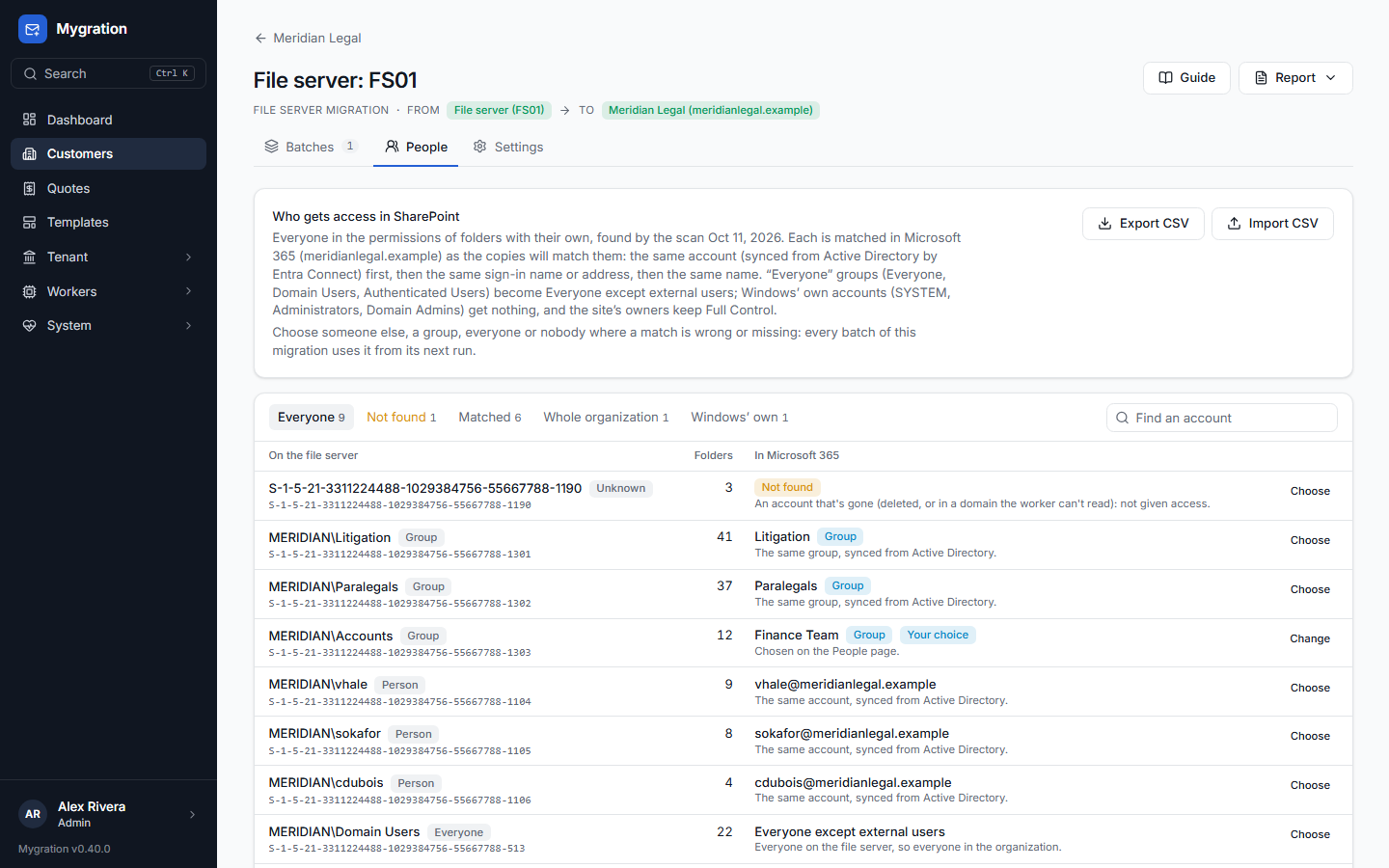
With Copy permissions on (the default), folders and files with permissions of their own get them in SharePoint, for the same people and groups:
- Full Control stays Full Control. Any write or delete right becomes Contribute. Read becomes Read.
- Everyone, Authenticated Users, Users and Domain Users become Everyone except external users.
- Windows' own accounts (SYSTEM, Administrators, Domain Admins) aren't given access.
- Denies can't be copied (SharePoint has none). They're listed per folder.
- A folder that doesn't inherit gets exactly its own people in SharePoint, plus the site's owners.
Open the migration's People tab to see everyone in the permissions and who they are in Microsoft 365. Use Choose to pick someone else, a group, everyone or nobody for an account that's wrong or Not found. Every batch of the migration uses it. Export CSV and Import CSV work here too.
4. Run the pre-flight #
Open the batch's Pre-flight tab. It checks the batch against the last scan and the destination as they are now, and gives a verdict: Ready to copy, Ready, with things to know or Not ready yet.
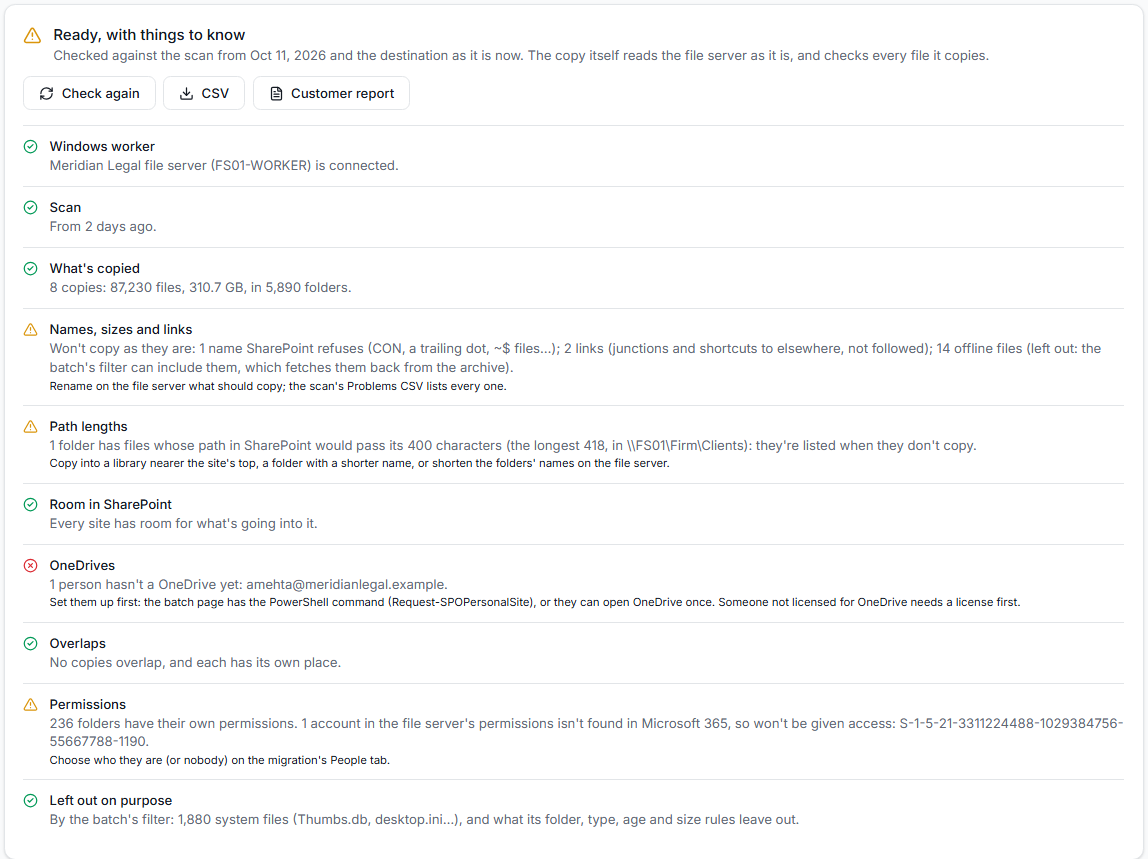
It checks the Windows worker, the scan's age, names SharePoint refuses, files over 250 GB, links, offline files, folders that can't be read, paths over SharePoint's 400 characters once the site and library are in front, room in each site and OneDrive, everyone's OneDrive, overlapping copies, and people not found. Each line says what to do.
- Check again after you've fixed something.
- CSV gives each copy's numbers.
- Customer report opens the file server's assessment, with every batch's pre-flight, to print for the customer.
5. Check the settings and start #
On the Settings tab: What's copied (see File filters), How files go up (leave it on Automatically (recommended)), Take out what's deleted and Copy permissions.
Click Start.
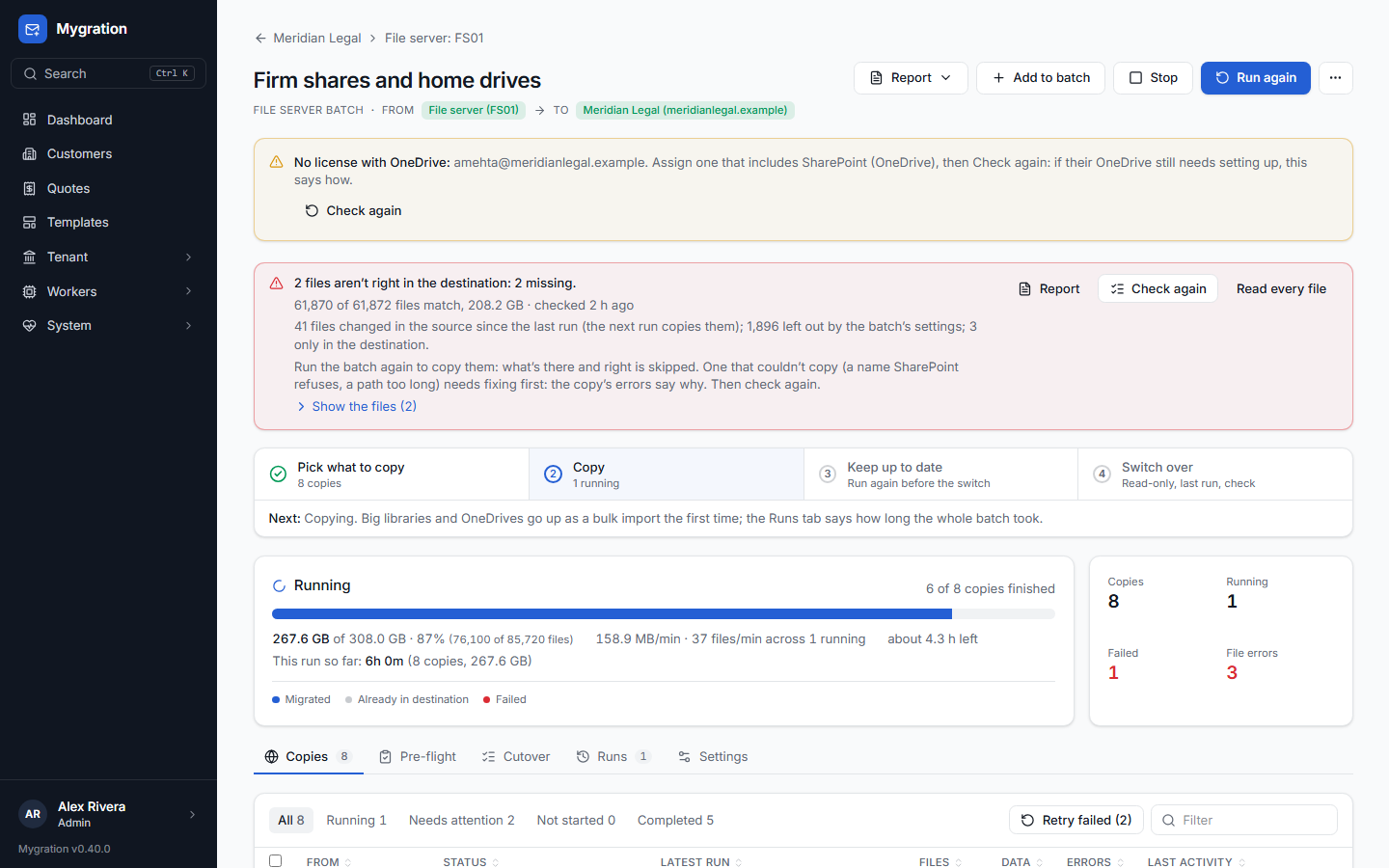
- Files open on the file server are copied as last saved, if the share keeps previous versions (Shadow Copies for Shared Folders). Otherwise they're listed and tried again next run.
- A file changed both on the file server and in SharePoint since it was copied keeps SharePoint's version, and is listed.
- Retry failed runs again only the copies that had failures.
Later runs #
Run again copies only what changed, and follows renames and moves: a moved folder is moved in SharePoint, not copied again.
With Take out what's deleted on, a run puts in SharePoint's recycle bin what was deleted on the file server. It never takes out a file changed in SharePoint since, never acts when a share looks empty, and never takes out more than a tenth of a copy's files (at most 500) without asking. If it holds back, the batch page shows Deletions held back: click Yes, take them out if they're right.
Check the copies #
Click Check copies at the top of the batch. It runs on the Windows worker and compares each file with its copy in SharePoint. Read every file reads every file on the file server again, which is slower but checks each one as it is now. The result goes in the batch report.
What isn't copied #
- Names SharePoint refuses (CON, NUL and the like,
_vti_, or ending in a space or a period) and files over 250 GB: listed, to fix on the file server. - Links and junctions (not followed), offline files and system files unless the filter takes them.
- Who made or last changed each file: the migration app shows as the author.
Next steps #
- Cutover for files: the switch-over guide, making the shares read-only and replacing mapped drives.
- When a destination is full.