Help · Selling and business tools
Templates
Saving the way you always set a move up, and starting a customer's migration from it.
Last updated
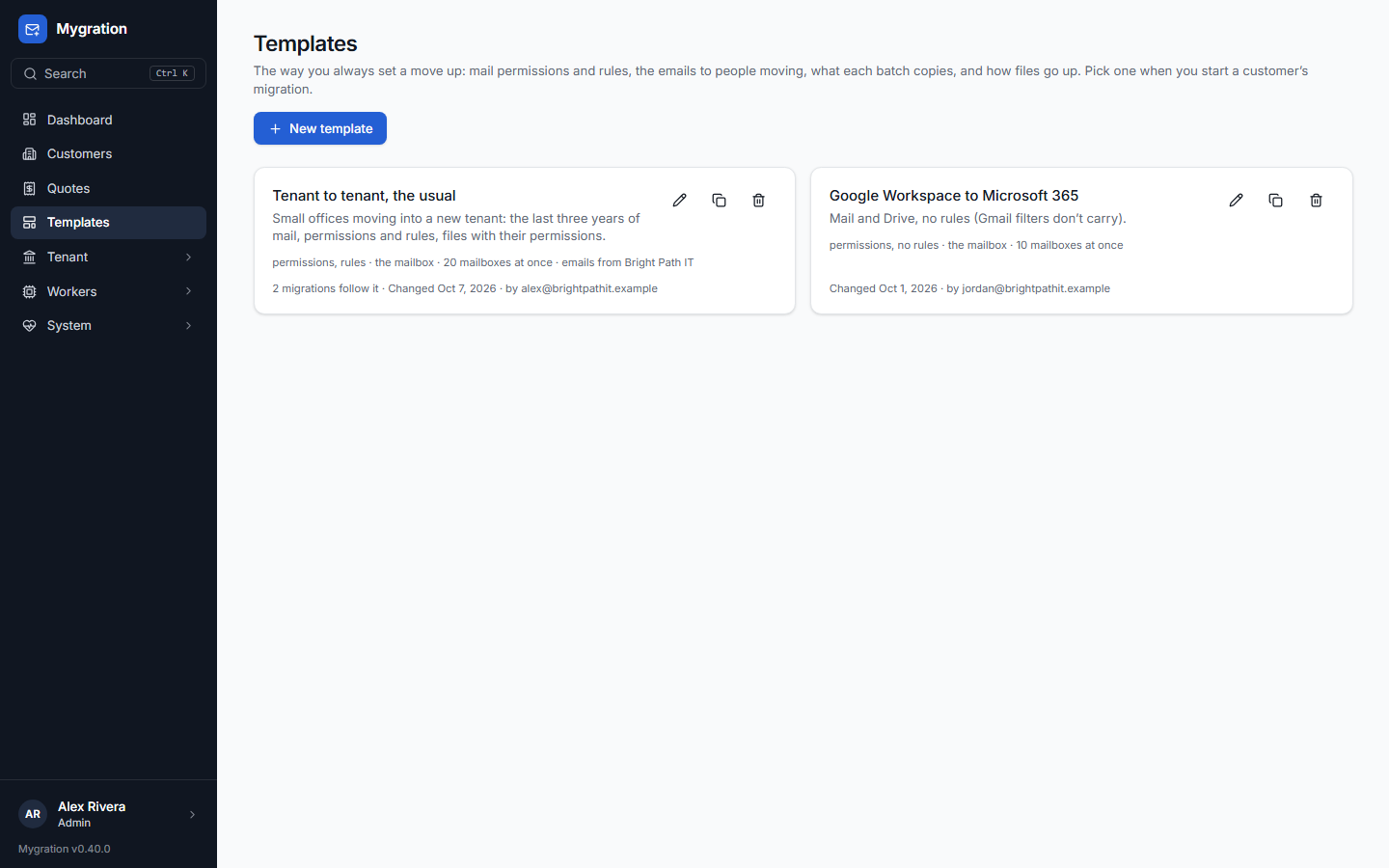
A template keeps the settings you use for most moves, so each new customer starts the same way: whether mailbox permissions and rules are copied, who the emails to people moving come from, what each mail batch copies, and how files go up. Templates are under Templates in the sidebar.
What a template holds #
Email migrations:
- Copy mailbox permissions and Copy inbox rules and automatic replies.
- What each mailbox brings: The mailbox, The mailbox and its archive, The archive only or The archive into the mailbox (archives move from Exchange Server sources only).
- Mailboxes at once: empty uses 25 from Microsoft 365, 10 from elsewhere.
- Emails to people moving: from (empty uses your business name from Tenant → White label) and Replies go to (your helpdesk, say).
- What each batch copies: what kinds of items, folders left out, and age and size limits.
OneDrive, SharePoint, file server and Google Drive migrations:
- What's copied: the file filter.
- How files go up.
- Copy permissions, Copy site members (whole sites) and Follow deletions.
Save a migration as a template #
The easiest way: set a migration up just as you like it, then save it.
- Open the migration, then its Settings tab.
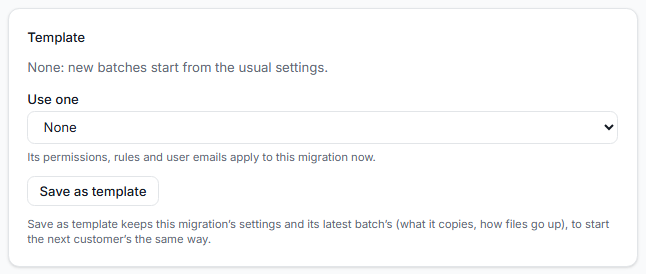
- Under Template, click Save as template.
- Give it a Template name, and click Save.
It keeps the migration's settings and its latest batch's (what it copies, how files go up).
Make one from scratch #
- Go to Templates and click New template.
- Give it a Name, and say What it's for, so colleagues pick the right one.
- Set what you want under Email migrations and under OneDrive, SharePoint, file server and Google Drive migrations.
- Click Make the template.
Start a migration from a template #
When you start a customer's migration with New migration, pick it under Start from a template (optional). The migration takes its settings, and each new batch starts from its batch settings.
To use one on a migration that's already made:
- Open the migration's Settings tab.
- Under Template, pick it in Use one (or Change it).
An email migration takes the template's permission, rule and user email settings at once. Batches you made already stay as they are; new batches start from the template.
Change, copy or delete a template #
On Templates, each template has three buttons:
- Edit (the pencil): change it, then Save.
- Copy: makes a copy to change, for a variation.
- Delete.
Changing or deleting a template doesn't change the migrations that used it: they keep their settings.