Help · Customers and connections
Connecting Dropbox
Make your Dropbox app once, then have one of the customer's team admins approve it and give you the code.
Last updated
Mygration reads each team member's own Dropbox into their OneDrive, and team folders into SharePoint, through a Dropbox app that one of the customer's team admins approves. It only reads, and needs no passwords.
You make the Dropbox app once, for every customer. Each customer's team admin then approves it.
Make your Dropbox app (once) #
Sign in to the Dropbox App Console.
Click Create app, choose Scoped access, then Full Dropbox, and give it a name.
On the Permissions tab, tick these, then click Submit:
team_info.read  members.read  team_data.member  team_data.team_space
files.metadata.read  files.content.read  sharing.read
On the Settings tab, note the App key and App secret. Keep them in your password manager.
Note
While the app is in development, Dropbox may only let your own team approve it. To use it with customers' teams, apply for production on the Settings tab.
Add the connection and get the approval #
The approval link is made from your app key, so start in Mygration.
- Open the customer and click Connections (or Add connections).
- Click Add a source, then Dropbox.
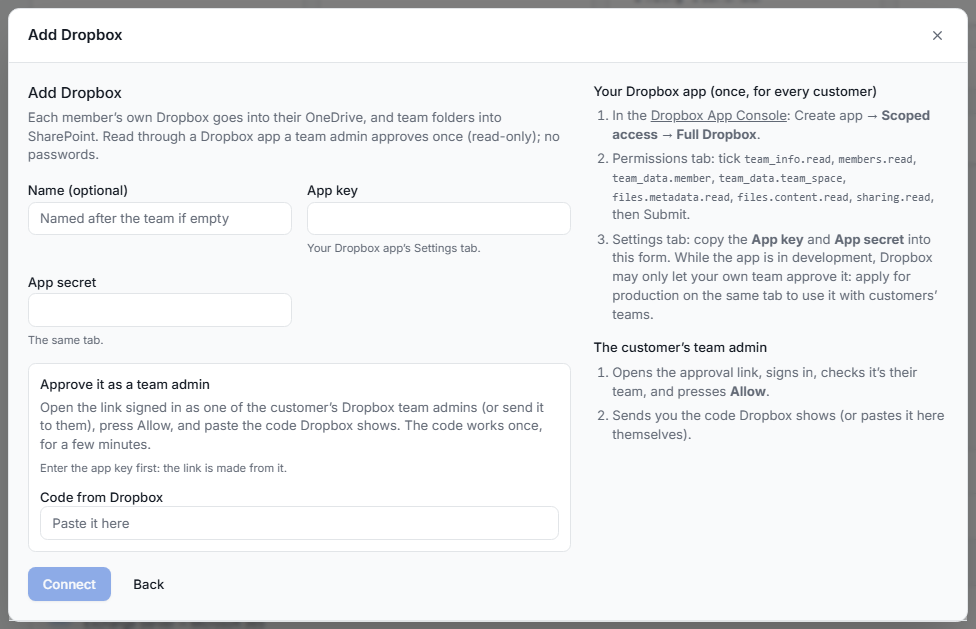
- Fill in App key and App secret. Name (optional): left empty, the connection is named after the team.
- Under Approve it as a team admin, click Open the approval link. Open it signed in as one of the customer's Dropbox team admins, or copy the link and send it to them.
- The team admin checks it's their team and clicks Allow. Dropbox shows a code.
- Paste the code into Code from Dropbox. The code works once, for a few minutes.
- Click Connect.
Mygration says it's connected to the team, and who approved it. Team folders are read as that admin, and each member's Dropbox as that member. Click Continue.
To test it later, click Test on the connection, then Run test. It signs in and lists the team's members and team folders, changing nothing.
If it stops working #
If the approval is withdrawn, or the test fails at signing in, approve it again:
- Click the pencil on the Dropbox connection.
- Under Approve it again (only if it stopped working), open the approval link as a team admin, click Allow, and paste the new code.
- Click Save.
If the code is refused, it was probably used already or too old: open the approval link again for a new one.