Help · Email migrations
Migrating from Exchange Server
Move mailboxes from an on-premises Exchange Server into Microsoft 365, with In-Place Archives, and what to do about Full Access and Send As.
Last updated
This guide moves mailboxes from a customer's own Exchange Server (2013 to 2019) into their Microsoft 365 tenant. Mail, calendars, contacts, tasks and notes come across in every folder, with read state, flags and categories. Folder and calendar sharing, delegates, server-side inbox rules and automatic replies come across too.
The steps are the same as for a tenant-to-tenant move, so this page covers what's different. For the whole path, see Migrating mailboxes from Microsoft 365 to Microsoft 365.
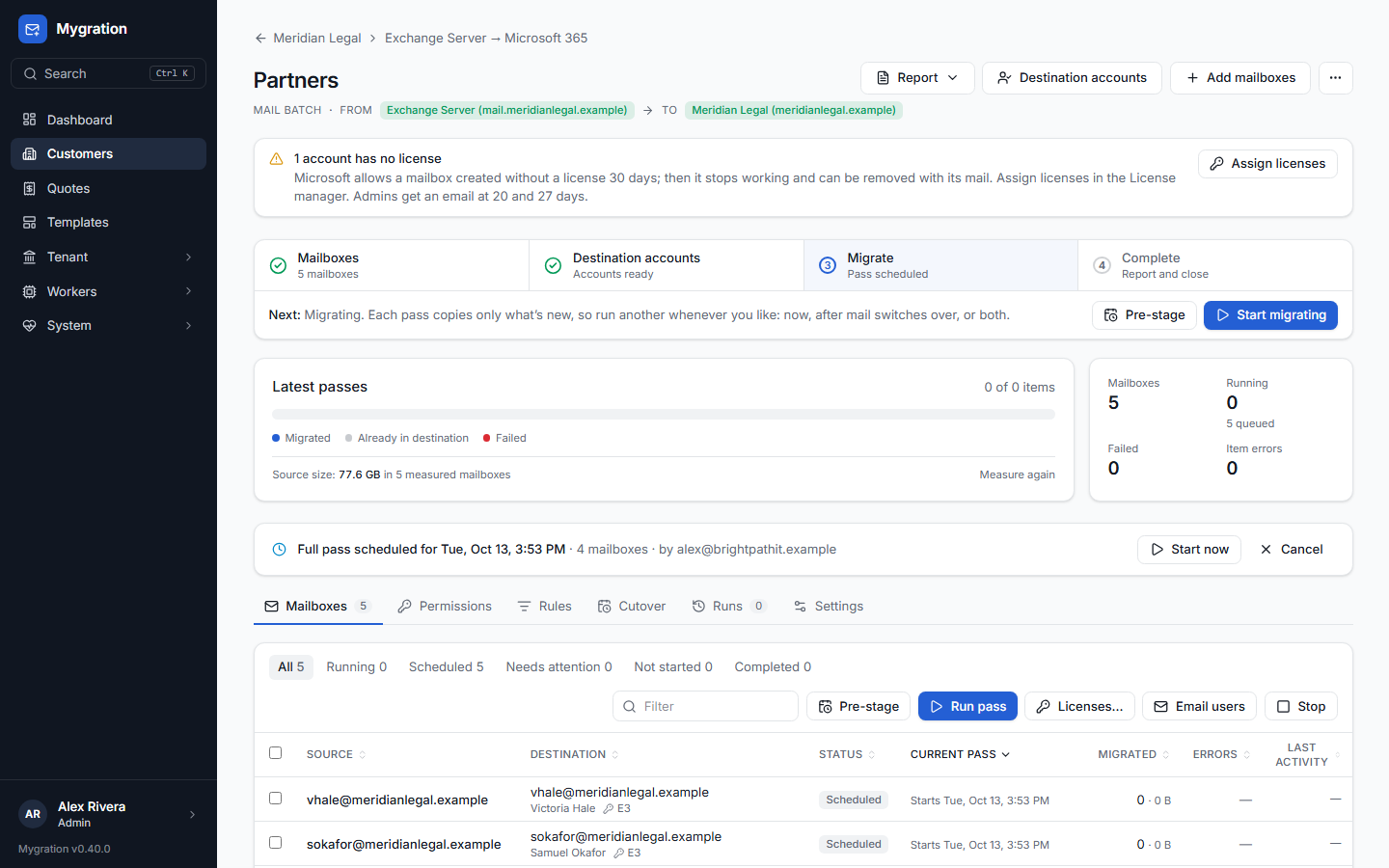
The screenshots show the demo's Meridian Legal, moving from its own Exchange Server into its Microsoft 365 tenant.
Before you start #
- The Exchange Server connection is added and tested (how) on the customer's Connections: the EWS address, an admin account with ApplicationImpersonation (or Full Access to every mailbox), and the Mygration server able to reach the EWS address.
- The customer's Microsoft 365 tenant is connected as the destination. See Connecting a customer's Microsoft 365 tenant.
- The domain is verified in the Microsoft 365 tenant, if people keep their address. Mail can keep going to Exchange until the cutover.
Note
The Exchange connection's optional Domain controller lets Mygration read each mailbox's aliases and litigation hold from Active Directory. Without it, old Exchange addresses still come across. See Old addresses.
1. Create the migration and the batch #
- Open the customer and click New migration.
- Under Migrate from (source), pick the Exchange Server connection. Under Migrate to (destination), pick the Microsoft 365 tenant. Click Next.
- Tick Email. Leave Mailbox permissions and Inbox rules and automatic replies ticked, then click Next: the first batch.
The batch's first step asks two things the Microsoft 365 move doesn't:
- What does this batch copy? Choose Mailboxes. Public folders is for a batch of its own; see Public folders into shared mailboxes.
- Which parts of each mailbox? See In-Place Archives below.
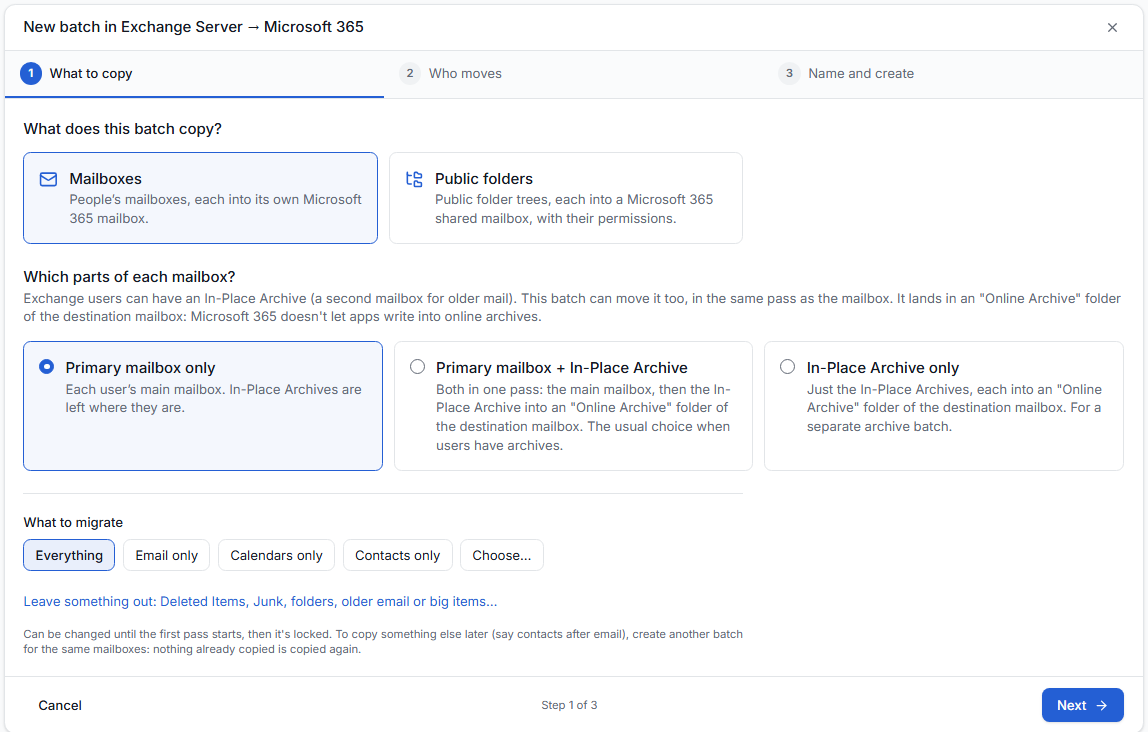
Then choose what to copy (see Batch filters), who moves, and the batch's name.
2. Add the mailboxes #
Exchange Server mailboxes aren't listed for picking. Add them as a list:
- Paste a list: one mailbox per line, from Excel or a text file.
- Map to a destination domain gives everyone the same name on one of the tenant's domains. Enter each destination
address takes
old,newon each line. - CSV template, then Upload CSV, for names, job titles, phones and usage locations on the new accounts. Without
it, names come from the address (
victoria.hale@becomes "Victoria Hale").
Shared, room and equipment mailboxes #
Mygration can't tell these apart on Exchange Server by itself. Mark them before their accounts are created:
- In the CSV, fill the MailboxType column:
Shared,RoomorEquipment. - Or open the mailbox's page, click Details and set Create as.
See Shared, room and equipment mailboxes.
3. Destination accounts, passes and cutover #
From here it's the same as any mail batch:
- Destination accounts: check, and create the missing accounts.
- Pre-stage older mail while people keep working on Exchange. See Pre-staging big mailboxes.
- Run passes to catch up. See Scheduling passes and Run automatically.
- On the day, work down the batch's Cutover tab. If people keep their address, its Switch mail over step
says what to change: MX to Microsoft 365 (the record the tenant shows under Domains), Autodiscover to
autodiscover.outlook.com, andinclude:spf.protection.outlook.comadded to SPF. Then run the final pass. See Same-domain moves.
In-Place Archives #
From Exchange Server a batch can move people's In-Place Archives in the same pass. In the batch's first step, under Which parts of each mailbox?:
- Primary mailbox only: archives stay where they are.
- Primary mailbox + In-Place Archive: both in one pass. The usual choice when people have archives.
- In-Place Archive only: just the archives, for a separate archive batch.
Each archive lands in a folder called Online Archive inside the person's new mailbox, not in their Microsoft 365 online archive: Microsoft doesn't let apps write into online archives. Afterwards, the person can drag that folder into their online archive in Outlook, or an archive policy can move it.
Important
The archive counts toward the new mailbox's size: 50 GB on most plans, 100 GB on E3, E5 and Exchange Online Plan 2. Check that mailbox and archive fit together before you start. People without an archive are skipped for that part.
Archives kept in Microsoft 365 for an on-premises mailbox (hybrid) can't be reached.
Full Access and Send As #
From Exchange Server, Mygration copies folder and calendar sharing and delegates. Full Access and Send As can't be read, so they aren't copied. The batch's Permissions tab says so.
Note who has them on the old server, then set them up by hand in the new tenant (in the Exchange admin center, under each mailbox's delegation) once both people's mailboxes exist there. See Mailbox permissions and inbox rules.
What isn't copied #
- Full Access and Send As (above).
- Rules that only run in Outlook (client-side rules): only rules kept on the server come across.
- The categories list, views, and Outlook on the web signatures.
- Recoverable Items (deleted-item retention).
- In-place and eDiscovery holds and retention policies. Litigation holds do come across; see Litigation holds.
- Items over 150 MB.