Help · Your Mygration server
Renewing the app secrets and the SharePoint certificate
Seeing when the Microsoft 365 apps' secrets and certificate expire, and renewing them before they do, with no downtime.
Last updated
Mygration's two apps in your MSP's Entra tenant sign in with a client secret that expires. Renew it before then:
- When the staff sign-in app's secret expires, nobody can sign in with Microsoft. People who sign in with a password still can.
- When the migration app's secret expires, every customer connection stops at once.
The old secret keeps working until you delete it, so renewing causes no downtime.
See when they expire #
Open Tenant → Microsoft 365 apps. Secret expiry shows each app with the days left and the date the secret (or certificate) in use expires. It's read from Entra every 6 hours; click Check now to read it again.
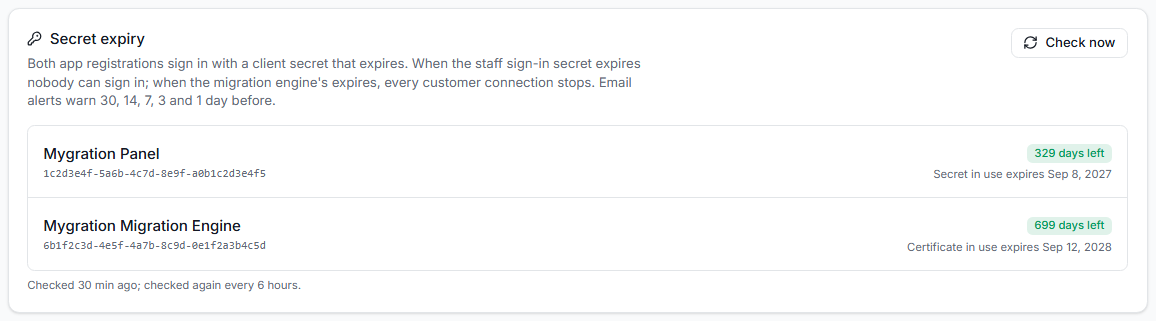
Alerts are emailed to everyone under Tenant → Alerts 30, 14, 7, 3 and 1 day before, and from 30 days a banner shows on every page.
Renew both secrets automatically #
The quickest way. You need an account in your MSP tenant that's an Application Administrator or Cloud Application Administrator.
- Go to Tenant → Microsoft 365 apps and click Set up automatically.
- Open microsoft.com/devicelogin, enter the code the panel shows, and sign in.
- In the plan, tick Make new client secrets even where the panel has one.
- Click Go ahead, and wait for each step to finish. It ends with Done: the new secrets are saved in the panel, with nothing to copy.
- Under Secret expiry, click Check now. Both apps should show the new date.
- In the Entra admin center, under App registrations → each app → Certificates & secrets, delete the old secret.
Note
Open the panel at its own hostname before you click Set up automatically. If you browse to it by another address, it won't start, and it says why.
Renew a secret by hand #
If you'd rather make the secret yourself in Entra:
- In your own Entra admin center, go to App registrations → the app → Certificates & secrets → Client secrets → New client secret. Copy its Value (not its Secret ID).
- Put it in Mygration:
- The migration app (Mygration Migration Engine): Tenant → Microsoft 365 apps → Migration app registration → Client secret, then Save. It takes over within a minute, with no restart.
- The staff sign-in app: Tenant → Access → Single sign-on → Client secret, then Save, and Test the saved settings.
- On Tenant → Microsoft 365 apps, click Check now under Secret expiry.
- Delete the old secret in Entra.
Renew the SharePoint certificate #
SharePoint, OneDrive and Teams file moves use a certificate on the migration app. Its expiry shows under Secret expiry too, and on the SharePoint certificate card.
- Go to Tenant → Microsoft 365 apps, to SharePoint certificate.
- Click Create a new one.
- Click Download its .cer.
- In your own Entra admin center, go to App registrations → the migration app → Certificates & secrets →
Certificates → Upload certificate, and upload the
.cer. - Back in Mygration, click Check and use it. If it says Not yet, give Entra a minute and check again.
- Once the new one is In use, delete the old certificate in Entra.
The certificate in use carries on until the new one works, so file moves don't stop.
Already have a certificate as a .pfx? Click Upload a .pfx instead, with its password.
When a new version needs more permissions #
Some updates need the migration app to have another permission (the version's notes on System → Updates say so). Click Update permissions on Tenant → Microsoft 365 apps, sign in as above, and click Go ahead. Then each customer's tenant consents again: see When a new version needs more permissions.