Help · Your Mygration server
Updating Mygration
Installing a new version from System → Updates or from the server, what's new in it, and bringing workers at customer sites up to the same version.
Last updated
Mygration looks for a new version every few hours. When there's one, System in the sidebar gets a dot, and an admin can install it with one click. Running migrations carry on afterwards: nothing is lost or copied twice.
See which version you run #
Open System → Updates. The card at the top says Mygration 0.39.0 is the newest, or that a newer version is available and which one this server runs. Below it is every version's list of changes, newest first, with the one you run marked Installed. Everyone can read the list; only admins see the card and its buttons.
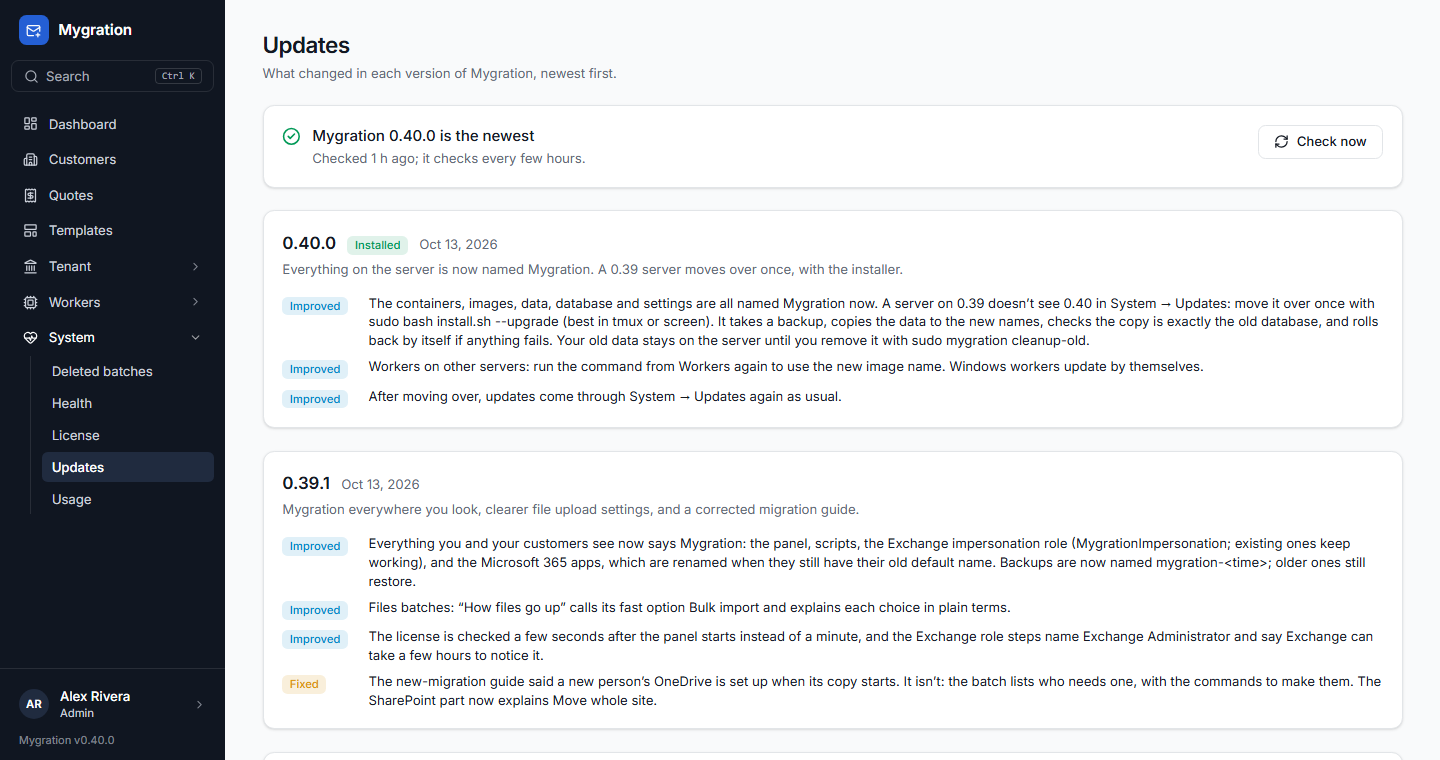
Click Check now to look for a new version straight away.
When a newer version is available, View update notes beside Update now shows what's in it before you install it: every version since the one you run, newest first, with what's new, improved and fixed in each. The notes appear once Mygration has checked the new version (within a few hours of its release, or straight after Check now).
Update from the panel #
- Open System → Updates.
- Click Update now.
- Confirm. The window says how many migration items are running now: they hand their work back and carry on after.
The card then shows Updating to … with each step as it happens, ticking off live with how long it took: the backup, downloading and checking the new version, the panel and the workers on this server starting again on it, and the rest. It takes a few minutes, and you can leave the page meanwhile; anyone who opens it sees the same progress. While the panel restarts, the page says so and reconnects by itself; once Mygration is running on the new version, it reloads itself after a few seconds (or click Reload). You stay signed in.
Tip
It's safe to update during a pass, but kinder to update between passes: a mailbox that hands its work back restarts where it left off, a little later.
If an update doesn't finish, the card shows the step it stopped at and the reason, and says when nothing was changed. See Troubleshooting updates.
From 0.39 to 0.40: once, on the server #
Version 0.40 moves everything on the server to the Mygration name: the images, the database, the
data's Docker volumes and the settings in .env. A server on 0.39 can't take that as a one-click update, so its
System → Updates goes on saying Mygration 0.39.1 is the newest. Nothing is wrong with it: move it to 0.40 once,
on the server, with the installer:
curl -fsSL --proto '=https' --proto-redir '=https' --tlsv1.2 https://mygration.cloud/install.sh -o install.sh
sudo bash install.sh --upgrade
Add --dir <folder> if Mygration isn't in /opt/mygration. Run it inside tmux or screen: it takes a few minutes
or more, and if your connection to the server drops, that's where you'll see how it ended. The installer checks the new version's signature, says
what it will do and asks first. Then it:
- takes a backup, and stops there if that fails;
- stops Mygration for a few minutes (running migrations hand their work back and carry on after, as in any update);
- copies the data to its new names, and renames the database in the copy;
- rewrites
.envwith the new names, keeping the old one as.env.before-mygration; - starts 0.40, and waits until the panel, the database and the workers are all working.
If anything goes wrong after Mygration stopped, it puts everything back as it was and starts the old version again on its untouched data, then says what happened. You can run it again once that's sorted. If it can't put everything back (the old version won't start again, say), it says what's left and that Mygration may be stopped: sort that out, then run the same command again, which carries on from there.
Afterwards the old data stays on the server, in case you want to go back. System → Updates reminds you; once you're happy with 0.40, remove it:
sudo mygration cleanup-oldIt lists what it will delete and asks you to type remove old data. Your backups aren't touched. Workers at customer
sites need the new image name too: see Update workers at customer sites.
What's new #
After an update, everyone sees What's new in Mygration with that version's changes the next time they open the panel. Click Got it to close it. The same list is always on System → Updates.
Update from the server #
You can install the same update on the server's command line. It takes the same backup and does the same checks as Update now:
sudo mygration updateIt looks for the newest version, asks you to type yes, and shows the progress until it says Updated to ….
Pressing Ctrl+C stops showing the progress; the update carries on.
To install a particular version, name it:
sudo mygration update 0.39.0An older version than the one you run is a rollback: see Rolling back to an earlier version.
When there's no Update now button #
If the card says New releases aren't looked for on this server: the updater isn't running, start it on the server
with sudo mygration start updater. Or update with the installer instead, which takes a backup first:
sudo bash install.sh --upgradeRun it from the folder you downloaded install.sh to (download it again as in Getting started
if you need to).
Files you changed on the server #
Each update can also bring new copies of the files in the install folder (/opt/mygration unless you chose another).
If you changed one of those files yourself, the update leaves yours in place and saves the new one beside it as
<file>.new. System → Updates lists them under Deploy files after the update: compare the two and merge
what you need. Your .env is never changed.
Update workers at customer sites #
Workers you run on other servers (at a customer's site, say) don't update with the panel. After an update, System → Updates lists any that run another version, and Workers → Overview marks their version.
On each of those servers:
Download the new worker, with the version the panel now runs:
docker pull registry.mygration.cloud/mygration-worker:<panel version>Remove the old container and start it again with the same command as before, with the new version at the end:
docker rm -f mygration-worker
docker run -d --name mygration-worker --restart unless-stopped \
  -e Worker__PanelUrl=https://<your panel's hostname> \
  -e Worker__Key=mgw_... \
  registry.mygration.cloud/mygration-worker:<panel version>
Its key stays the same. Didn't keep the key? Make a new one under Workers on other servers on Workers → Overview, use it in the command, and Revoke the old one. A worker on a Windows file server updates itself within the hour, once it has nothing under way.