Help · Selling and business tools
Quotes from assessments
Setting your prices, turning a customer's assessment or file server scan into a priced proposal, and tracking it from draft to accepted.
Last updated
Quotes turns what an assessment found into a priced proposal for the customer: their mailboxes, archives, OneDrives, sites, teams, groups, shares and home drives, at your prices, with how long the copying will take. Edit any line, then print the proposal or save it as a PDF.
- Set your pricesOnce, under Quotes → Prices
- Assess the customerTheir tenant, or their file server
- Make a quoteFrom the assessment or scan
- Adjust and sendEdit lines, print the proposal, mark it sent
- Track itAccepted or declined
Set your prices #
Do this once. Only admins can change the prices.
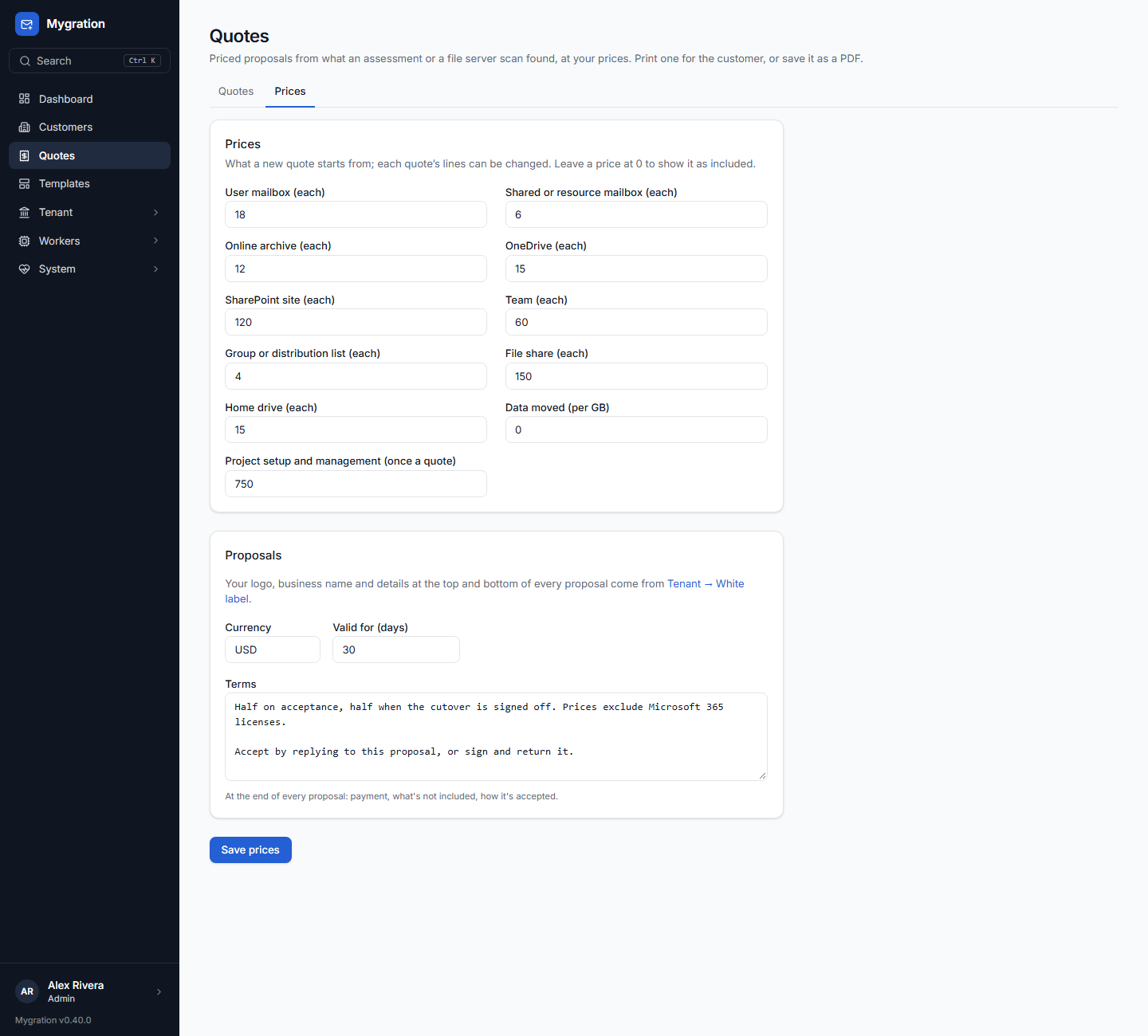
- Go to Quotes, then the Prices tab.
- Under Prices, enter what you charge for each: User mailbox, Shared or resource mailbox, Online archive, OneDrive, SharePoint site, Team, Group or distribution list, File share and Home drive (each), Data moved (per GB) and Project setup and management (once a quote). Leave a price at 0 to show it as included.
- Under Proposals, set the Currency, how many days a quote is Valid for, and your Terms: payment, what's not included, how it's accepted. They go at the end of every proposal.
- Click Save prices.
New quotes start from these. Each quote's own lines can be changed afterwards. The logo, name and details on each proposal come from Tenant → White label: see White label.
Make a quote from an assessment #
First run an assessment of the customer's tenant: on the customer's page, open the Assessments tab and click Run assessment. Then:
- Open the finished assessment and click Make a quote.
- Give it a Title: what the customer sees it as, such as Migration to Microsoft 365.
- Check From the assessment names the right one.
- Click Make the quote.
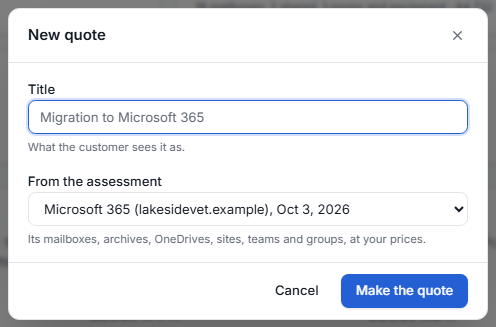
You can also start from Quotes → New quote: pick the Customer, give it a Title, and choose From the assessment or, for a customer whose file server you've scanned, From the file server scan. Choose neither to fill it in by hand.
Adjust the quote #
The quote opens with a line for each thing the assessment found, at your prices.
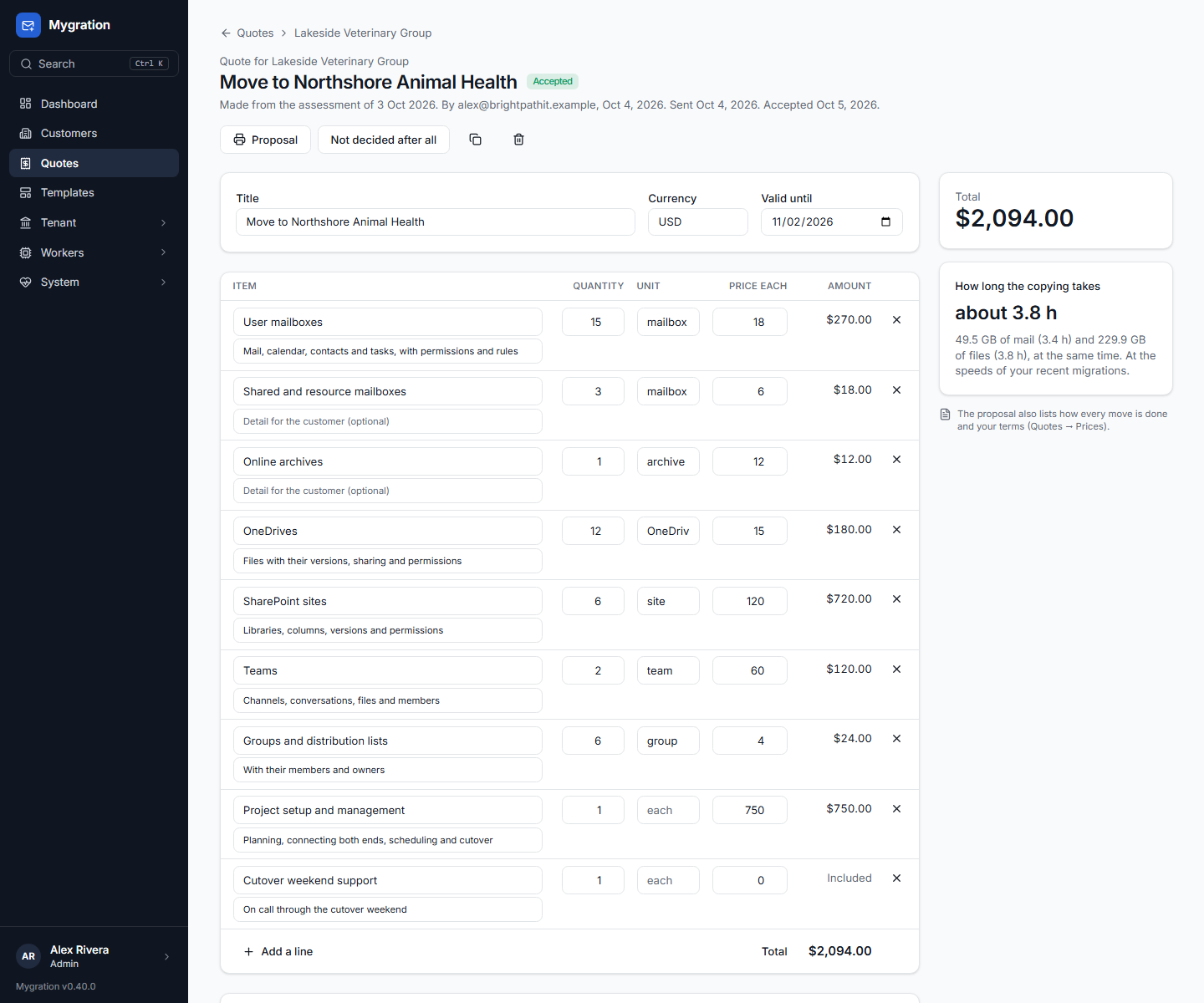
- Change any line's Item, Quantity, Unit or Price each. The detail under the item is shown to the customer; it's optional.
- Click Add a line for anything else, such as cutover weekend support. The cross removes a line.
- Change the Title, Currency or Valid until date.
- Add Notes for the proposal: scope, assumptions, what's not included. A blank line starts a new paragraph.
- Click Save. Undo changes goes back to what was saved.
On the right, Total adds it up, and How long the copying takes estimates the copy time at the speeds of your recent migrations.
To offer the customer a second option, click the copy icon at the top: it makes a copy of the quote to change.
Send it #
- Click Proposal. It opens the proposal for the customer, with your brand, the lines, your notes, how each move is done and your terms. Print it, or save it as a PDF from the print window. (Save your changes first: the button waits until you have.)
- Send it to the customer.
- Click Mark as sent.
Track it #
Each quote has a status: Draft, Sent, Accepted or Declined.
- Once it's sent, click Accepted or Declined when the customer decides, or Back to draft to change it.
- Changed your mind? Not decided after all puts it back to sent.
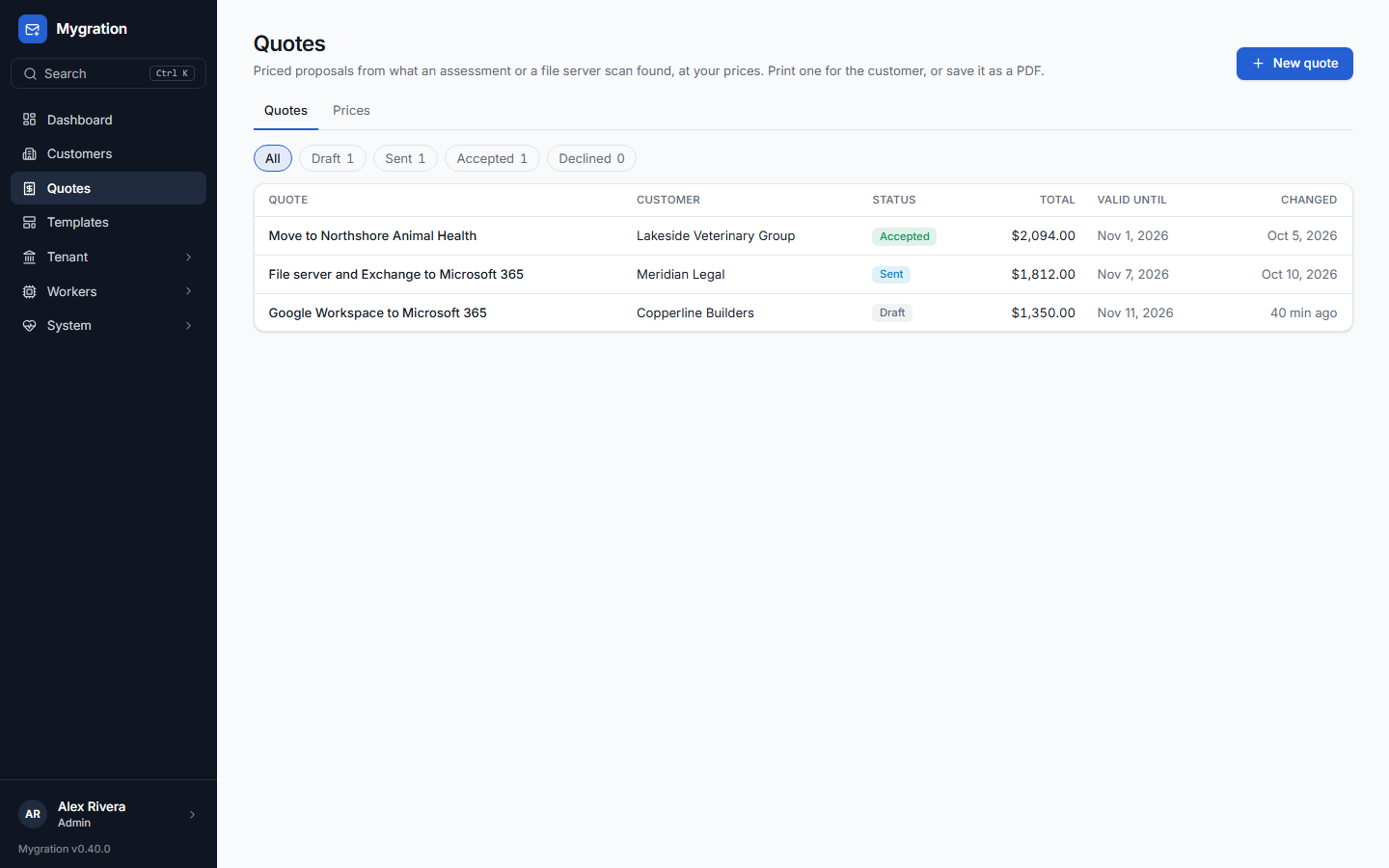
The Quotes list shows every quote with its customer, status, total and valid-until date, filtered by status at the top. Each customer's page links to its quotes too.