Help · Integrations
PSA tickets
Opening tickets for Mygration's alerts in ConnectWise PSA, Autotask or HaloPSA, on each customer's own company.
Last updated
Mygration can open a ticket in your PSA for an alert, on the customer's company there: a finished pass, a completed batch, a worker offline, and so on. It works with ConnectWise PSA, Autotask and HaloPSA.
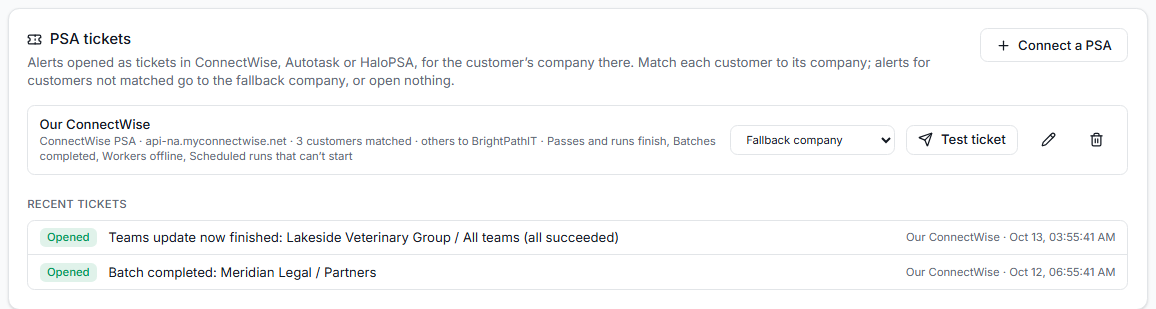
PSA tickets are under Tenant → Alerts → PSA tickets. Only admins can change them.
- Make an API accountIn your PSA, for Mygration
- Connect the PSAIts address and the API account
- Match customersEach customer to its company in the PSA
- TestOpen a test ticket
1. Make an API account in your PSA #
Mygration signs in to your PSA with an API account of its own.
ConnectWise PSA:
- An API member's public and private key: in ConnectWise, System → Members → API Members, then the member's API Keys.
- A Client ID: from developer.connectwise.com → Client IDs.
- Your company ID: the one you sign in to ConnectWise with.
Autotask:
- An API-only user: Admin → Resources/Users → New API User. Note its user name and secret, and its integration code (the API user's tracking identifier).
HaloPSA:
- An application: Configuration → Integrations → HaloPSA API → View Applications → New, using Client ID and Secret (client credentials), with the edit:tickets permission. Note its client ID and secret.
2. Connect the PSA #
Go to Tenant → Alerts, to PSA tickets, and click Connect a PSA.
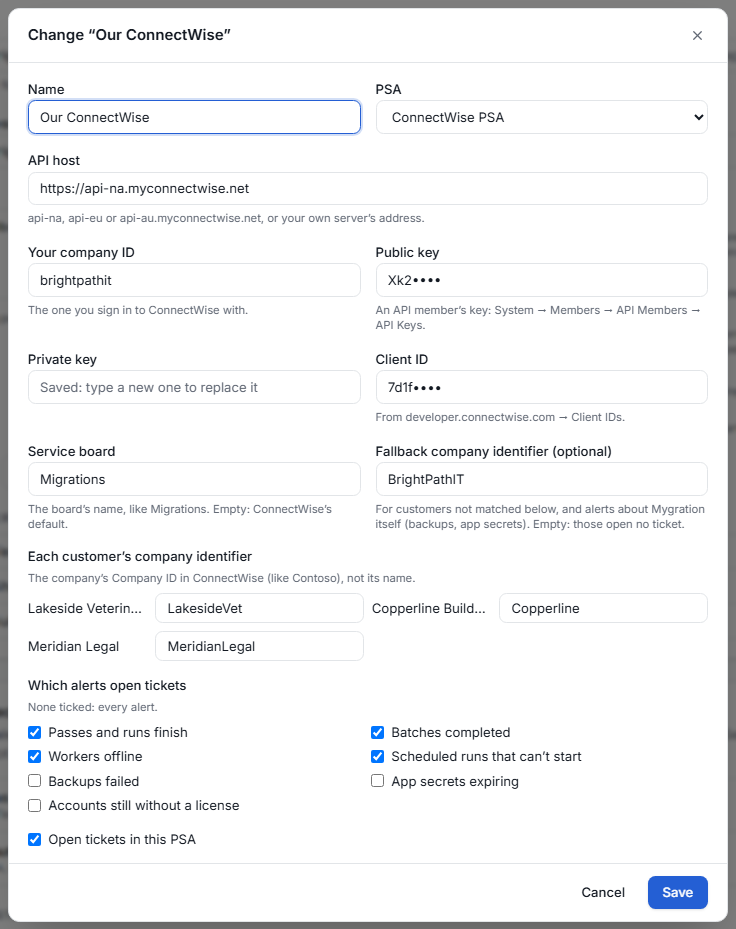
Give it a Name, such as Our ConnectWise, and pick the PSA.
Fill in its fields:
PSA Fields ConnectWise PSA API host ( api-na,api-euorapi-au.myconnectwise.net, or your own server's address), Your company ID, Public key, Private key, Client IDAutotask API user name, Secret, Integration code HaloPSA HaloPSA address (where you sign in, like https://yourcompany.halopsa.com), Client ID, Client secret, and Tenant (hosted only): for halopsa.com-hosted instances, the name before.halopsa.comSay where tickets go: the Service board (ConnectWise: the board's name, like Migrations), the Queue ID (Autotask) or the Ticket type ID (HaloPSA). Leave it empty for the PSA's default.
The keys and secrets are stored encrypted, and never shown again. To change one later, type a new one; leave it empty to keep the saved one.
3. Match customers to companies #
Under Each customer's company identifier (or company ID, or client ID), fill in each Mygration customer's company in the PSA:
- ConnectWise PSA: the company's Company ID (like LakesideVet), not its name.
- Autotask: the company's ID number (in its address when you open it in Autotask).
- HaloPSA: the client's ID number.
Leave a customer empty if it shouldn't open tickets.
Then set the Fallback company: where tickets go for customers not matched, and for alerts about Mygration itself (failed backups, app secrets expiring). Leave it empty and those open no ticket.
4. Choose which alerts open tickets #
Under Which alerts open tickets, tick the kinds you want, or tick none for every alert. You might open tickets only for Workers offline, Scheduled runs that can't start and Backups failed, and keep the rest for email or a Teams channel.
Leave Open tickets in this PSA ticked, and click Save.
5. Open a test ticket #
- Next to the PSA, pick a customer in the box beside Test ticket (or Fallback company).
- Click Test ticket.
It says Test ticket … opened with the ticket's number, or Test failed with the PSA's reason. Check the ticket landed on the right company and board, then close it.
Note
Test a PSA connection before you rely on it. If the test fails, the reason usually names the field that's wrong: a key, the company ID, or the board.
Check what was opened #
Recent tickets, under the list, shows the latest with Opened, Queued or Not opened. One that wasn't opened shows the reason, how many tries it's had and when it tries next.
Change or disconnect #
- Click the pencil to change the connection, the matches or the alerts. Untick Open tickets in this PSA to pause it.
- Click the bin to disconnect it. Tickets opened already stay in the PSA.
When you add a customer in Mygration, come back here and match it to its company.