Help · Your Mygration server
The audit log
Finding who signed in and who changed what in the panel, filtering the log, and exporting it as a CSV.
Last updated
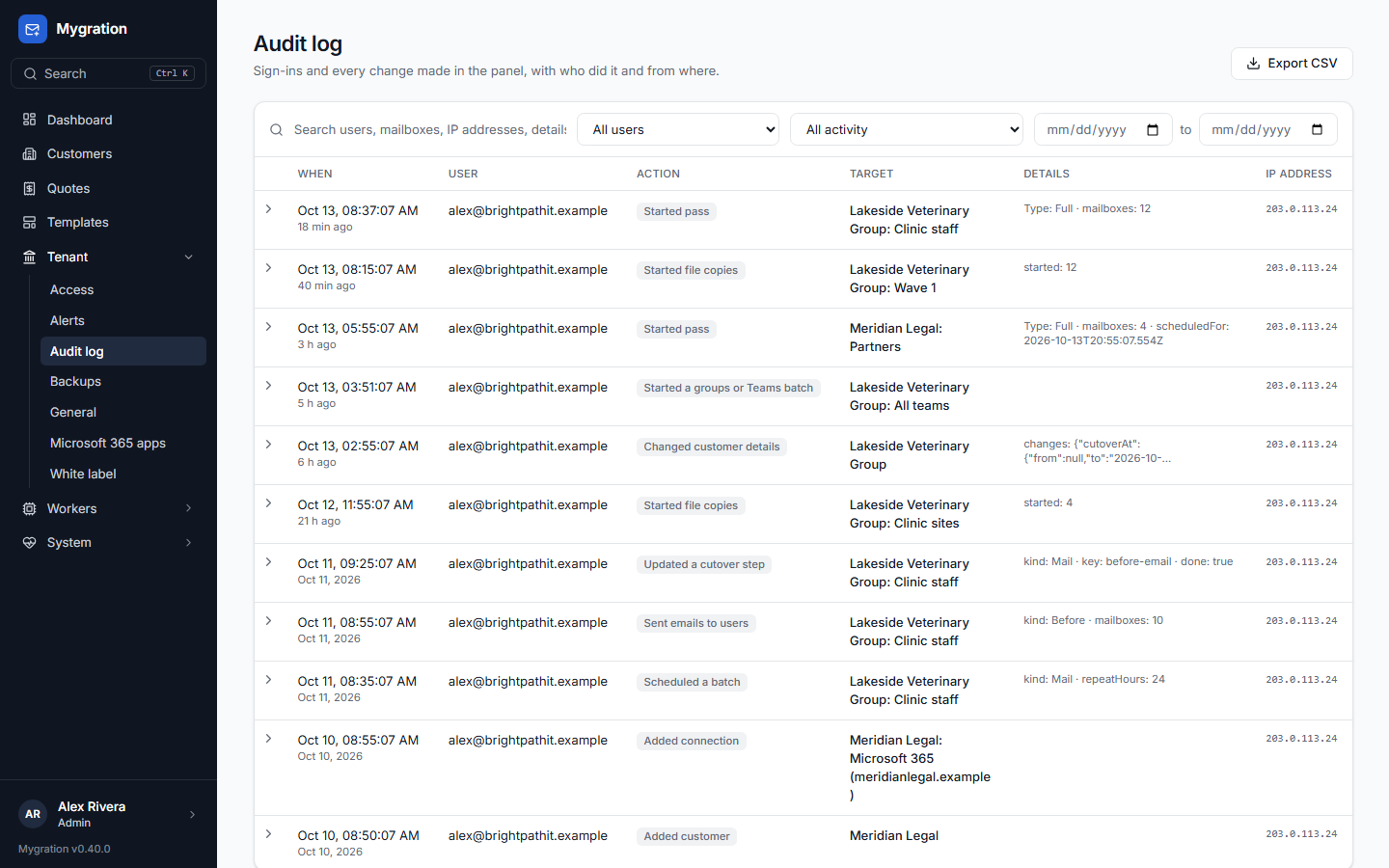
The audit log lists every sign-in and sign-out, and every change made in the panel: customers, connections, migrations, batches, passes, destination accounts, settings, backups and exports. Each entry has who did it, when, what it acted on, the details and the IP address it came from.
Open Tenant → Audit log. Only admins can see it.
Find an entry #
Use the bar at the top. The filters work together.
- Search: type a user, mailbox, IP address or anything in the details. It searches as you type.
- All users: pick one person. Or click a user's name in the list to show only theirs.
- All activity: pick one kind:
- Sign-ins
- Customers
- Connections
- Migrations, batches and passes
- Destination accounts
- Settings and backups
- Dates: a first and last day.
Click Clear to remove every filter. Click an entry to see all its details. The newest entries come first; Load older entries at the bottom shows more.
Export it #
Click Export CSV. With filters set, the file holds only what matches them. Exports are recorded in the audit log too.
What you'll see #
- A sign-in by someone with no Mygration role shows as Signed in without a role. Add them under Tenant → Access if they should have one.
- Actions made with an API token show under the token owner's name. See API tokens.
- Passwords and secrets are never written to the log.
- Entries are kept for good and are in every backup, except failed sign-ins, which go after 90 days.
Tip
The audit log is about the panel. What happened inside a migration (each item copied or failed) is on the mailbox, copy or team's own page, under its timeline.
Your own sign-ins #
Everyone can see their own recent sign-ins under My settings → Account → Recent sign-ins. Anyone who doesn't recognise one should tell an admin, who can look it up here.