Help · Email migrations
Public folders into shared mailboxes
Copy Exchange Server public folders, or an IMAP server's shared folders, into Microsoft 365 shared mailboxes, one folder tree per mailbox.
Last updated
A public folder batch copies Exchange Server public folders, or an IMAP server's shared folders, into Microsoft 365. Each folder tree you pick goes into a shared mailbox of its own, created for you, with its folders at the same paths. Shared mailboxes need no license up to 50 GB.
Public folders in Microsoft 365 can't be copied, from or to.
The screenshots show the demo's Meridian Legal, moving its Exchange public folders.
Before you start #
- The customer has an email migration from the Exchange Server or IMAP connection into Microsoft 365. Make one with New migration if not; see Migrating from Exchange Server or Migrating from an IMAP server.
- An account to read the folders as:
- Exchange Server: a mailbox with at least Reviewer on the public folders. In impersonation mode, one the connection's admin account impersonates; in Full Access mode, the admin's own mailbox.
- IMAP: the login that sees the shared folders, and its password if the connection signs in per mailbox.
- Exchange 2013 and later without working Autodiscover: enter the Public folder mailbox in the Exchange
connection's settings.
Get-Mailbox -PublicFolderon the server names it. - IMAP servers that don't list a shared namespace: enter the Shared folder prefix in the IMAP connection's
settings (for example
Public Folders/).
1. Create the batch #
- Open the email migration and click New batch.
- Under What does this batch copy?, choose Public folders (Shared folders for IMAP).
- Enter the account under Read the public folders as (Sign in as for IMAP).
- From Exchange Server, choose whether to tick Give Full Access to people who own the top folder (see Permissions).
- Choose what to copy and click Next. See Batch filters.
2. Pick the folder trees #
- Click List the public folders. Mygration lists the top two levels as the account sees them, with items, sizes and kind.
- Under Shared mailboxes in, pick the domain for the new shared mailboxes.
- Tick each folder to copy. A folder takes everything under it. Each one is offered a shared mailbox named
pf-<name>@the domain; edit the address beside it to change it. - Or type them under Or type them, one per line:
/path, or/path,shared mailbox address./is every public folder, into one mailbox. All public folders into one shared mailbox does the same. - Click Next, name the batch and click Create batch.
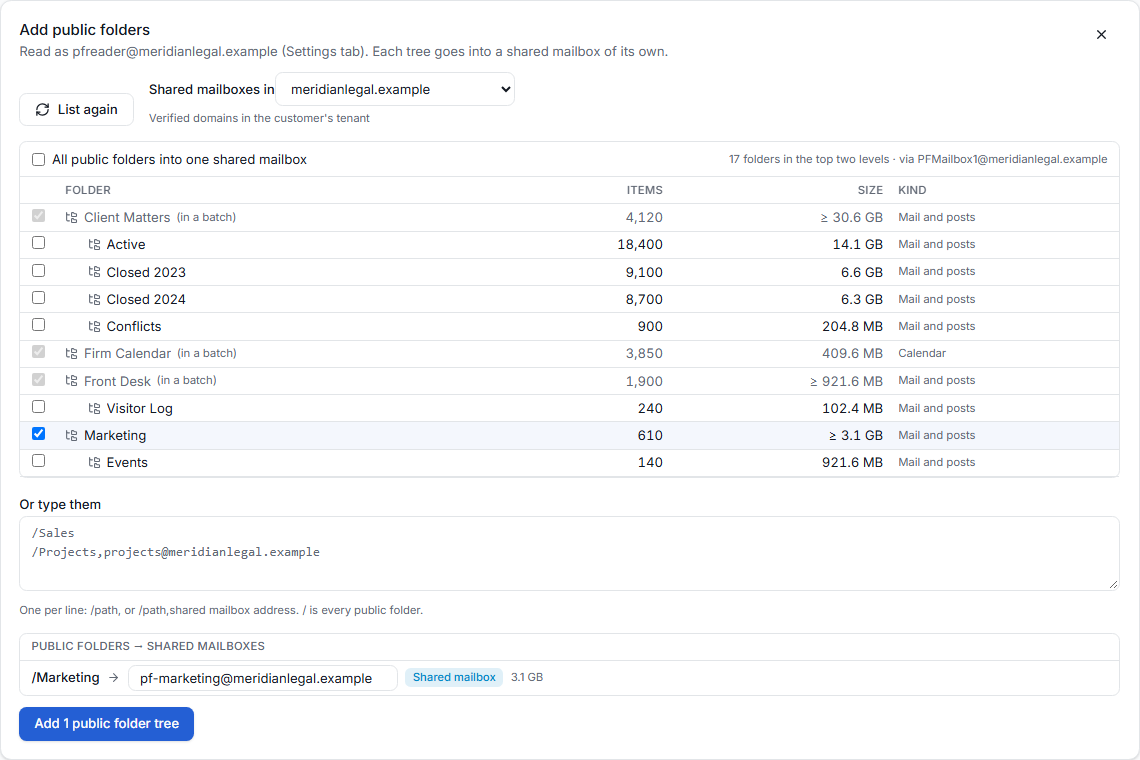
You can add more trees later with Add public folders on the batch page.
Important
A shared mailbox holds 50 GB without a license (100 GB with an Exchange Online Plan 2 license). Trees over 50 GB are flagged: split them by picking their biggest subfolders, each into a shared mailbox of its own. Don't pick a folder and a folder inside it: the folders in both would be copied into both mailboxes. The picker warns you.
3. Create the shared mailboxes and copy #
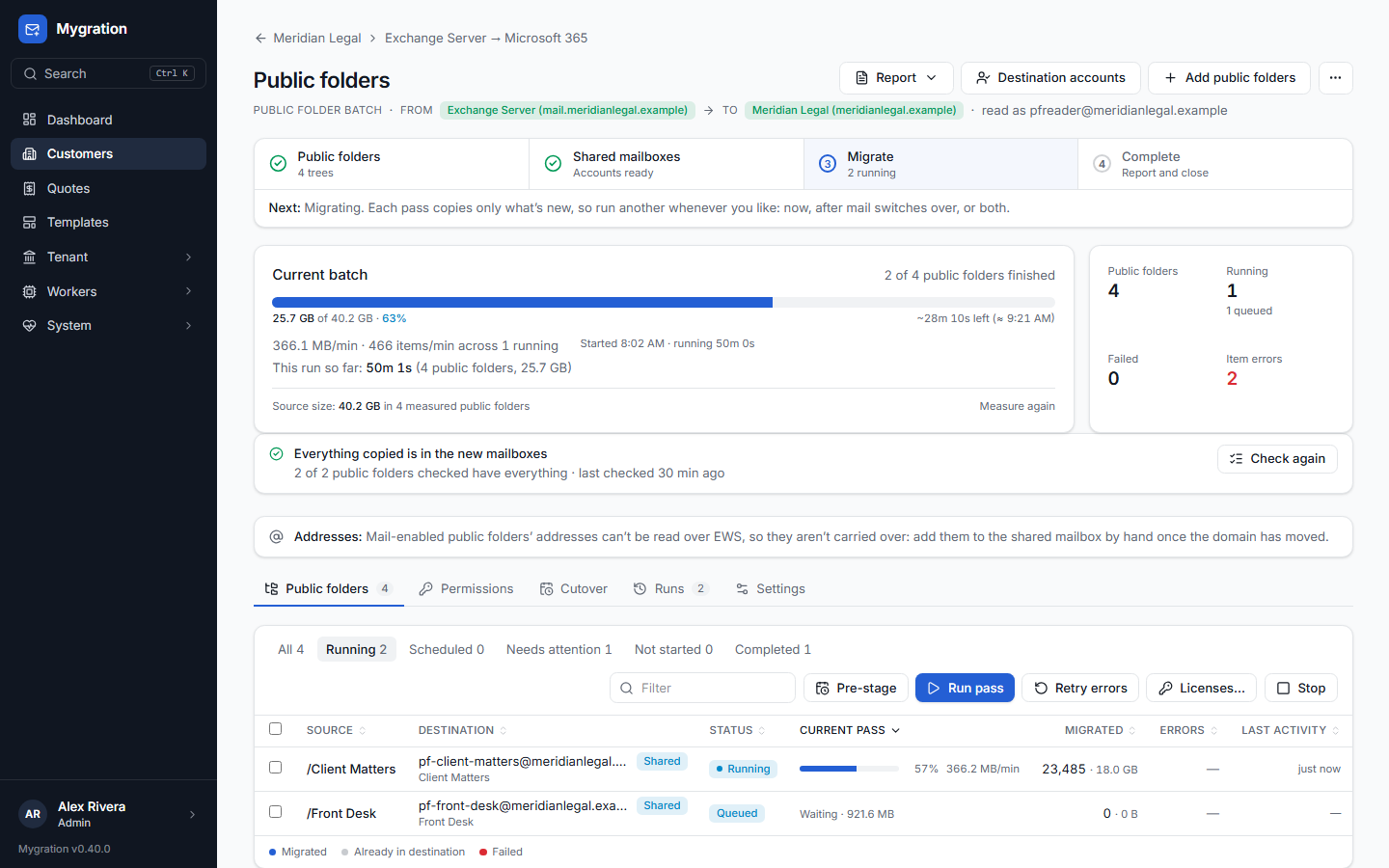
- Click Destination accounts, then Check … accounts, and create the missing shared mailboxes. They get no license and nobody signs in to them.
- Click Run pass, or Start migrating in the batch's steps. People can keep working in the public folders meanwhile.
Folders keep their paths and their kind: mail and post folders become mail folders (posts read like emails), and calendars, contacts and tasks become folders of their own kind. Nothing lands in the shared mailbox's own Inbox.
Permissions #
From Exchange Server, each folder's permissions (Default and Anonymous included) become the shared mailbox's folder permissions, for people in this migration. Everyone with access can open the mailbox. They show on the batch's Permissions tab.
Give Full Access to people who own the top folder makes the shared mailbox appear in their Outlook by itself. It's off by default, because Full Access opens every folder, whatever the folder permissions say. Change it on the batch's Settings tab under Full Access for owners.
From IMAP, shared folders' permissions aren't copied. Give people access to the shared mailboxes by hand, or give them Full Access.
Cutover #
The batch's Cutover tab is a checklist for the day:
- Tell people the dayWhen to stop using the public folders, and which shared mailbox each folder moves to
- Make the old public folders read-onlyLower everyone's permissions to Reviewer, so nothing changes after the final pass
- Run the final passOnly what's new since the last pass
- Check the copiesCheck copies counts every folder of each shared mailbox against the public folders
- Tell people how to open the shared mailboxFull Access shows it in Outlook by itself; others add it
- Wrap upSend the customer the report, and turn off the batch's schedule if it has one
People without Full Access add the shared mailbox in Outlook: File → Account settings → Change → More settings → Advanced → Add. Or they open it in Outlook on the web.
What isn't copied #
- Mail-enabled public folders' email addresses. Once the domain is in Microsoft 365, add each address to its shared mailbox, so mail sent to the folder keeps arriving.
- Full Access, unless the batch gives it to the owners of each top folder.
- Public folder favorites in Outlook, and each person's read state.
- From IMAP: permissions, calendars and contacts.
- Items over 150 MB.