Help · Customers and connections
Connecting a Windows file server
Install the Windows worker at the customer's site, give it an account that can read the shares, enter the shares, then test and scan them.
Last updated
Mygration copies a customer's Windows file shares into SharePoint, and their home drives into each person's OneDrive, with their permissions. The panel can't reach the customer's network, so a small Windows service at their site, the Windows worker, reads the file server. It connects out to your panel over HTTPS; nothing connects in to it. The file server is only ever read.
Adding the connection has three steps: Windows worker, Shares and Test. Then Mygration scans the shares.
Before you start #
- A Windows machine at the customer's site for the worker: Windows Server 2016 or later (or Windows 10 or 11), in their domain, or the file server itself. It must reach your panel and Microsoft 365 over HTTPS.
- An account to read the shares as (below).
- Admin rights in Mygration. Only admins make worker keys and add connections.
The account it reads as #
The worker reads the shares as the account its service runs as:
- A domain account with read access to the shares, such as
MERIDIAN\svc-mygration. Put it in Backup Operators on the file server to let it read everything, whatever the folders' permissions say. - A group managed service account, ending in
$, such asMERIDIAN\gmsa-mygration$. - Local System, if you leave the account empty. On another server's shares, that's the worker machine's own computer account.
1. Install the Windows worker #
- Open the customer and click Connections (or Add connections).
- Click Add a source, then Windows file server.
- Under A key for this customer, click Make a key for the customer. The key only works for this customer, so the worker never takes another customer's work.
- Under Install it on their Windows server, enter the Service account (optional), or leave it empty for Local System.
- Copy the PowerShell command shown. The key is in it, and isn't shown again.
- On the customer's Windows machine, open PowerShell as Administrator, paste the command and run it. If you gave a service account, it asks for its password.
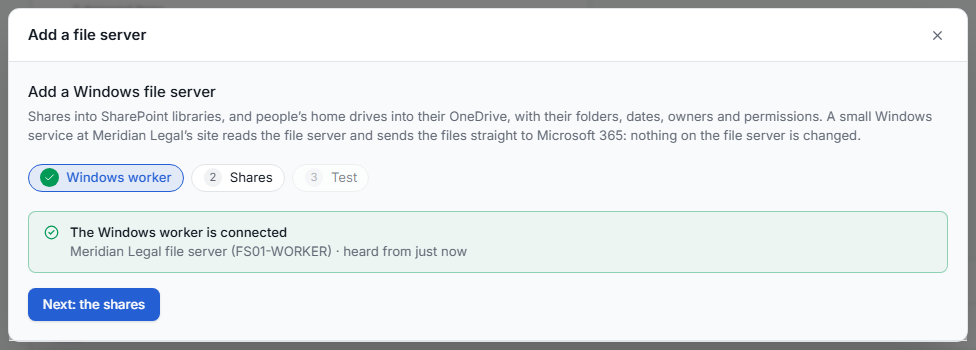
The page notices the worker within a few seconds of it starting, and says The Windows worker is connected.
Tip
You can click Enter the shares meanwhile and carry on while the worker is being installed.
The worker installs as the Mygration Worker service, listed in Apps & features. It updates itself when your
panel is updated. Its log is in C:\ProgramData\Mygration Worker\logs, a file a day, kept a week; Workers → Overview
→ Logs has the latest lines too.
2. Enter the shares #
- Click Next: the shares.
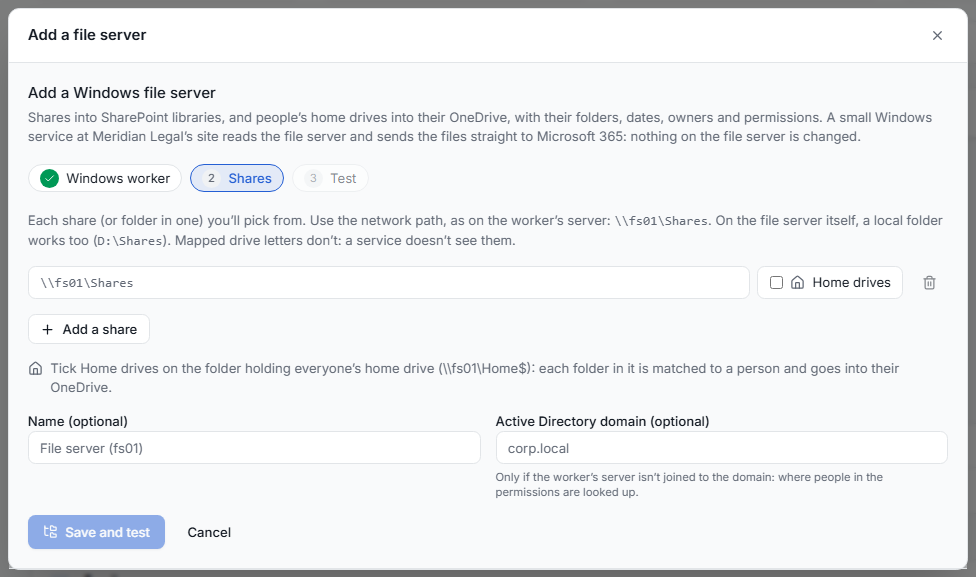
- Enter each share, or a folder in one, by its network path as the worker's machine sees it:
\\fs01\Shares. On the file server itself, a local folder such asD:\Sharesworks too. Mapped drive letters don't: a service doesn't see them. - Click Add a share for each one more.
- Tick Home drives on the share that holds everyone's home drive, such as
\\fs01\Home$. Each folder in it is matched to a person and goes into their OneDrive. - Optionally, give it a Name, and an Active Directory domain if the worker's machine isn't joined to the domain: that's where the people in the permissions are looked up.
- Click Save and test.
3. The test #
The test runs on the Windows worker. It reaches each share, lists it, reads its permissions and looks up the people in them. It only reads. Each step shows a tick, or a cross with what to do. When everything passes, it says Everything the migration needs works.
If it says it's waiting for the worker, the Windows worker isn't connected yet: it runs as soon as it is.
Fix a share with Change the shares, then Test again. Click Done when it passes, or Finish later.
The scan and its report #
Once the test passes, the scan starts by itself. It reads every folder of every share: names, sizes, dates and permissions, never a file's contents. It carries on if you close the window, and its result shows on the connection.
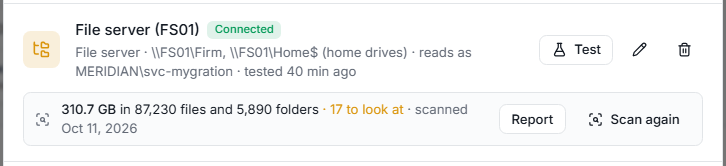
Click Report to see:
- the totals, each share's size, and its longest path;
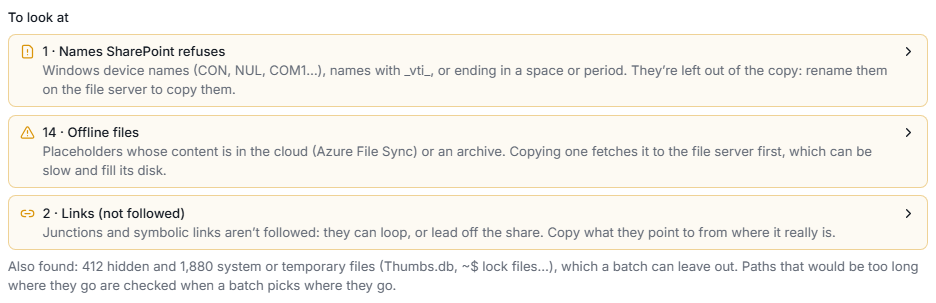
- To look at: anything that won't copy as it is, with what to do about it;
- how old the data is, and the biggest kinds of file;
- every folder, with its size, and whether it has permissions of its own.
| To look at | What to do |
|---|---|
| Over 250 GB | SharePoint takes files up to 250 GB. Split them, or archive them elsewhere. |
| Can't be read | Give the worker's account read access, or add it to Backup Operators on the file server, then scan again. |
| Names SharePoint refuses | Device names (CON, NUL, COM1…), names with _vti_, or ending in a space or period. Rename them on the file server to copy them. |
| Offline files | Placeholders whose content is in the cloud or an archive. Copying one fetches it to the file server first, which can be slow and fill its disk. |
| Links (not followed) | Junctions and symbolic links aren't followed. Copy what they point to from where it really is. |
The report's buttons give you Assessment report (printable for the customer), Folders (CSV) and Problems (CSV). Click Scan again on the connection after fixing things, or before you plan the batches.
Removing the Windows worker #
When the move is done, uninstall Mygration Worker from Apps & features on the customer's machine, and revoke its key: see Revoking and removing a worker.