Help · Email migrations
The license manager
Assign, remove and change Microsoft 365 licenses for a batch's new accounts, set usage locations, and switch apps off inside a license.
Last updated
Accounts Mygration creates in the new tenant start without a license. Microsoft allows a mailbox created without one 30 days; then it stops working and can be removed with its mail. The license manager assigns them from the panel, for a whole batch at once.
It shows the new tenant's licenses with how many are free, and a grid of the batch's people against those licenses, read fresh from Microsoft 365. Only the new tenant is changed.
Open it #
- In the batch's mailbox list, click Licenses…: for the ticked mailboxes, or the whole batch with none ticked.
- Destination accounts → Manage licenses.
- Assign licenses in the batch's warning about accounts without a license.
- Licenses on a mailbox's page, for that one person.
- After Make user mailbox, Assign license. See Shared, room and equipment mailboxes.
Assign and remove licenses #
- Along the top, each license shows how many are used and free.
- In the grid, tick a box to give that person the license, untick it to take it away. Green is added and red is removed.
- For many people at once, tick their rows on the left (or Select: All, User mailboxes only or Unlicensed only), pick a license, and click Add to selected or Remove from selected.
- Click Review … changes. The review says what will happen: "Add Microsoft 365 Business Premium to 2 people", and how many of each license are left after it.
- Click Apply to … people. Each person gets their own result: Done, No change or Failed with why.
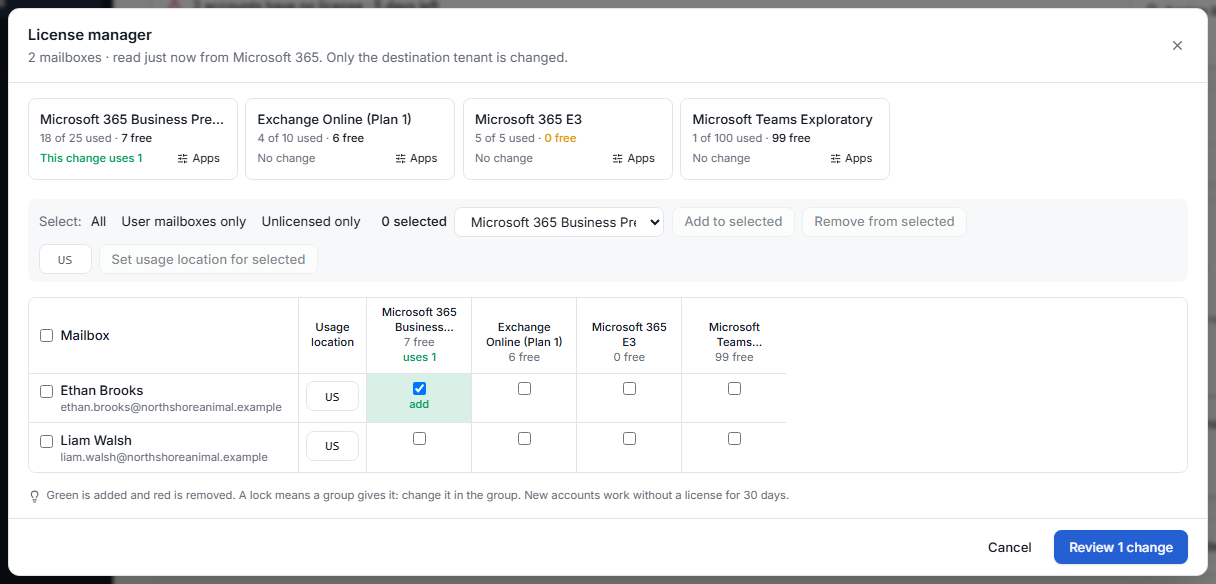
If a change needs more of a license than are free, the license turns red and says so. Buy more in the Microsoft 365 admin center, or take some off other people first.
Shared, room and equipment mailboxes show No license needed (up to 50 GB). Accounts not created yet say Create it first (Destination accounts).
Usage locations #
Microsoft needs a usage location (a two-letter country code, such as US) before it assigns a license.
- Type it in a person's Usage location box, or tick rows, type the code beside Set usage location for selected and click it.
- People getting a license without one are marked, and Review waits until they have one.
Switch apps off inside a license #
To give a license without some of its apps (Teams, say):
- On the license's card at the top, click Apps.
- Untick the apps to switch off. They're off for everyone who gets this license in this change.
- To switch them off for people who already have the license too, tick Apply to people who already have it. Otherwise they keep the apps they have now.
- Click Done, then Review and Apply as above.
Licenses from a group #
A license a group gives someone shows a lock and group. Change it in the group, in the Microsoft 365 admin center or Entra.
Tip
Before the batch's first pass, compare mailbox sizes with the licenses: most plans give a 50 GB mailbox; E3, E5 and Exchange Online Plan 2 give 100 GB. Destination accounts marks mailboxes that won't fit as Too large.