Help · Files: OneDrive, SharePoint and file servers
File filters: what a files batch copies
Choose how much version history comes across, leave out folders, file types, old or large files, and bring in what a change now includes.
Last updated
Every files batch has a filter: how much version history to copy, and which files to leave out. It applies to every copy in the batch, on its next runs.
Open the filter #
- Open the batch and click its Settings tab.
- Next to What's copied, click Change.
Change is greyed out while copies are running: wait for them to finish, or Stop them.
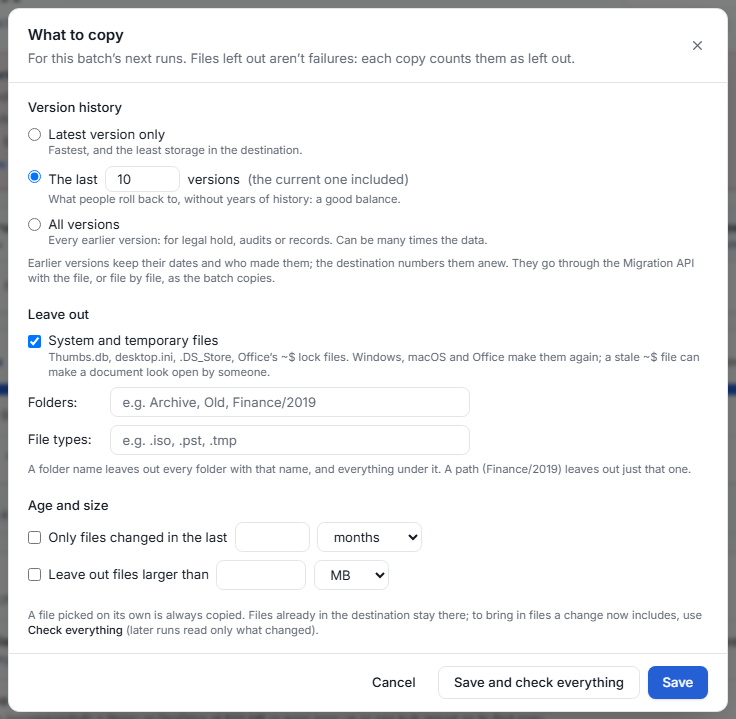
Version history #
SharePoint and OneDrive batches can copy earlier versions of each file:
- Latest version only: the fastest, and the least storage in the destination.
- The last … versions (the current one included): what people roll back to, without years of history. Pick between 2 and 500.
- All versions: for legal hold, audits or records. It can be many times the data.
Earlier versions keep their dates and who made them. The destination numbers them anew.
Important
Every version is a full copy of the file in the destination's storage. Check the destination has room before you pick All versions. See When a destination is full.
File server batches have no version history to copy.
Leave out #
- System and temporary files: Thumbs.db, desktop.ini, .DS_Store and Office's
~$lock files. Left out by default: Windows, macOS and Office make them again. - Folders: names or paths, separated by commas. A name (
Archive) leaves out every folder with that name and everything under it. A path (Finance/2019) leaves out just that one. - File types: extensions, such as
.iso, .pst, .tmp.
File server batches have two more:
- Offline files: placeholders whose content is in the cloud or an archive. Copying one fetches it back to the file server first, slowly, and can fill its disk. The scan counts them.
- Hidden files: copied unless you tick this. People hide files they still need.
Age and size #
- Only files changed in the last … months (or years). Older files stay behind; their folders still come across.
- Leave out files larger than … MB (or GB), up to 250 GB.
Save #
- Save applies the filter to the batch's next runs.
- Save and check everything (once the batch has run) saves, then runs every copy again looking at everything, so files the change now takes in are copied. Nothing already there is copied again.
Use Save and check everything when you've widened the filter, for example after switching from Latest version only to more versions, or removing a folder from Leave out. A plain Run again reads only what changed since the last run, so it wouldn't pick those files up.
Good to know #
- Files left out aren't failures. Each copy counts them as left out, and the report says so.
- A file you picked on its own in Add to batch is always copied, whatever the filter says.
- Narrowing the filter later doesn't take anything out of the destination. Files already copied stay there.
- If you set a move up the same way for every customer, save it in a template: Save as template on the migration's Settings tab keeps the latest batch's filter and how files go up.