Help · Getting started
Finding your way around
The sidebar, the Dashboard and its Needs attention and Coming up lists, the Customers list, and quick search.
Last updated
The sidebar #
| Item | What's there |
|---|---|
| Search | Quick search (below) |
| Dashboard | What's happening across every customer |
| Customers | Each customer's connections, migrations, cutover and reports |
| Quotes | Priced proposals for customers |
| Templates | Saved settings to start migrations from |
| Tenant (admins) | Access, Alerts, Audit log, Backups, General, Microsoft 365 apps, White label |
| Workers (admins) | Overview and Performance |
| System (admins) | Deleted batches, Health, License, Updates, Usage |
Your name is at the bottom. Click it for My settings, the theme (System, Light or Dark) and Sign out. The version you're running is under it. When a new version is out, System gets a dot.
On a phone, the sidebar is behind the menu button at the top left.
The dashboard #
The Dashboard shows what's moving right now across every customer, and what needs you.
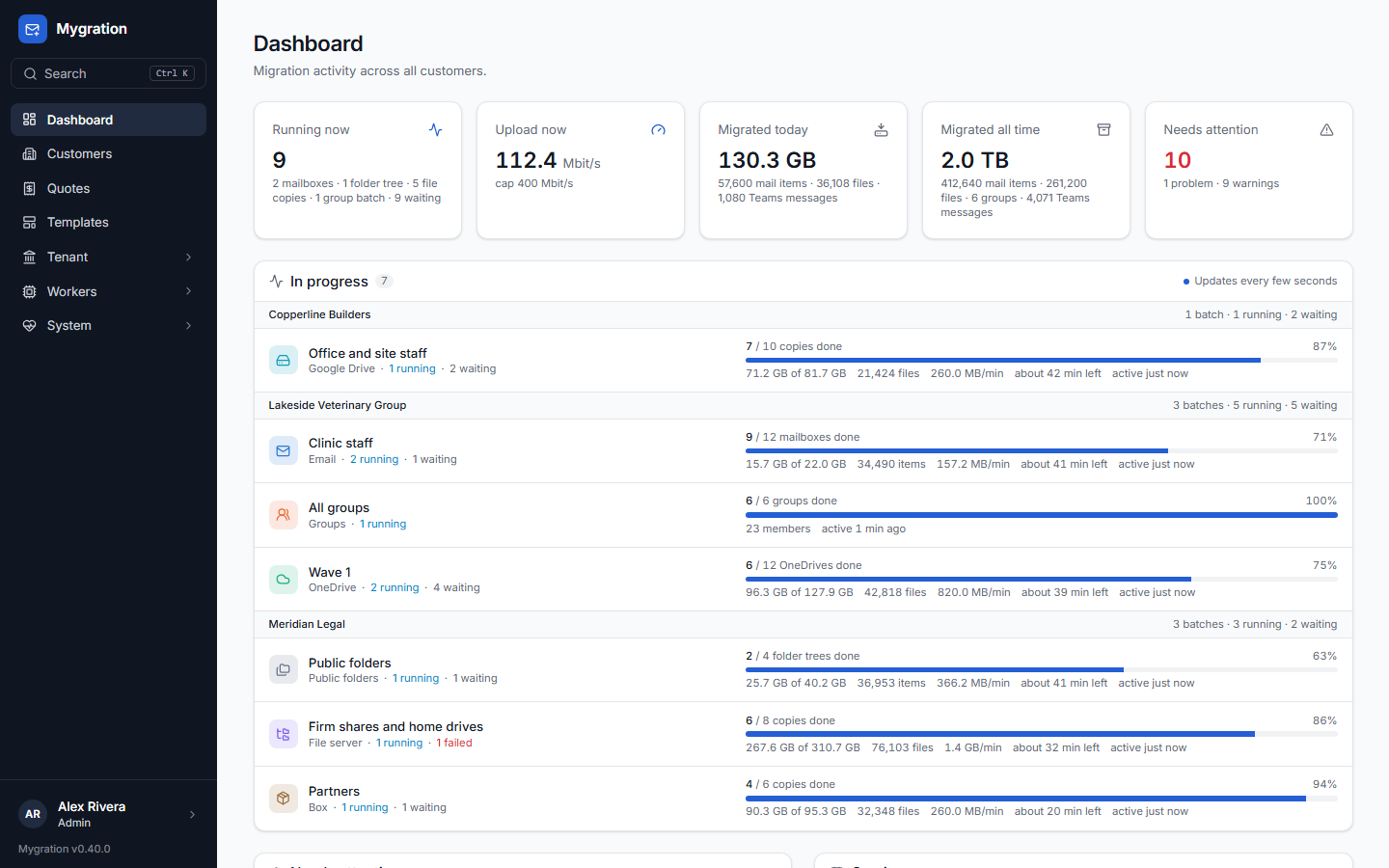
- The tiles across the top: Running now, Upload now, Migrated today, Migrated all time and Needs attention. Click one to go to the detail.
- In progress: each customer's running work, every kind of migration together, with its speed and time left.
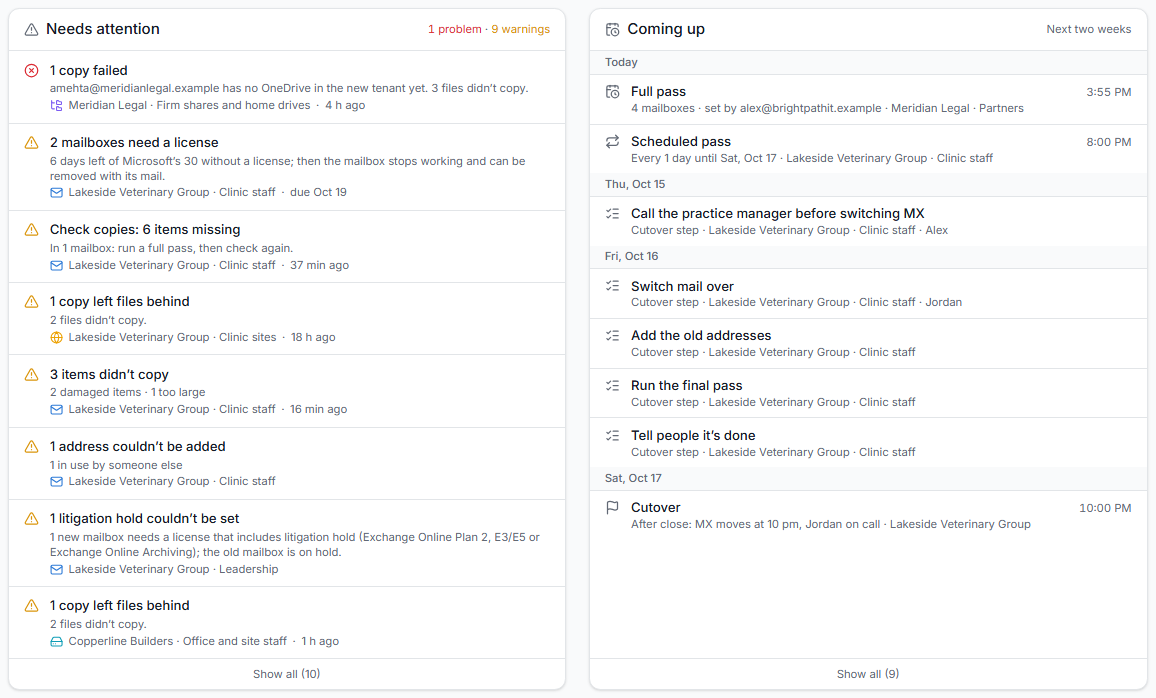
- Needs attention and Coming up, side by side (below).
- Data migrated per day: the last two weeks, by kind of migration.
- Recently finished: passes and runs that just ended.
- System health: one line while everything is fine ("All good"). When something isn't, it lists the workers, backups, migration app, app secrets, license and email alerts, each with a Fix link for admins.
- Recent activity (admins): the latest entries from the audit log.
On a new install, Get set up at the top lists the first steps, each linked to where it's done. It ticks itself off as you go, and disappears when everything's done. Hide this hides it in your browser.
Needs attention #
Everything that needs a technician, across every customer, most urgent first. Problems (red) come before warnings (amber). Each line says what's wrong, for which customer and batch, and links to it. For example:
- mailboxes, copies, groups or channels that failed, or left items behind;
- mailboxes that need a license before Microsoft's 30 days run out;
- Check copies finding items missing;
- addresses that couldn't be added;
- work that's stuck, workers that are offline, and connection problems.
The dashboard shows the most urgent ones; Show all shows the rest. Each customer's page has its own Needs attention with all of its own.
Coming up #
What's due in the next two weeks, by day: scheduled and repeating passes and runs, cutover checklist steps (with who's on them), license deadlines and customers' cutovers.
The Customers list #
Customers lists every customer you can see, with its status, its current batch and progress, its cutover date, problems and what's next.
- The views across the top: All, Migrating now, Needs attention, Cutover soon, Scheduled and Idle, each with a count.
- The search box finds a customer by name, tenant, server or batch.
- Sort by Most active first, Name, Cutover soonest, Most data migrated or Most mailboxes.
To open Mygration on the Customers list instead of the Dashboard, go to My settings and set Open Mygration on to Customers.
Quick search #
Press Ctrl K (⌘K on a Mac), or / when you aren't typing in a box, or click Search in the sidebar. Type at least two letters of a customer, migration, batch, mailbox, group, team or OneDrive, by name or address. The results are grouped by kind. ↑ and ↓ move through them, Enter opens one, and Esc closes the search.
A customer's page #
Everything for one customer is on its page: its connections, its migrations and their batches, what needs attention, what's left before cutover and what's coming up, its Mail DNS and its recent activity. See Adding a customer.