Help · Workers
Running a worker at a customer's site
Make a worker key for a site, sign the machine in, start the worker with docker run, and choose whether it takes one customer's on-site work or all of it.
Last updated
A worker can run on another machine, such as one at a customer's site next to their Exchange server, so the source is read over their own network. It connects out to your panel over HTTPS with its own key; nothing connects in to it. Only admins make worker keys.
This article is for a worker run with Docker, for an Exchange or IMAP server only reachable at the customer's site, or for more capacity. For a Windows file server, use the Windows worker instead: see Connecting a Windows file server.
Before you start #
- A Linux machine or VM with Docker, at the site or wherever the worker should run.
- It can reach your panel over HTTPS, at the panel's address, and Microsoft 365. It also needs to reach the source: the Exchange server, say.
- The panel's version. The worker must run the same version as the panel. The command Mygration gives you has it.
Choose who it works for #
When you make the key, pick who the worker runs work for:
| Choice | What it takes |
|---|---|
| For every customer | Work for any customer without its own workers, alongside the workers on your server. More capacity. |
| Only a customer | That customer's work that has to run on site: its file servers. Its mail, OneDrive, SharePoint, Teams and groups still run on your server's workers. |
| Only a customer, with All its work ticked | All that customer's work, and nothing else. Use it for a worker beside something only reachable there, like an Exchange server. |
Important
With All its work, that customer's work waits for its own workers. While they're offline, nothing of theirs runs, and the customer's page says so.
Make the key #
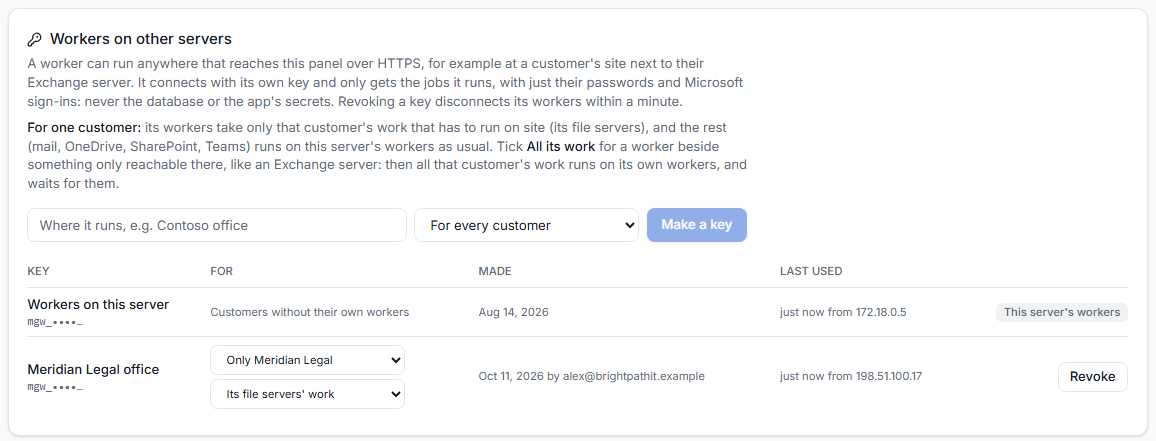
- Go to Workers → Overview, down to Workers on other servers.
- Name it after where it runs, such as
Meridian Legal office. - Pick For every customer or Only the customer, and tick All its work if you need it.
- Click Make a key.
Mygration shows the key, a docker login command with a pull token, and the docker run command. Copy them now:
the key and the pull token aren't shown again. Copy command, Copy key and Copy pull token copy each. Keep
the key in your password manager: you'll need it to update the worker.
Start the worker #
On the other machine:
Sign in to download the worker. Run the
docker logincommand shown, and paste the pull token when it asks for the password:docker login registry.mygration.cloud -u workerThe pull token can only download Mygration's images. It stops working when your license ends or is revoked.
Run the
docker runcommand shown. It looks like this, with your panel's address, the key and the panel's version:docker run -d --name mygration-worker --restart unless-stopped \ -e Worker__PanelUrl=https://migrate.brightpathit.example \ -e Worker__Key=mgw_… \ registry.mygration.cloud/mygration-worker:<panel version>
Once it starts, the worker appears on Workers → Overview, with Connects Over HTTPS · and the key's name. A customer's own worker also shows as On-site worker on its customer's page.
If the panel uses its own certificate #
If your panel uses the server's own certificate (the internal HTTPS choice) or one from your own certificate
authority, the worker must trust it. On the Mygration server, copy the root certificate out (for internal):
sudo docker compose -f /opt/mygration/docker-compose.yml cp proxy:/data/caddy/pki/authorities/local/root.crt panel-ca.crtCopy panel-ca.crt next to the worker, and add these to the docker run command, before the image name:
-v ./panel-ca.crt:/panel-ca.crt:ro -e Worker__PanelCertificate=/panel-ca.crt \With a Let's Encrypt certificate (auto), there's nothing to do.
Change who it works for #
In the keys list on Workers on other servers, the For column has the key's choice. Change it there: Every customer or Only a customer, then Its file servers' work or All its work. The worker keeps its key: there's nothing to change on its machine.
Keep it on the panel's version #
After you update Mygration, update the worker too. Workers → Overview shows a worker on another version with its
version in amber. On the worker's machine, remove the old container and run the docker run command again with the new
version number and the same key:
docker rm -f mygration-worker
docker run -d --name mygration-worker --restart unless-stopped \
  -e Worker__PanelUrl=https://migrate.brightpathit.example \
  -e Worker__Key=mgw_… \
  registry.mygration.cloud/mygration-worker:<new version>
Jobs it was running go back in the queue and carry on. If you didn't keep the key, make a new one and revoke the old one: see Revoking and removing a worker.
If it doesn't connect #
On the worker's machine, docker logs mygration-worker says why. Usually it's one of these:
Worker__PanelUrlis wrong: it must be the panel'shttps://address, as staff use it.- The panel's certificate isn't trusted: see above.
- The key was revoked, or mistyped.
- Its version isn't the panel's.
The upload cap under Workers → Performance doesn't apply to workers on other servers: they use their own connection.