Help · Email migrations
Shared, room and equipment mailboxes
How Mygration recognizes shared, room and equipment mailboxes, and how to make one shared, or a user mailbox again, at any point of a move.
Last updated
Shared, room and equipment mailboxes need no license (a shared mailbox holds up to 50 GB without one) and nobody signs in to them. Mygration creates them as that kind in the new tenant, gives them no password, and sends them no emails to users.
Each mailbox's type is set before its account is created. In the batch's list, the Destination column shows a Shared, Room or Equipment badge beside them.
How they're recognized #
From a Microsoft 365 source, they're recognized when you add mailboxes, if the migration app has its Exchange role in the old tenant. See Connecting a customer's Microsoft 365 tenant.
If you gave the role after adding the mailboxes, click Mailbox type → Check mailbox types again in the batch's mailbox list. It asks the old tenant again, for every mailbox not created yet.
- It only fills in types. Ones you set by hand are kept, and nothing is turned back into a user mailbox.
- Mailboxes whose account exists already, or that are being copied right now, are listed, not changed. Use Make shared mailbox for those.
- Exchange can take from a few minutes to a few hours to notice a new role. If it still finds none, try again later.
From Exchange Server, Google Workspace or IMAP, mark them yourself:
- In the batch's CSV, fill the MailboxType column:
Shared,RoomorEquipment. Upload it with Add mailboxes → Upload CSV; mailboxes already in the batch are updated. - Or open the mailbox's page, click Details, and set Create as.
Make shared mailbox #
Use it at any point of a move: before the account exists, or after, even while it's being copied.
- In the batch's mailbox list, tick the mailboxes.
- Click Mailbox type → Make shared mailbox.
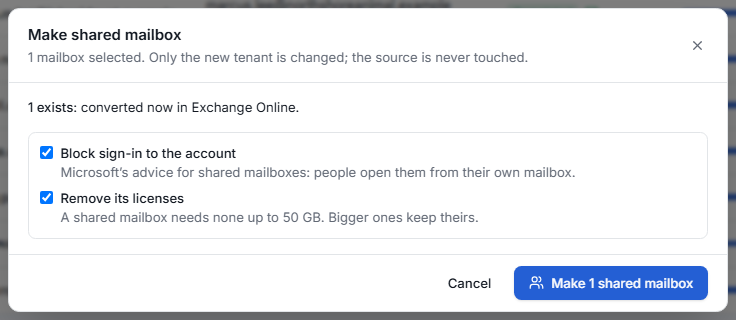
- The window says what happens to each:
- Not created yet: created as a shared mailbox later.
- Exists: converted now in Exchange Online. It's the same mailbox, so copying carries on.
- For ones that exist, choose Block sign-in to the account and Remove its licenses. Both are ticked, as Microsoft advises; a shared mailbox over 50 GB keeps its licenses.
- Click Make … shared mailbox.
Emails to that person that hadn't gone out yet are cancelled, and no more are sent. Only the new tenant changes.
Make user mailbox #
To undo it, tick the mailboxes and choose Mailbox type → Make user mailbox. It's a person's mailbox again:
- Sign-in is allowed again.
- It needs a license: click Assign license when it's done. See The license manager.
- It needs a password the person knows: reset it in the Microsoft 365 admin center.
Note
If the new tenant syncs accounts from Active Directory (Entra Connect), sign-in and licenses may be managed there. The window asks you to tick that you're changing them here anyway, and the change goes in the audit log.
Public folders #
A public folder batch always copies into shared mailboxes. See Public folders into shared mailboxes.