Help · Customers and connections
Running an assessment
Read a customer's Microsoft 365 tenant before the move, see what's there and how long it takes, and print the report for the customer.
Last updated
An assessment reads a customer's Microsoft 365 tenant before a move and makes a report: every mailbox (and archive), OneDrive, SharePoint site, group and team with their sizes, the licenses, about how long the first copy takes, and what to know before you start. It only reads. Print it, or save it as a PDF, for the customer.
For a Windows file server, the scan does the same job: see Connecting a Windows file server.
Before you start #
- The customer's tenant is connected, and its consent is through. See Connecting a customer's Microsoft 365 tenant.
- For mailbox sizes, shared mailboxes and litigation holds, the migration app needs its Exchange role in that tenant.
- To compare licenses with the new tenant, connect that one too.
Run it #
- Open the customer and click the Assessments tab, under Migrations.
- Under Tenant to assess (where everything is now), pick the tenant.
- Optionally, under New tenant (optional: its licenses and room), pick the tenant it's moving to.
- Click Run assessment.

It takes a minute or a few for a few hundred people. The report opens and fills in when it's done; it's safe to leave the page. Assessments stay on the customer's Assessments tab.
Read the report #
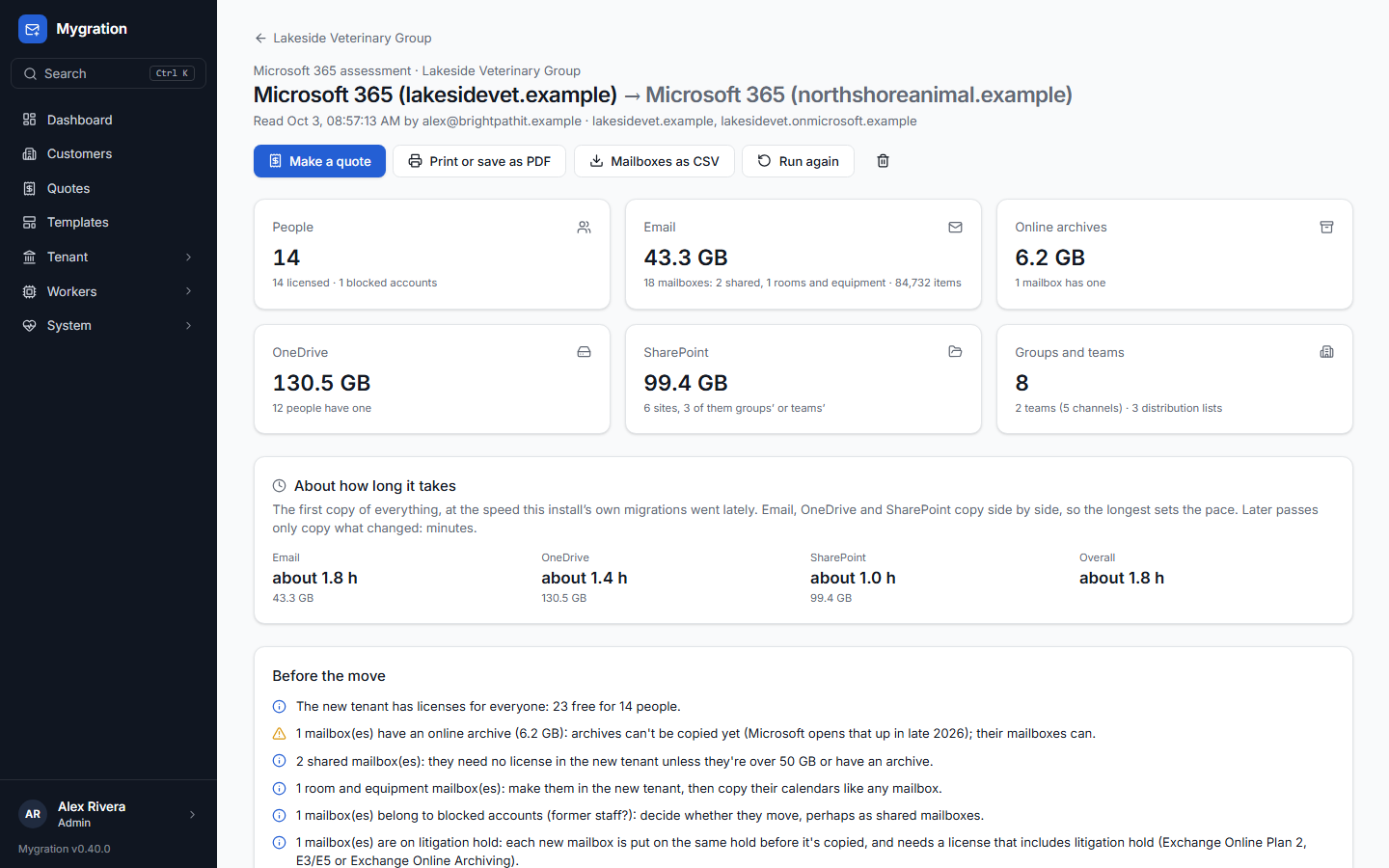
- The tiles: People (licensed, and blocked accounts), Email, Online archives, OneDrive, SharePoint, and Groups and teams.
- About how long it takes: the first copy of email, OneDrive and SharePoint. They copy side by side, so the longest sets the pace. It uses the speed of your own recent migrations, or a typical speed for one server until you have some. Later passes only copy what changed.
- Before the move: what to know first, such as online archives, shared mailboxes, rooms and equipment, blocked accounts and mailboxes on litigation hold.
- Licenses with a mailbox: what the tenant has now, and how many are free in the new tenant, if you picked one.
- The lists: every mailbox, OneDrive, site, and group or team, with sizes. On screen each shows the first 50, with Show all; the printout has them all.
Share it with the customer #
- Print or save as PDF: prints the report. Choose "Save as PDF" as the printer for a file. With Tenant → White label set, it carries your logo and details.
- Mailboxes as CSV: every mailbox with its size, items, archive and hold.
- Make a quote: a priced proposal from what the assessment found, at your prices.
Run again reads the tenant afresh into a new report; the old one stays. The bin icon deletes a report.
If it doesn't finish #
The report says The assessment didn't finish, with the reason. Fix it (often the consent, or the Exchange role) and click Run it again. See Troubleshooting: connections.