Help · Customers and connections
Connecting an IMAP server
Add an IMAP server as a source, with its host, port and security, and sign in with an admin (master) account or each mailbox's own password.
Last updated
Any IMAP server can be a source: cPanel, Dovecot, Zimbra, hosted Exchange, GoDaddy and the like. IMAP moves email only; calendars and contacts don't come across this way.
Before you start #
- The server's host name, and whether it uses SSL/TLS (usually port 993) or STARTTLS (usually 143).
- Mygration can reach that port from your server. Check the customer's or host's firewall.
- One of two ways to sign in to the mailboxes:
- An admin or master account that can open every mailbox. No user passwords needed. Dovecot calls it a master user; hosted Exchange gives an admin Full Access.
- Each mailbox's own password, when the server has no admin access. You'll need everyone's password.
Add the connection #
- Open the customer and click Connections (or Add connections).
- Click Add a source, then IMAP server.
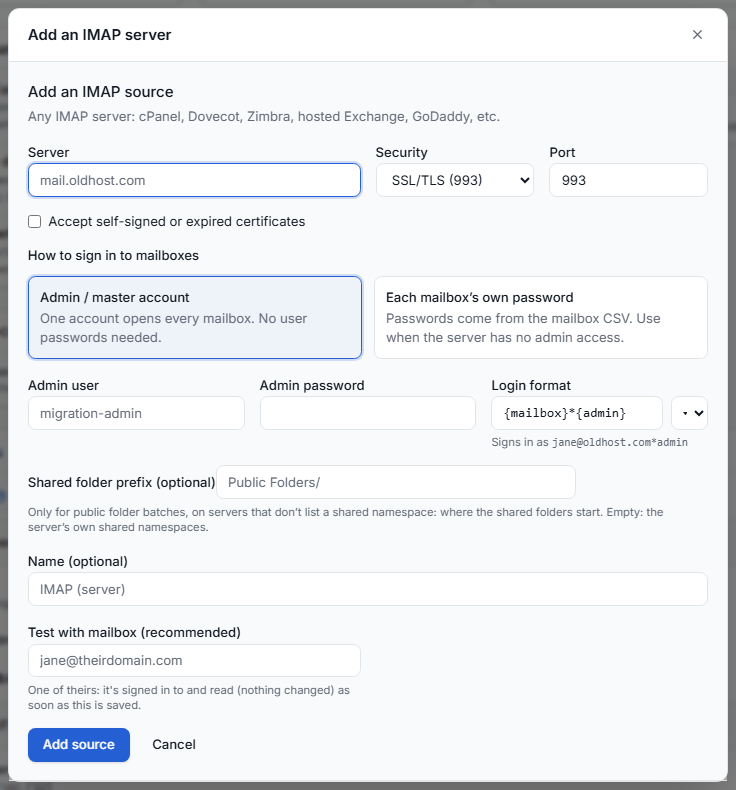
- Fill in the server:
- Server: the IMAP host, such as
mail.oldhost.example. - Security: SSL/TLS (993) or STARTTLS (143). Port follows it; change it if the server uses another.
- Tick Accept self-signed or expired certificates if the server's certificate isn't trusted.
- Server: the IMAP host, such as
- Under How to sign in to mailboxes, choose:
- Admin / master account, then fill in Admin user, Admin password and the Login format (below), or
- Each mailbox's own password.
- Shared folder prefix (optional) is only for moving shared (public) folders, on servers that don't list a shared namespace. Leave it empty otherwise.
- Name (optional).
- Under Test with mailbox (recommended), enter one of the mailboxes. With per-mailbox passwords, also enter Its password: it's only used for the test, not kept.
- Click Add source.
The connection is saved and tested straight away with that mailbox: it signs in and reads it, changing nothing. Each step shows a tick, or a cross with the reason and a hint. Click Continue.
The login format #
With an admin account, the Login format says how the admin signs in as each mailbox. {mailbox} is the mailbox's
address and {admin} the admin user. Under the box, Signs in as shows an example. The menu beside it has the usual
ones:
| Server | Login format |
|---|---|
| Dovecot master user | {mailbox}*{admin} |
| Exchange or hosted Exchange (Full Access) | {admin}\{mailbox} |
| Zimbra, or SASL-style | {mailbox} |
If you're not sure, ask the host how an admin opens someone else's mailbox over IMAP.
Per-mailbox passwords #
With Each mailbox's own password, the passwords come with the mailboxes when you add them to a batch. In Add mailboxes → Paste a list, put each mailbox's password after its address, separated by a comma:
ava.thompson@oldhost.example,Password1
noah.patel@oldhost.example,Password2
With Enter each destination address, the password comes last:
ava.thompson@oldhost.example,ava.thompson@lakesidevet.example,Password1The list shows (password set) beside each mailbox that has one.
Test it again later #
Click Test on the connection, enter a mailbox (and its password, with per-mailbox passwords), and click Run test. Use the pencil to change the connection; leave Admin password empty to keep the saved one.
If the test fails #
- It can't connect: check the server name and port, the security setting, and that the port is open to your server.
- A certificate error: tick Accept self-signed or expired certificates.
- The sign-in is refused: check the admin user and password, and the login format. Many hosts need IMAP or master access switched on for the account first.