Help · Cutover and reporting
Mail DNS on the customer page
Read the Mail DNS card's MX, SPF, DMARC and Autodiscover for each of the customer's domains, and what to change at cutover.
Last updated
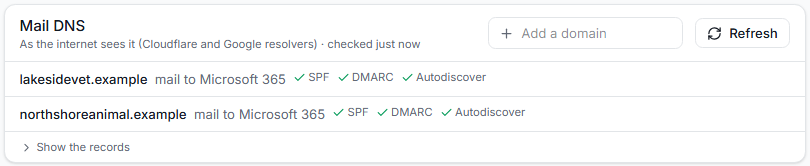
The Mail DNS card on each customer's page shows, for every domain of theirs, where mail is delivered today and whether SPF, DMARC and Autodiscover are right for Microsoft 365. It reads public DNS, as the internet sees it, so it's how you confirm a change has taken effect.
The screenshots show the demo's Lakeside Veterinary Group.
Find it #
Open the customer and scroll down to Mail DNS. Its domains come from the customer's mailbox addresses and its connected Microsoft 365 tenants.
- When every domain is right, each shows on one line: where its mail goes, with a tick for each record that's right. Click Show the records for the full table.
- When something needs a look, the table shows straight away.
Click a domain in the table to see its records as they are, with what each means and Why it's listed.
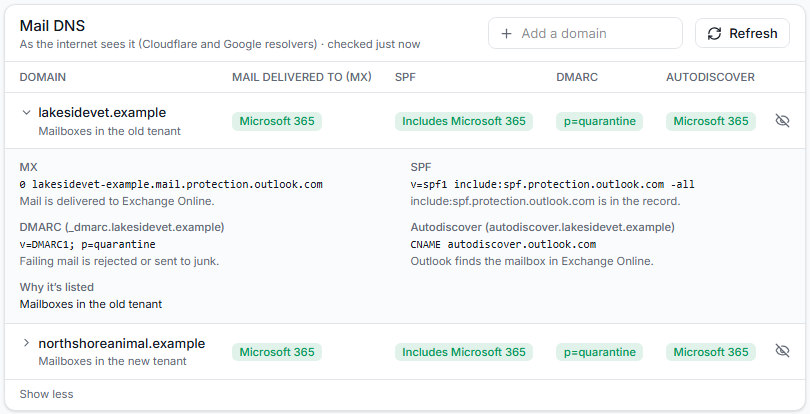
Reading each column #
Mail delivered to (MX)
- Microsoft 365: mail is delivered to Exchange Online.
- Another name (a mail host, or the customer's own server): mail goes somewhere other than Microsoft 365.
- No MX: the domain can't receive mail.
SPF
- Includes Microsoft 365:
include:spf.protection.outlook.comis in the record. - No Microsoft 365: add
include:spf.protection.outlook.combefore mail is sent from Microsoft 365, or it may land in junk. - Missing: no SPF record at all.
- 2 records (or more): more than one SPF record makes SPF fail everywhere. Merge them into one.
DMARC
- p=reject or p=quarantine: failing mail is rejected or sent to junk.
- p=none: monitor only; failing mail is still delivered.
- Missing: no record at
_dmarc.the domain. Gmail and Yahoo expect one from bulk senders.
Autodiscover
- Microsoft 365: a CNAME to
autodiscover.outlook.com, so Outlook finds the mailbox in Exchange Online. - Another name: Outlook is pointed somewhere else, such as the old Exchange server.
- No CNAME: there may be an A or SRV record instead.
What to change at cutover #
Each mail batch's Cutover tab has a Switch mail over step, with what to change for that batch's domains:
- People get a new address (on a new domain): no DNS has to change. Forward the old addresses if you like.
- People keep their address, coming from another Microsoft 365 tenant: the domain moves between tenants. Remove it from every user, group and alias in the old tenant, remove the domain there, then add and verify it in the new tenant. Mail stays on Microsoft 365, so MX doesn't change.
- People keep their address, coming from anywhere else (Exchange Server, Google Workspace, an IMAP host): make sure
the domain is verified in the new tenant, then:
- point MX at Microsoft 365 (the record the tenant shows under Domains in the Microsoft 365 admin center),
- point Autodiscover at
autodiscover.outlook.com, and - add
include:spf.protection.outlook.comto SPF.
Important
In a same-domain move between Microsoft 365 tenants, run the mail batch's final pass before you remove the domain from the old tenant. See Same-domain moves.
Check the change #
DNS changes can take up to an hour to show everywhere. After the change, click Refresh on the card (or Check again on the batch's Cutover tab) until MX shows Microsoft 365. The customer's Cutover tab also has a Mail for … line per domain.
Add or hide a domain #
- To check a domain that isn't listed, type it in Add a domain and press Enter. The × next to it removes it.
- To hide a domain that was found automatically, click the hide icon at the end of its row in the table. Show under the card lists hidden domains, with Show again.