Help · Groups, Teams and Planner
Cutover for groups and Teams
The groups and Teams batches' cutover checklists, the last Update now, checking members and channels, and retiring the old groups and teams.
Last updated
Groups and teams are made in the new tenant well before the cutover, and kept in step every hour. On the day, what's left is a last update, a check, and retiring the old ones. Each groups or Teams batch has a Cutover tab with those steps as a checklist.
The Cutover tab #
Open the batch and click Cutover. Nothing in the list runs by itself.
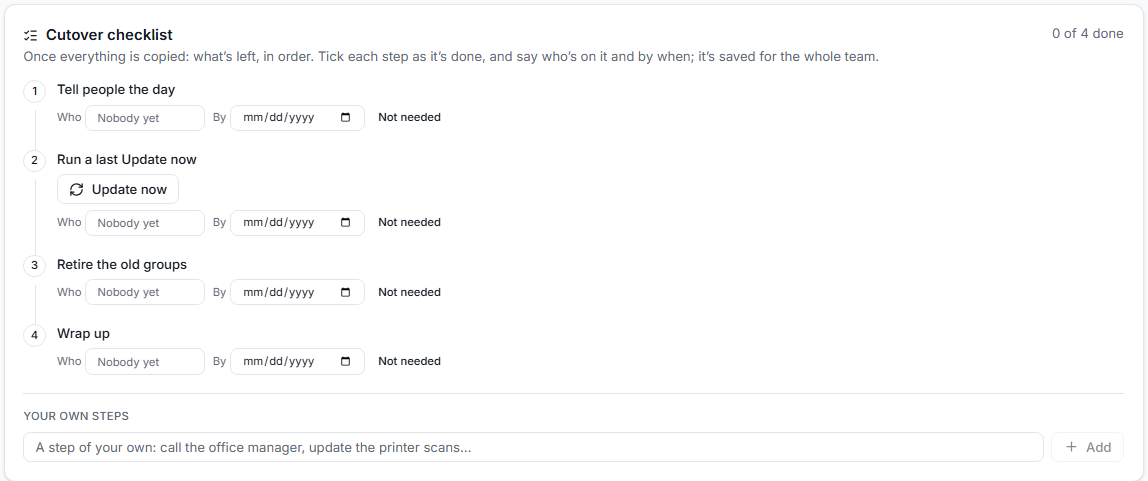
For each step, click its number to tick it when it's done, or click Not needed. Type Who is on it and the date it's due By. Add steps of your own under Your own steps. The checklist is saved for the whole team, and the customer's Cutover tab shows what's open across its batches (see Planning cutover day).
Groups #
- Tell people the day: which address to use for each group from then on.
- Run a last Update now: click Update now on the step. It brings members and owners across as they are now.
- Retire the old groups: hide them from the address list, or remove them, once mail flows to the new ones.
- Wrap up: send the customer the batch's report, and turn off its schedule if it has one.
Before you retire the old groups, check the batch:
- Members waiting is zero, or only people you know aren't moving yet. Members are added once their accounts exist; run the mail batch first.
- In a same-domain move, the domain is in the new tenant and the groups have moved onto it. Click Add waiting addresses on the batch to add their old aliases now rather than at the next update.
Teams #
- Tell people the day: when to stop posting in the old teams, and to sign in to Teams with the new account.
- Run a last Update now: it copies only files and conversations new since the last run.
- Check members, owners and channels: private and shared channels' members especially. Add tabs and apps again by hand.
- Archive the old teams: make them read-only in the old tenant, so nobody posts there by mistake.
- Wrap up.
People's Teams app still signs in to the old account after the switch. The mail batch's computer script clears Teams' cache so it signs in afresh (see Migrating mailboxes from Microsoft 365 to Microsoft 365).
Reports #
Each groups and Teams batch has a Report: each group or team with its new address, members in, and what wasn't copied and why. See Reports for the customer.