Help · Email migrations
Migrating from Google Workspace
Move Gmail, calendars and contacts into Microsoft 365: how labels become folders, why meetings arrive without attendees, and what stays behind.
Last updated
This guide moves people's Gmail, Google calendars and contacts into Microsoft 365 mailboxes. No user passwords are needed: Mygration reads every mailbox through the Google Workspace connection the customer's Google admin authorized once, read-only.
The steps are the same as for a tenant-to-tenant move, so this page covers what's different. For the whole path, see Migrating mailboxes from Microsoft 365 to Microsoft 365.
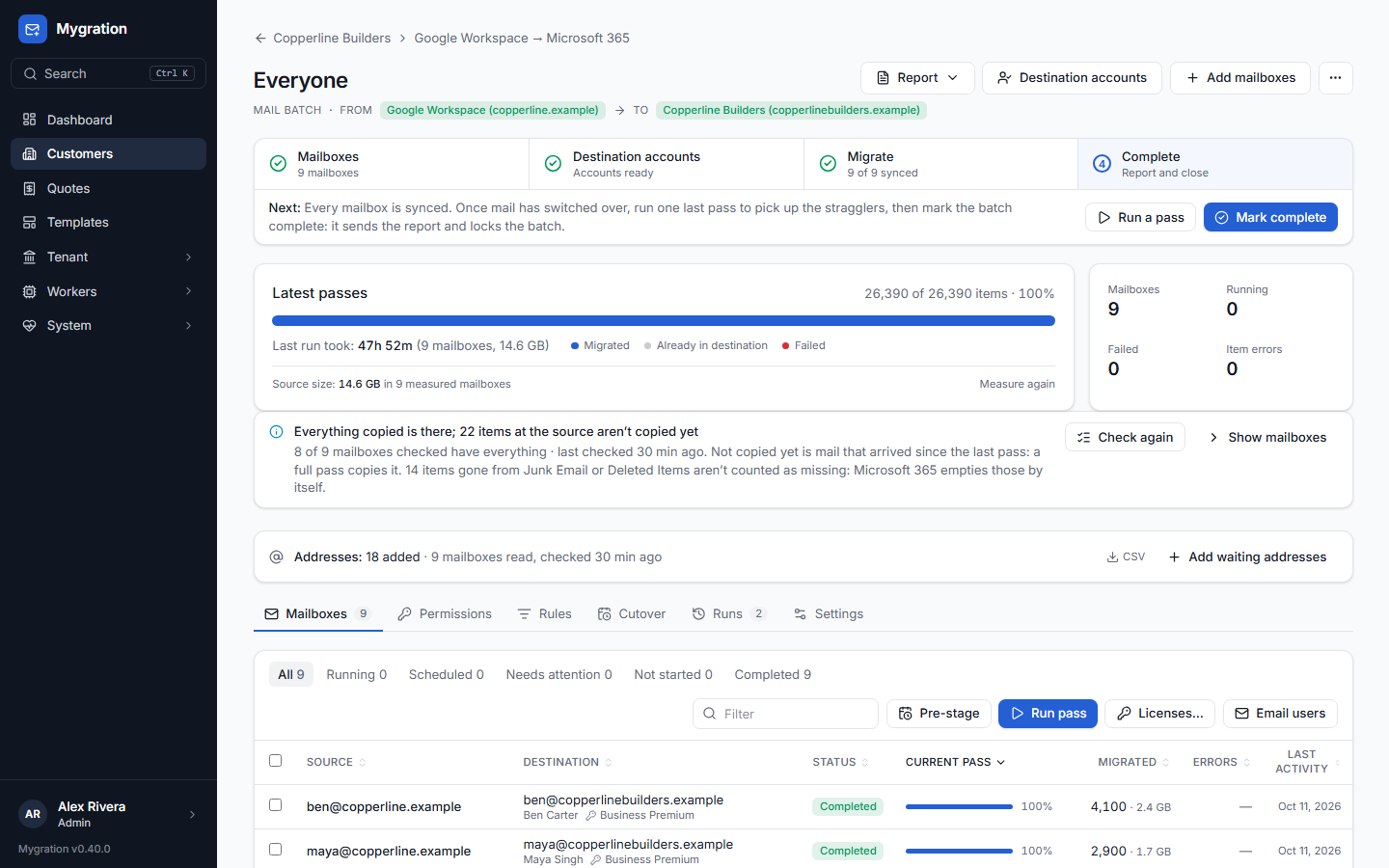
The screenshot shows the demo's Copperline Builders, moving from Google Workspace into Microsoft 365.
Before you start #
- The Google Workspace connection is added and tested (how) on the customer's Connections. Its setup walks the Google admin through a Google Cloud project with the Gmail, Google Calendar and People APIs turned on, a service account key, and domain-wide delegation with the scopes the form lists. Without the calendar and contacts scopes, only mail comes across.
- An admin's address on the Google connection, so aliases and groups can be read.
- The customer's Microsoft 365 tenant is connected as the destination. See Connecting a customer's Microsoft 365 tenant.
Note
Writing calendars and contacts into Microsoft 365 needs the migration app's calendar and contacts permissions in the tenant. If the tenant connection's Check names a permission it hasn't granted, click Re-consent on it and have a Global Administrator accept.
Create the migration and add people #
- Open the customer and click New migration.
- Pick the Google Workspace connection as the source and the Microsoft 365 tenant as the destination. Click Next.
- Tick Email, keep Mailbox permissions and Inbox rules and automatic replies ticked, and click Next: the first batch.
- Choose what to copy (see Batch filters), then add who moves.
Google mailboxes aren't listed for picking. Paste a list of Gmail addresses, one per line, and Map to a
destination domain, or use Enter each destination address with old,new on each line. Names are read from each
person's Google profile by themselves; use the CSV template for job titles, phones and usage locations.
Mark shared, room and equipment mailboxes in the CSV's MailboxType column, or on the mailbox's page with Details → Create as. See Shared, room and equipment mailboxes.
Then Destination accounts, passes and the Cutover tab, as for any mail batch. Pre-staging older mail while people keep working in Gmail keeps the final pass short: see Pre-staging big mailboxes.
How Gmail lands in Outlook #
Labels become folders.
- Nested labels nest.
- An email with several labels is copied into each label's folder.
- Inbox, Sent and Drafts go into their Outlook folders. Archived mail with no label goes to Archive.
- Starred mail is flagged. Read and unread come across.
- Spam, Trash, Chats and Gmail's automatic categories (Promotions, Social and so on) are skipped.
Calendars. Calendars the person owns: the primary one into their Outlook calendar, others as calendars of their own. Recurring series (with moved and cancelled occurrences), all-day events, time zones, locations, reminders, and private and free/busy settings come across.
Note
Meetings arrive without attendees. Microsoft 365 would email every attendee an invitation if they were added. The organizer, attendees, their responses and the Google Meet link are written into each event's notes instead.
Contacts. "My Contacts", with names, emails, phones, addresses, company and title, birthdays, notes and websites. Contact labels become categories.
Settings. Gmail filters become inbox rules, and the vacation responder becomes the automatic reply. Gmail delegates become Full Access and Send on Behalf, and calendar sharing comes across. See Mailbox permissions and inbox rules. Aliases come across as described in Old addresses.
What isn't copied #
- Spam, Trash and Gmail's categories as folders.
- Attendees as real meeting attendees, declined invitations, and calendars people subscribe to (colleagues', holidays).
- "Other contacts" (addresses Gmail saved by itself) and contact photos.
- Signatures.
- Google Chat. Drive files move in a Google Drive migration of their own.
- Google Vault holds. Check them by hand, and put the new mailboxes on litigation hold in Microsoft 365 where needed.
- What a Gmail filter does that an Outlook rule can't (stars, categories, search operators): the Rules tab lists those.
- Items over 150 MB.